

Plerdy SEO Analyzer is built for fast page-level decisions. Open a live URL, run the instant on-page SEO audit, review each tab in order, and turn the output into a short fix list you can actually ship. This guide stays close to the real extension workflow, including the AI SEO report, without pretending the tool is a crawler, rank tracker, or auto-fix machine.
What Plerdy SEO Analyzer Does
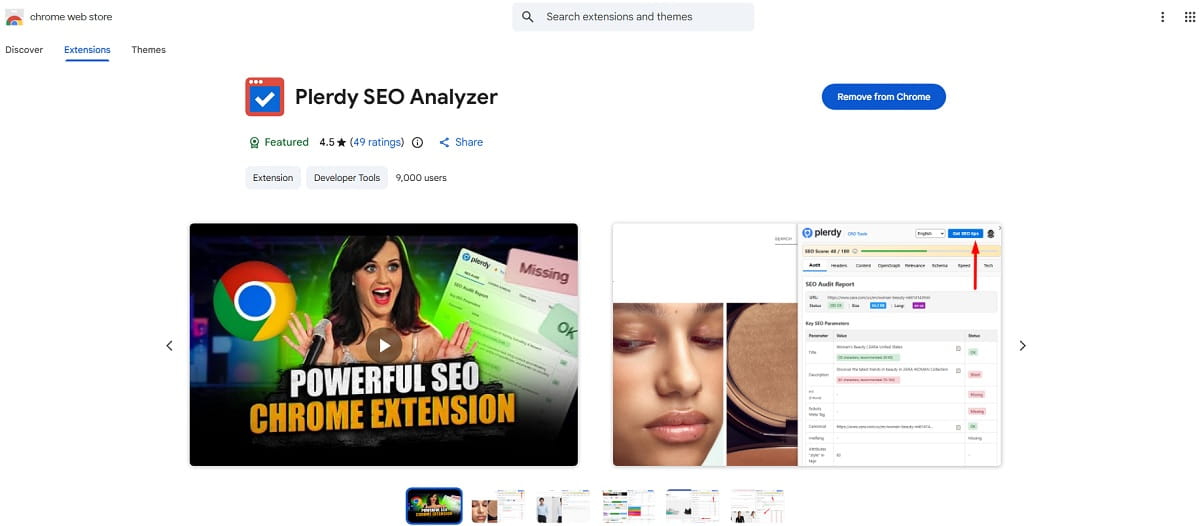
Plerdy SEO Analyzer is an SEO Analyzer Chrome extension for page-level checks. You open a live page, click the Plerdy Chrome extension, and review the page’s metadata, heading structure, content analysis, Open Graph data, keyword relevance, schema markup, page performance, and detected technologies.
That matters because most SEO work on real pages is not mysterious. It is usually a sequence of small decisions. Is the title tag too long? Is the H1 missing? Is the canonical tag wrong? Are there too many images without ALT text? Is LCP weak because one oversized image drags the page down? A good SEO checker Chrome extension helps you answer those questions without opening five other tools.
This is the practical angle of how to use Plerdy SEO Analyzer. You are not auditing an entire site here. You are checking one page at a time, deciding what deserves attention first, then moving to the next tab.
How To Install And Open Plerdy SEO Analyzer
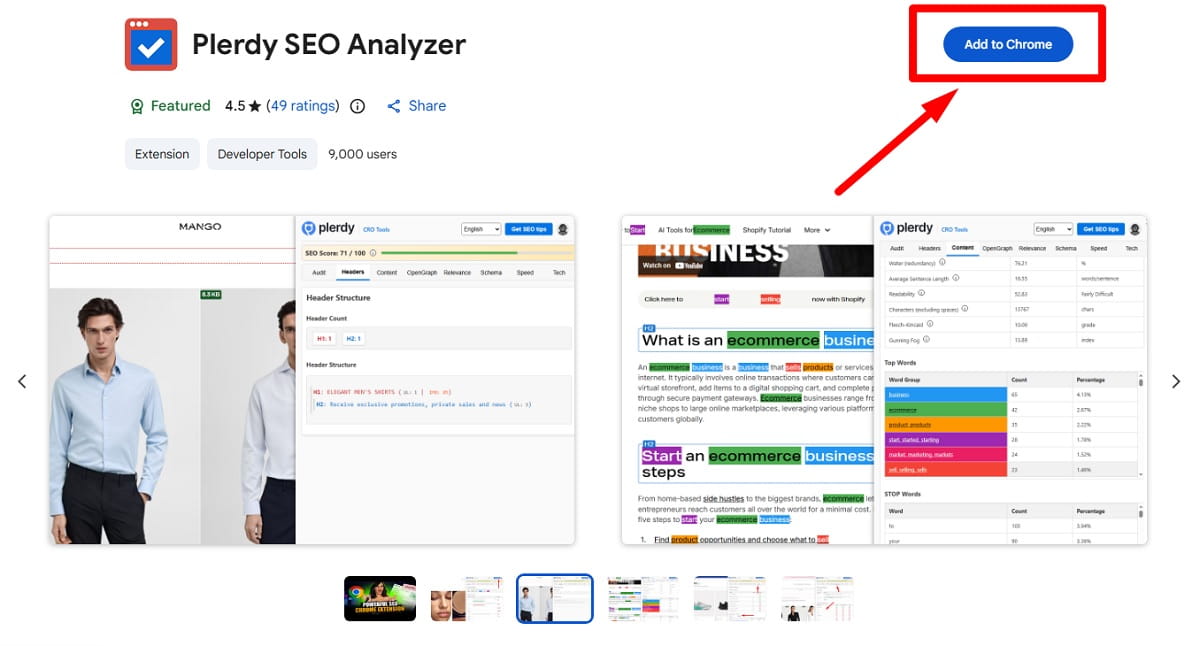
Start simple.
- Install the SEO extension for Chrome from the Chrome Web Store.
- Pin the extension so it is easy to open while reviewing pages.
- Go to the exact live URL you want to inspect.
- Click the Plerdy SEO Analyzer icon in the browser toolbar.
- Let the popup load the instant SEO audit.
If the extension asks you to allow access for page status or size details, approve that step. It helps the Audit tab show fuller page basics instead of making you guess.
From here, keep the workflow sequential. Open the page. Check the Audit tab first. Fix the obvious blockers. Then move to the next tab instead of jumping around.
How To Use The Audit Tab
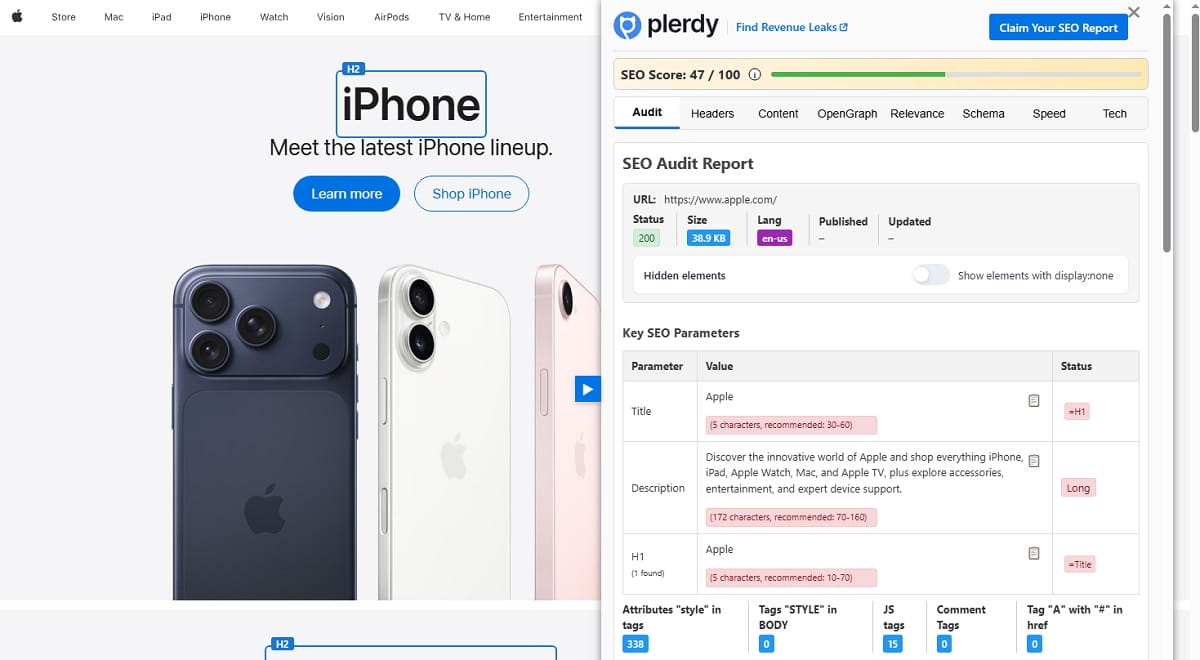
The Audit tab in Plerdy SEO Chrome extension is the fastest way to understand whether a page has obvious on-page SEO issues. It shows the broad picture first, which is exactly what you want.
Start With The Page Basics
Open the Audit tab and check the URL, HTTP status, page size, page language, published date, and updated date. If the page does not return the right status, or if the language is wrong, stop there. Fix that before touching copy details.
You will also see the SEO Score. Treat it as a triage signal, not a trophy. A moderate score with one serious canonical or robots problem is more urgent than a lower score caused by smaller content issues.
Review Metadata And Indexing Signals
Next, review the title tag, meta description, H1 status, title versus H1 duplication, canonical tag, robots meta, X-Robots-Tag, and robots.txt references.
- If the title tag is too long, shorten it before rewriting the whole page.
- If the meta description is missing, write one that matches the page’s real topic.
- If H1 is missing, fix that before touching minor schema details.
- If the title and H1 say nearly the same thing, separate them a bit so the page does not feel mechanically repetitive.
- If canonical points somewhere unexpected, pause and verify the intent before publishing more content changes.
- If robots meta or X-Robots-Tag blocks indexing, that is a high-priority fix.
This part of the on-page SEO audit tells you whether the page is even sending the right search signals. Without that, deeper optimization is just decoration.
Use The Hidden Elements Toggle Carefully
The hidden elements toggle is useful when you suspect a page contains SEO-relevant content that users do not actually see. Turn it on, review what appears, then ask a blunt question: should this content exist at all, or is it only inflating the page?
Sometimes hidden content is harmless. Sometimes it explains why a page feels bloated or oddly repetitive. That difference matters.
Check Image Analysis Before Complaining About Speed
The image analysis block shows image ALT text coverage, images without ALT text, mixed content or HTTP images, and image sizes with pixel dimensions and MB values.
- If many images have no image ALT text, add descriptive ALT where it helps the page and the user.
- If HTTP images appear on an HTTPS page, fix those mixed content references.
- If one or two images are huge in pixels or file size, optimize those first.
This is where a website SEO checker extension becomes useful in a very practical way. You do not need abstract advice. You need to see which images are oversized and which ones lack basic SEO support.
Review Outgoing Links Like An Editor, Not A Collector
The Audit tab also shows outgoing links, dofollow links, nofollow links, duplicate links, and the split between internal and external outgoing links.
Look for patterns.
- Too many duplicate links usually means clutter, not strength.
- Important internal links should be intentional, not accidental repetition.
- External links should make sense in context and not overwhelm the page.
- Nofollow and dofollow links should reflect your editorial intent, not random leftovers from templates.
Use The Backlink Check For Quick Verification
The manual backlink check lets you enter a domain and optionally include subdomains. This is a narrow but useful feature. Use it when you want to verify whether the current page links to your target domain, partner pages, or specific subdomain sections.
It is not a full backlink platform. Think of it as a focused page-level check that helps you confirm link presence quickly.
Once the Audit tab looks clean enough, move to the next tab.
How To Use The Headers Tab
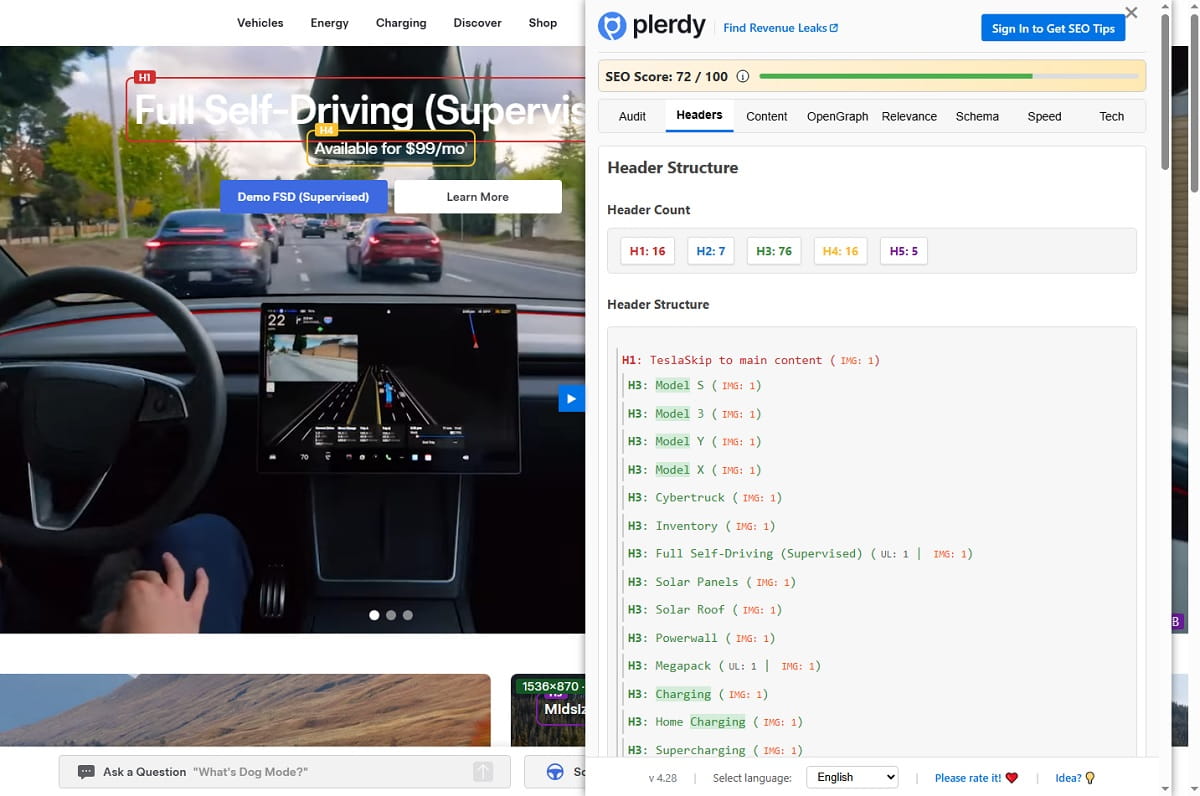
The Headers tab shows heading count and the full H1-H6 structure. That sounds basic, but this is often where content pages quietly break.
Open the Headers tab and review the hierarchy from top to bottom.
- There should usually be one clear H1.
- H2s should divide the page into logical sections.
- H3s should support H2s, not replace them randomly.
- Do not jump from H1 to H4 unless the layout truly demands it.
Plerdy SEO Analyzer also visually decorates headings on the page itself, which is surprisingly helpful. Instead of reading raw code or hunting through the DOM, you can inspect the page structure in context and catch weird nesting fast.
Take action based on structure, not purity. If the page has one missing H3, that is not a crisis. If it has three H1s and no logical section flow, that is. Fix hierarchy problems that affect scannability, context, and keyword clarity before polishing lower-level details.
How To Use The Content Tab
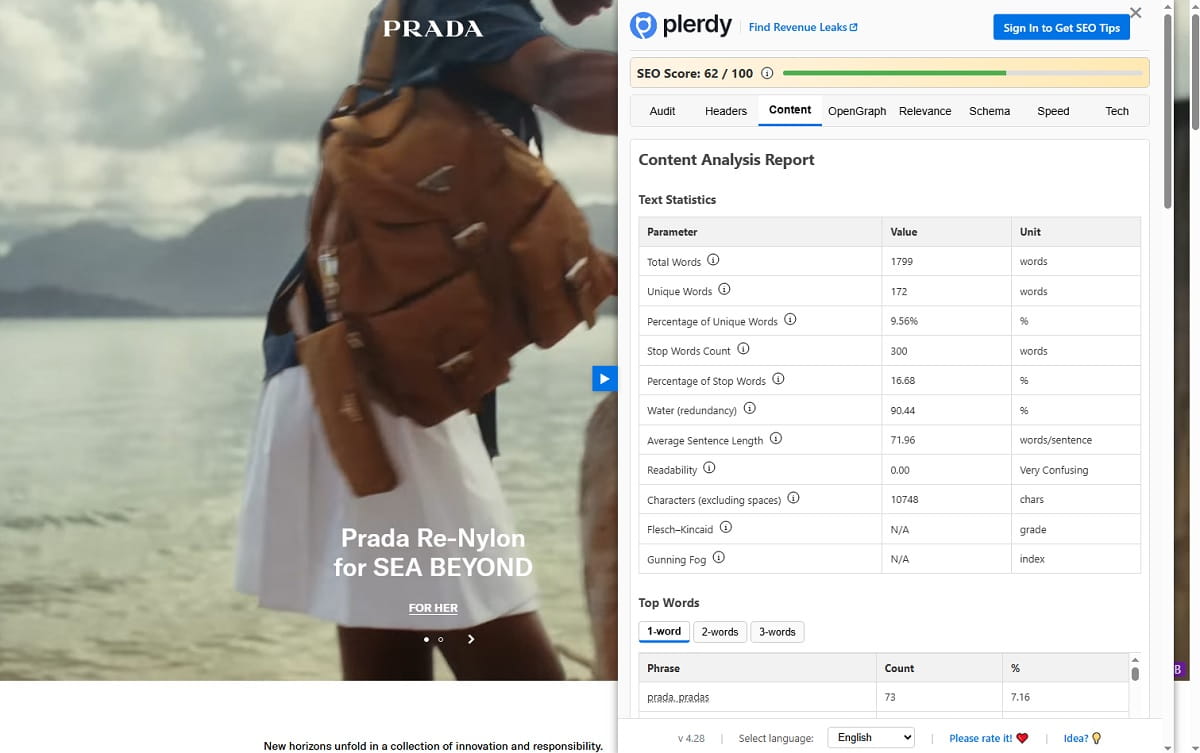
The Content tab is where the SEO audit Chrome extension shifts from markup review to actual content analysis. This is usually the tab that tells you whether a page is merely present or genuinely readable.
Read The Text Statistics First
Start with total words, unique words, stop words count, percentage of stop words, water or redundancy, average sentence length, readability, characters excluding spaces, Flesch–Kincaid, and Gunning Fog.
Do not treat these as school grades. Treat them as pressure signals.
- If total words are thin for the topic, the page may lack coverage.
- If water is high, the page may be padded.
- If average sentence length is too heavy and readability drops, simplify before adding more keywords.
- If Flesch–Kincaid and Gunning Fog suggest the text is harder than it needs to be, shorten sentences and clean transitions.
This is one of those quiet moments where a good SEO checker Chrome extension saves time. You stop debating the text in abstract terms and start seeing what is actually dense, repetitive, or hard to read.
Use Top Words And Stop Words To Spot Real Patterns
Next, review top words, stop words, and keyword grouping. Plerdy SEO Analyzer helps you see repeated terms and dominant phrasing on the page.
That matters for two reasons. First, it shows whether the page’s real keyword focus matches the page intent. Second, it reveals when a page keeps circling the same term instead of expanding the topic naturally.
If one keyword appears everywhere but the page still feels vague, you probably need supporting subtopics, not more repetition. If the top words are off-topic, the page may be drifting away from the query it is supposed to rank for.
Review The Quality Signals, Not Just The Counts
The Content tab also surfaces Trust Signals, Answer Engine Optimization, Topic Cluster Signals, and Passage-Friendly Structure.
- Trust Signals help you judge whether the page looks credible and complete.
- AEO indicators push you to answer clear questions directly instead of hiding useful information in long paragraphs.
- Topic Cluster Signals help you see whether the page belongs to a larger content theme or stands alone too weakly.
- Passage-Friendly Structure reminds you that tightly written sections often work better than sprawling blocks.
If the page is hard to scan, split long paragraphs. If the page never answers the obvious question early, add a direct answer. If the content sounds broad but thin, tighten the topic before adding more volume.
How To Use The OpenGraph, Relevance, And Schema Tabs
These three tabs are worth reviewing together because they answer a simple question from different angles: does the page clearly explain itself to search engines, social previews, and users?
OpenGraph Tab
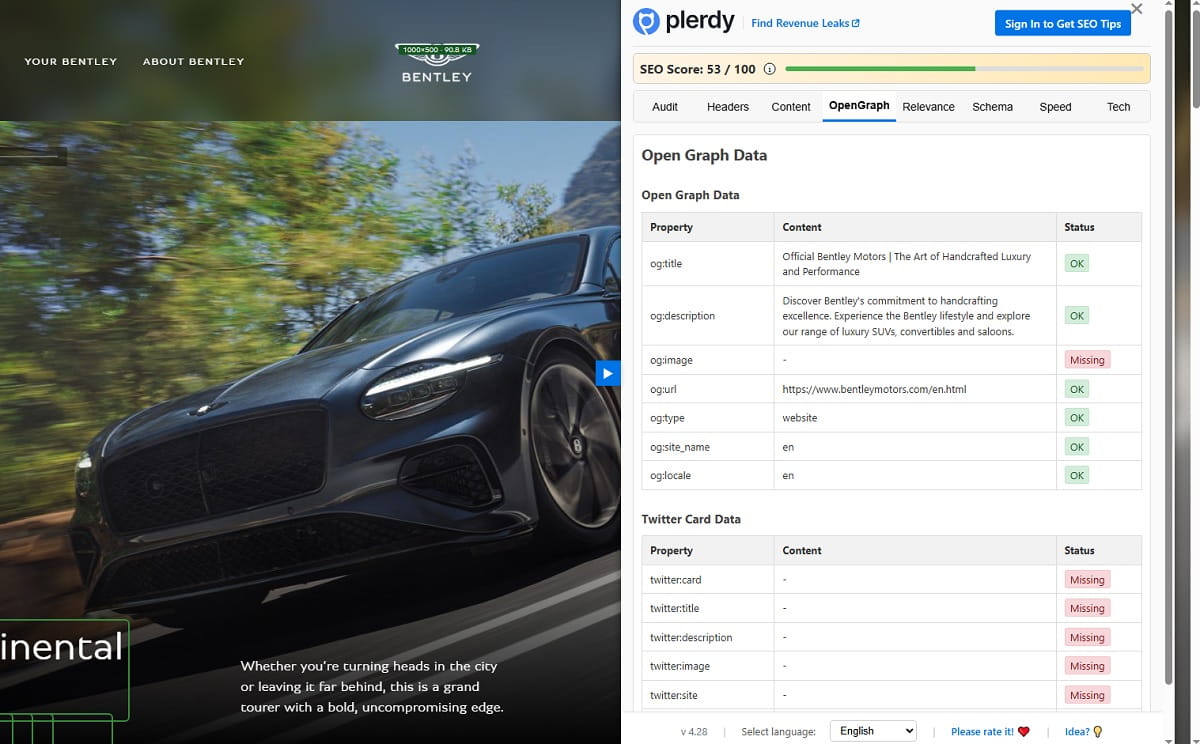
The OpenGraph tab in Plerdy SEO Chrome extension shows Open Graph fields and Twitter Card fields. Open it and check whether the title, description, image, and card data are present and sensible.
If preview metadata is missing, the page may look weak when shared. If the Open Graph title is vague or stale, update it. If the image is missing or clearly wrong, fix that before the page is distributed more widely.
This is not only a social issue. Weak share previews often expose weak metadata habits in general.
Relevance Tab
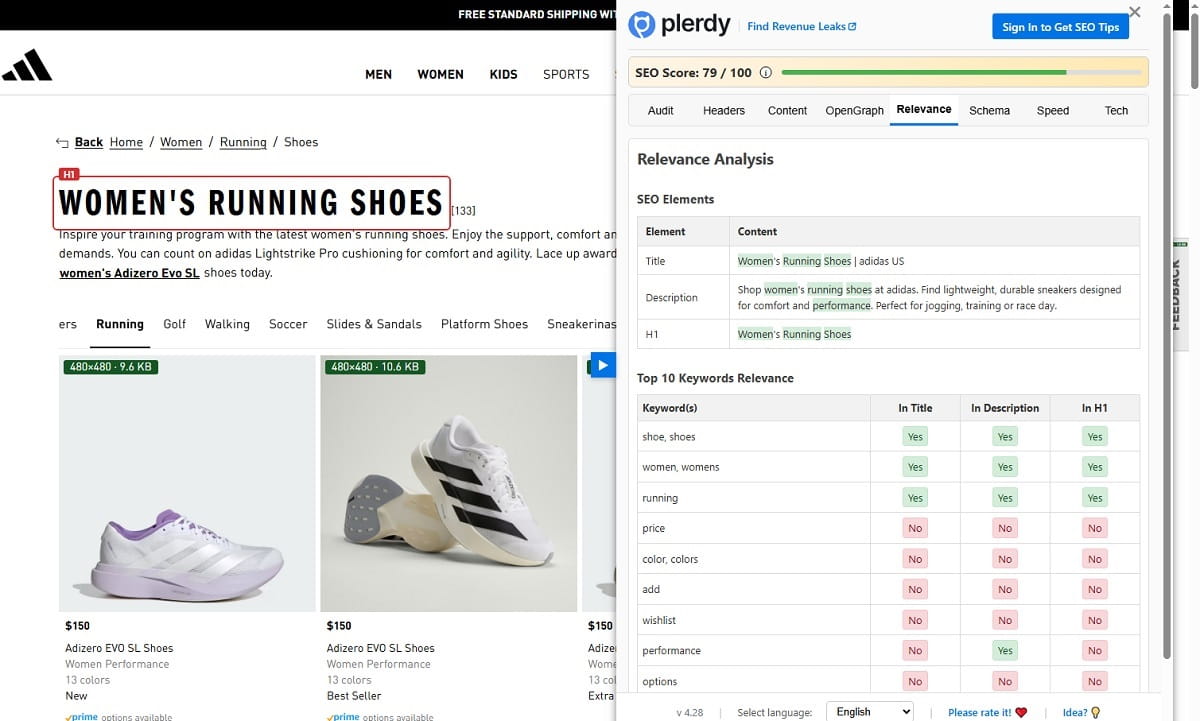
The Relevance tab shows top keyword relevance and whether the main terms appear in the title tag, meta description, and H1.
This is useful because many pages think they target one keyword but actually lean on another. Open the tab and compare the page’s dominant terms with the metadata you wrote.
- If the keyword presence is strong in body copy but absent in title, fix the title.
- If the H1 uses broad language while the page clearly focuses on a narrower term, rewrite the H1.
- If the meta description ignores the page’s real keyword focus, align it.
This is where the extension helps you keep the metadata honest. Not clever. Honest.
Schema Tab
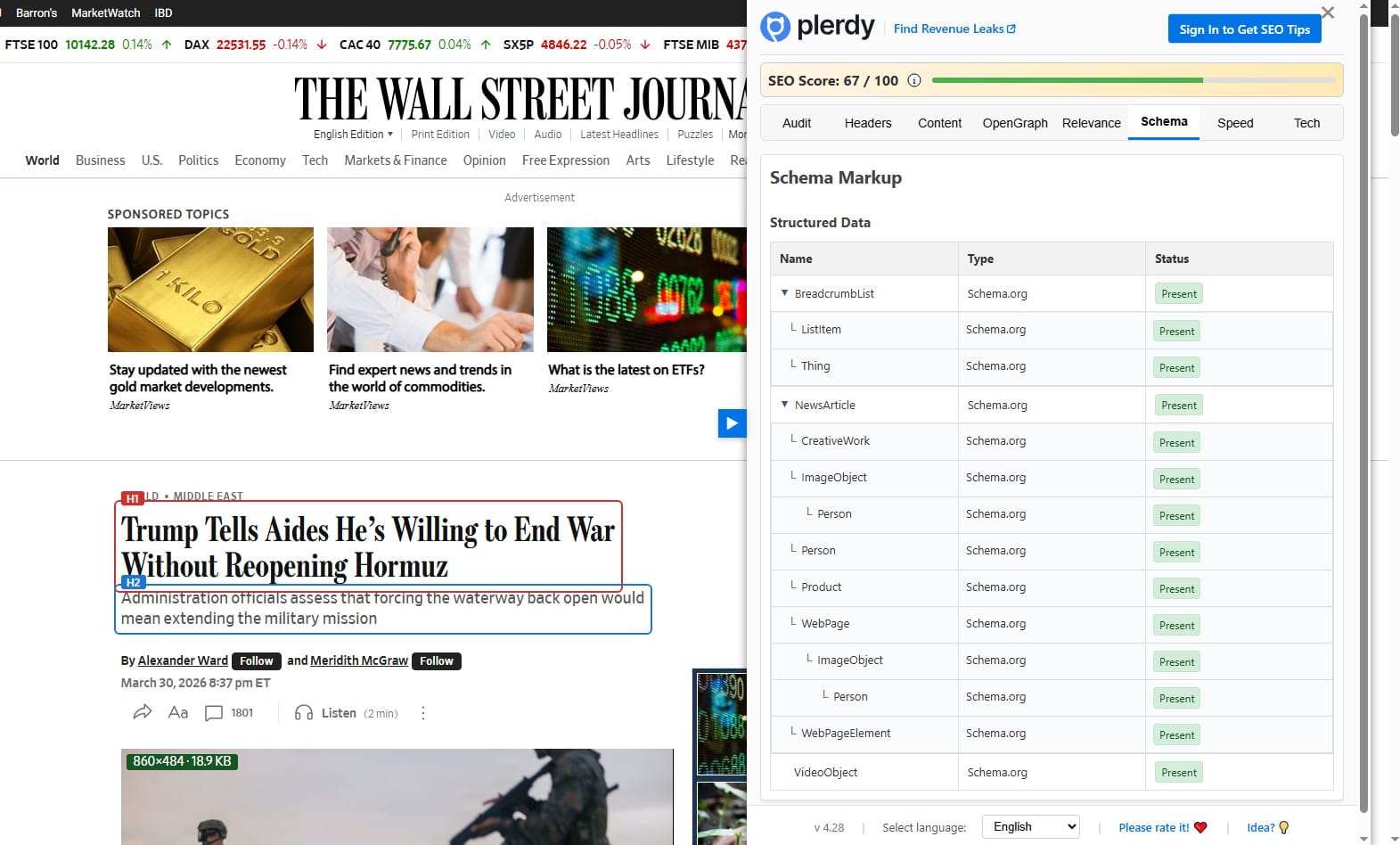
The Schema tab shows structured data presence, visible root types, nested schema pairs, and microformats. Use it to confirm whether the page gives search engines a clean structural hint about what the page is.
You are not trying to collect schema for sport. You are checking whether the markup supports search understanding. If the root types are missing or clearly irrelevant, that is a cleaner fix than endlessly tweaking minor copy on the page. If the schema exists but looks thin compared with the page type, document that for the next update.
How To Use The Speed And Tech Tabs
This is the part people often either overreact to or ignore. Neither helps.
Speed Tab
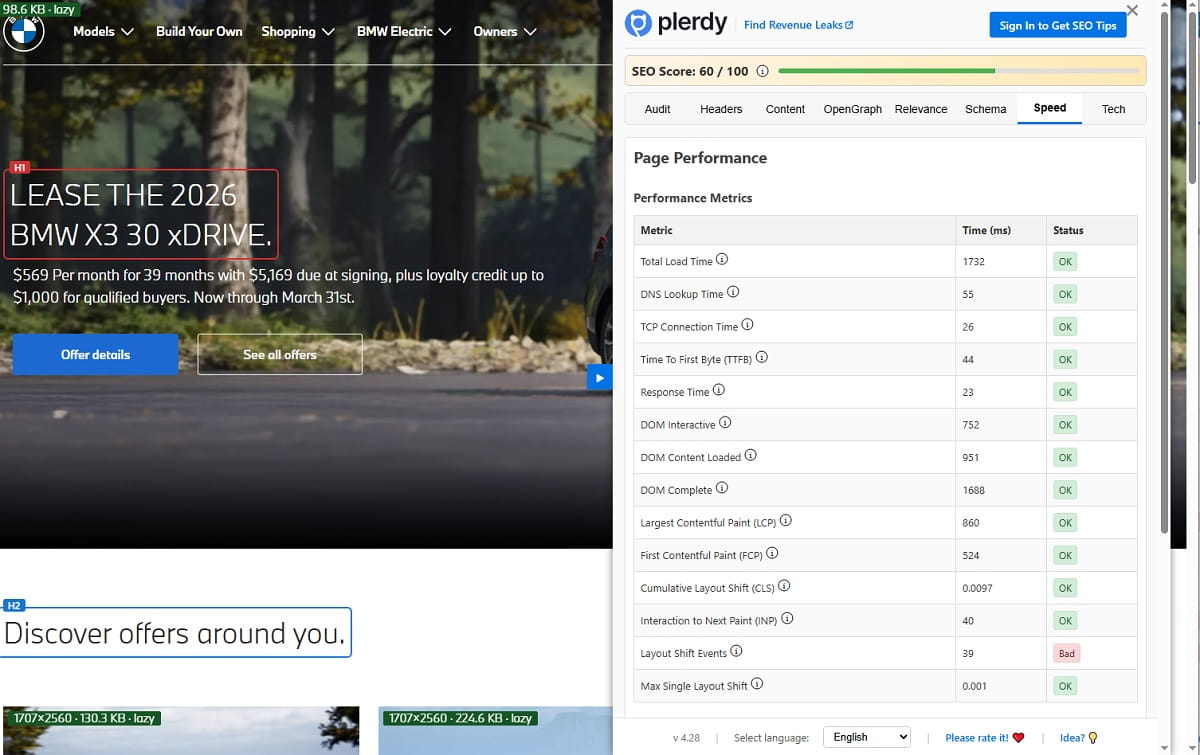
The Speed tab in Plerdy SEO Chrome extension shows Total Load Time, DNS Lookup Time, TCP Connection Time, Time To First Byte, Response Time, DOM Interactive, DOM Content Loaded, DOM Complete, First Contentful Paint, Largest Contentful Paint, Cumulative Layout Shift, Interaction To Next Paint, layout shift events, max layout shift, and slow resources split by IMG, CSS, and JS.
Read these in plain English.
- Total Load Time tells you how long the page takes overall.
- TTFB tells you how quickly the server starts responding.
- FCP shows when users first see something.
- LCP shows when the main visible content becomes ready.
- CLS shows whether the page jumps around while loading.
- INP shows how responsive the page feels after interaction.
If LCP is poor, inspect the slowest assets before changing copy. If CLS is high, review layout shifts and unstable elements. If slow resources are concentrated in IMG files, image optimization may do more than another round of headline rewriting. If JS dominates, the issue is probably not a content problem at all.
This is real page speed analysis, but still at page level. Use it to find the likely cause, not to pretend one extension replaces full performance debugging.
Tech Tab
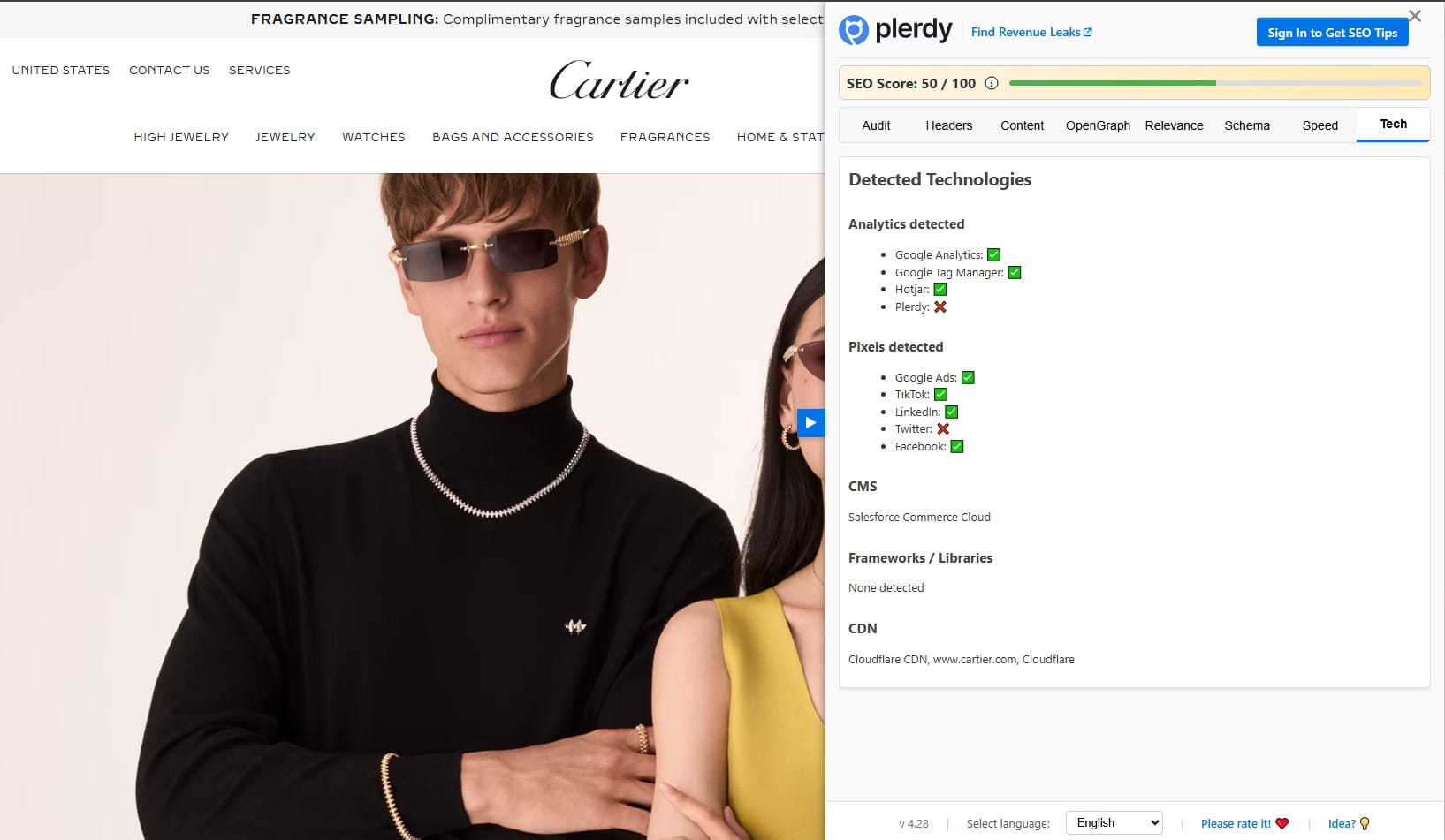
The Tech tab shows detected technologies such as analytics, pixels, CMS detection, frameworks or libraries, CDN, and WordPress plugins when they are visible.
This is context, not the main story. You use it to understand the environment around the page.
- If the page runs on WordPress, template constraints may explain repeated markup patterns.
- If analytics and pixels stack heavily, that may influence performance or debugging priorities.
- If a framework or library is detected, coordinate fixes with the right team instead of treating everything as a content edit.
- If a CDN is present, some asset and cache behavior will sit outside the page editor.
In other words, the Tech tab helps you frame the technical SEO diagnosis without turning the article into a developer-only workflow.
How To Create And Use The AI SEO Report
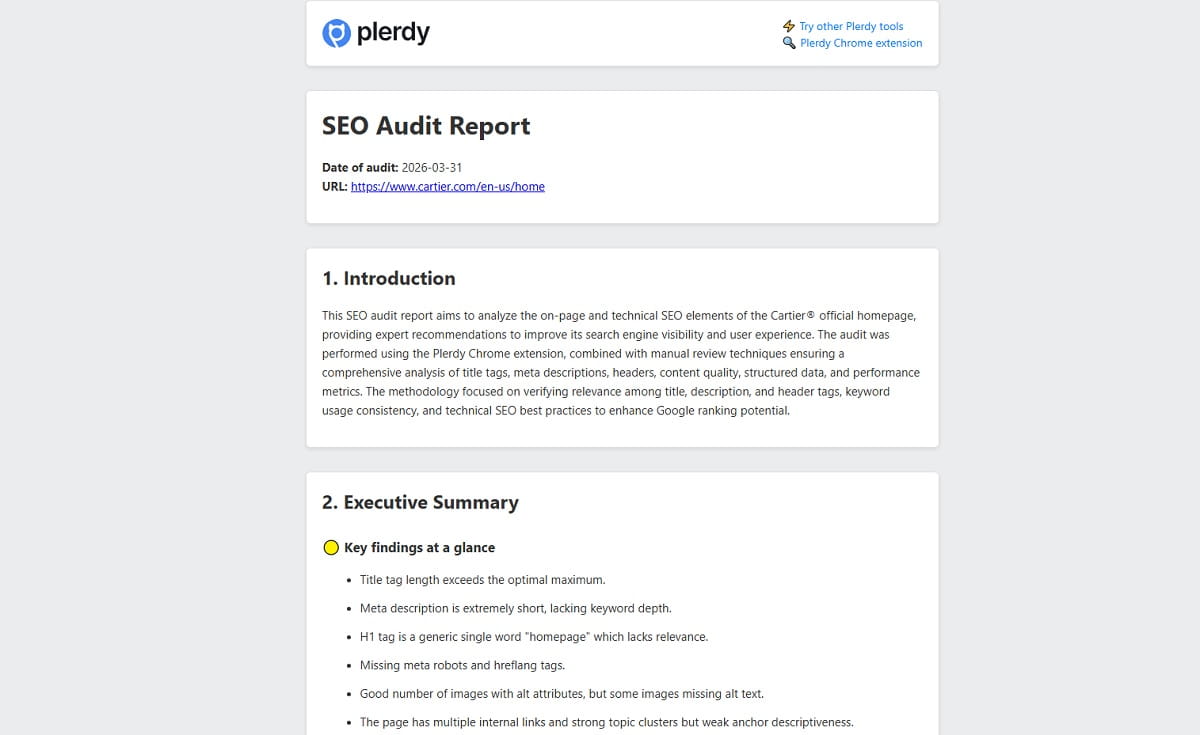
The AI SEO report is the second layer. The instant extension audit tells you what the page looks like now. The AI SEO report helps you turn that into more directed action.
- Open a live page in the extension.
- Review the built-in audit first so you already know the obvious issues.
- Sign in if you want the AI SEO report.
- Choose the report language.
- Click Create SEO Report.
- Wait for the report to finish.
- Open the generated SEO audit report.
The right way to use this is not to skip the earlier tabs. Read the instant audit first, then use the AI SEO report as a more guided layer for prioritization and wording ideas. That keeps you grounded in the page’s real condition instead of outsourcing judgment too early.
If the instant audit already shows a missing H1, weak title tag, oversized hero image, and poor keyword relevance, you do not need to wait for magic. You already have enough to act. The AI SEO report should refine, not replace, that decision process.
How To Turn Findings Into A Real SEO Fix List
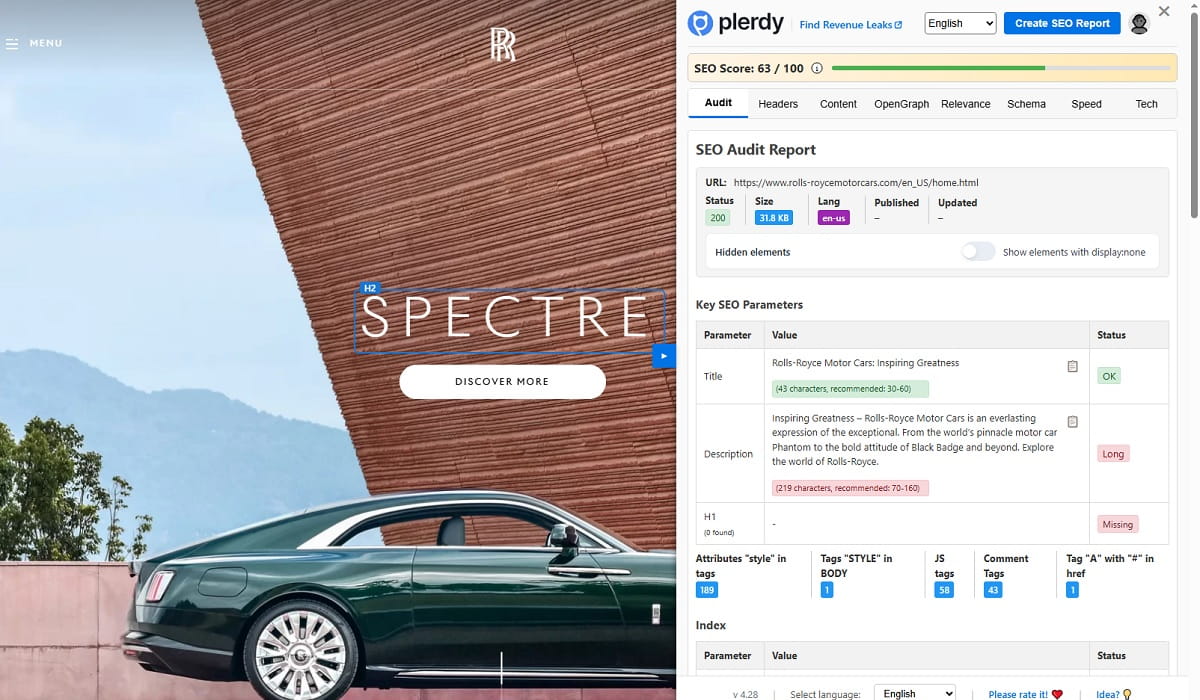
This is the most important step. A website SEO checker extension is only useful if it helps you decide what to fix first.
Priority 1: Fix Indexing And Core Signals
- Wrong HTTP status
- Broken canonical tag
- Bad robots meta or X-Robots-Tag
- Missing H1
- Title tag and meta description issues on a key page
These are blockers or near-blockers. Handle them first.
Priority 2: Fix Relevance And Content Clarity
- Misaligned keyword relevance
- Weak H1 wording
- Bloated intro paragraphs
- Poor readability
- High redundancy or water
- Missing direct answers for obvious user questions
This is where rankings and usability often improve together. Not always dramatically, but often enough.
Priority 3: Fix Images, Links, And Social Preview Data
- Images without ALT text
- Oversized images
- Duplicate links
- Weak Open Graph title or missing Twitter Card fields
- Messy internal versus external outgoing links mix
Priority 4: Fix Performance And Technical Context Issues
- Poor LCP, FCP, CLS, or INP
- Heavy IMG, CSS, or JS resources
- Framework or CMS constraints that require dev help
- Schema markup gaps that weaken search understanding
A Simple Workflow That Usually Works
- Open the Audit tab and note the top three issues.
- Check Headers and confirm the H1-H6 structure.
- Open Content and decide whether the page is thin, repetitive, or hard to read.
- Use Relevance to align the main keyword with title, meta description, and H1.
- Use Speed to confirm whether the biggest problem is content, assets, or server response.
- Open the AI SEO report for a second pass.
- Create a fix list with owners: content, SEO, design, or development.
That is the real value of Plerdy SEO Analyzer. Faster decisions. Cleaner priorities. Fewer cosmetic edits pretending to be SEO work.
FAQ
What Is Plerdy SEO Analyzer Used For?
Plerdy SEO Analyzer is used for fast page-level SEO checks inside the browser. It helps you review metadata, heading structure, content analysis, schema markup, page speed signals, outgoing links, image ALT text, and detected technologies without leaving the page.
How Do You Use Plerdy SEO Analyzer On A Live Page?
Open the page you want to analyze, click the Plerdy Chrome extension, and start with the Audit tab. Then move through Headers, Content, OpenGraph, Relevance, Schema, Speed, and Tech to review the page step by step and turn the findings into a clear SEO fix list.
Is Plerdy SEO Analyzer A Full-Site SEO Crawler?
No. Plerdy SEO Analyzer is a page-level SEO Analyzer Chrome extension, not a full-site crawler or enterprise SEO suite. It is designed for quick on-page SEO audit work on the exact page you open in the browser.
What Can You Check In The Audit Tab?
The Audit tab lets you check the URL, HTTP status, page size, page language, published and updated dates, SEO Score, title tag, meta description, H1, title versus H1 duplication, canonical tag, robots meta, X-Robots-Tag, robots.txt references, image analysis, ALT coverage, outgoing links, and link attributes.
What Does The Content Tab Show?
The Content tab shows text statistics such as total words, unique words, stop words, water or redundancy, average sentence length, readability, characters without spaces, Flesch–Kincaid, Gunning Fog, top words, keyword grouping, Trust Signals, Answer Engine Optimization, Topic Cluster Signals, and Passage-Friendly Structure.
What Does The Relevance Tab Help You Do?
The Relevance tab helps you compare the page’s top keyword focus with the title tag, meta description, and H1. It is useful when the page targets one topic in the body content but the metadata does not match that focus clearly enough.
Can You Create An AI SEO Report In Plerdy SEO Analyzer?
Yes. After opening a live page in the extension, you can sign in, choose the report language, click Create SEO Report, and then open the generated AI SEO report. This works as a second layer after the instant page audit inside the extension.
Does Plerdy SEO Analyzer Fix SEO Problems Automatically?
No. Plerdy SEO Analyzer does not fix issues automatically. It helps you identify what to review first, understand page-level SEO problems faster, and build a practical fix list for content, SEO, or development work.
Conclusion
If you want to know how to use Plerdy SEO Analyzer well, the answer is not complicated: open a live page, start with the Audit tab, review each tab in order, then turn the output into a short fix list. Use the instant checks for speed. Use the AI SEO report for a second layer. Keep it page-level, practical, and honest, and the extension becomes genuinely useful.