

Plerdy UX & Usability Testing is a browser extension available via the Chrome Web Store that helps you review a page fast, before you sink hours into a redesign, a launch, or a messy CRO debate. It is built for website usability testing, quick UX audit work, predictive heatmap review, scroll-depth tracking, and visual hierarchy checks without code.
This guide stays practical on purpose. You will see what the extension does, how to open it on any page, how to read each feature correctly, how to check desktop and mobile layouts, and how to turn AI-predicted findings into real UX and conversion optimization actions.
What Plerdy UX & Usability Testing Does
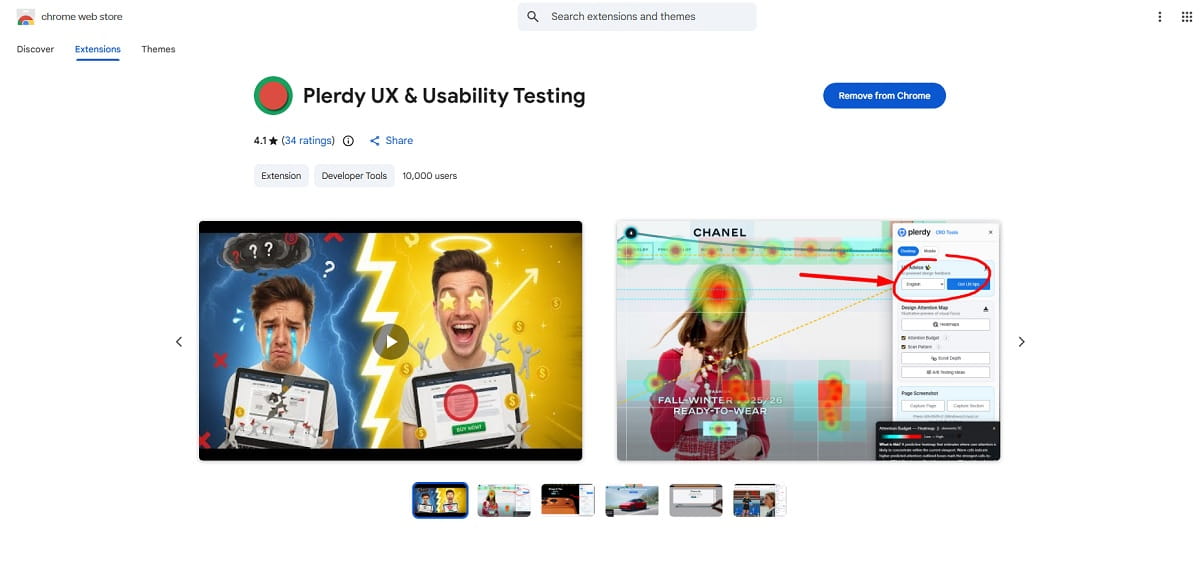
Plerdy UX & Usability Testing is a usability testing extension for fast page review. It helps marketers, UX designers, product managers, and site owners understand how a layout is likely to perform before deeper validation.
The extension focuses on quick website usability analysis and early UX audit work. Instead of waiting for live traffic, you can open a page and review a predictive heatmap, predicted scroll-depth tracking, attention signals, scan pattern behavior, AI UX tips, A/B testing ideas, and a screenshot tool for comments and handoff.
That makes it useful when you need to answer practical questions such as these:
- Is the hero section clear above the fold?
- Is the main CTA visible enough?
- Does the page hierarchy guide attention in the right order?
- Will users likely miss the proof, offer, or next step?
- Does the mobile layout become cluttered or weak?
It is not a replacement for real analytics. It is the fast first pass. Sometimes that is exactly what a team needs.
Who Should Use It
This UX testing extension fits teams that need faster page decisions without a long research cycle.
- Marketers can check CTA visibility, offer placement, page flow, and conversion friction.
- UX designers can review visual hierarchy, attention patterns, and scan behavior before testing deeper.
- Product managers can spot weak first-screen messaging, hidden actions, and competing elements.
- Site owners can run a quick website usability testing pass without technical setup.
Use it when a page feels “almost right” but not convincing, when the hero section looks crowded, when mobile seems weaker than desktop, when a CTA is present but somehow invisible, or when you need a fast usability testing Chrome extension to create a sharper hypothesis before real validation.
How To Install and Open the Extension
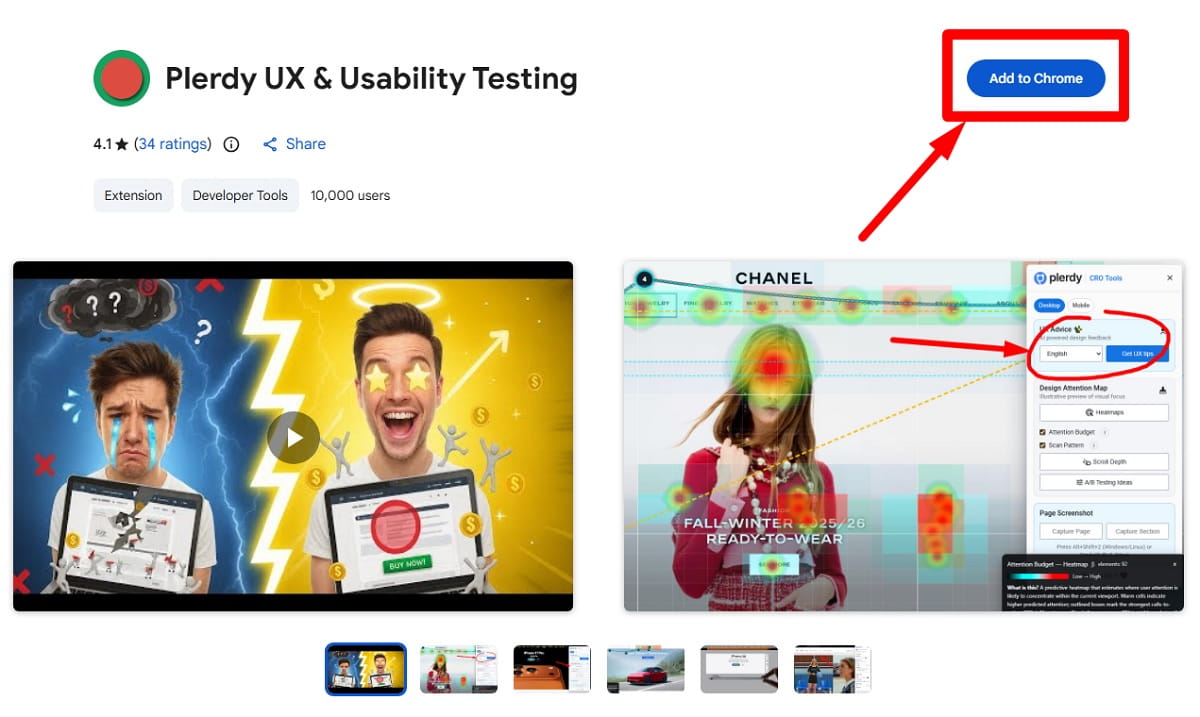
- Open the Chrome Web Store and install Plerdy UX & Usability Testing.
- Pin the browser extension so it is easy to launch during reviews.
- Open the page you want to audit.
- Click the extension icon and start the analysis.
That is the basic setup. No coding is required for the predictive review itself. You can run the extension on public pages, landing pages, product pages, pricing pages, blog posts, and other live URLs when you need quick website usability analysis.
How To Use Plerdy UX & Usability Testing Step by Step
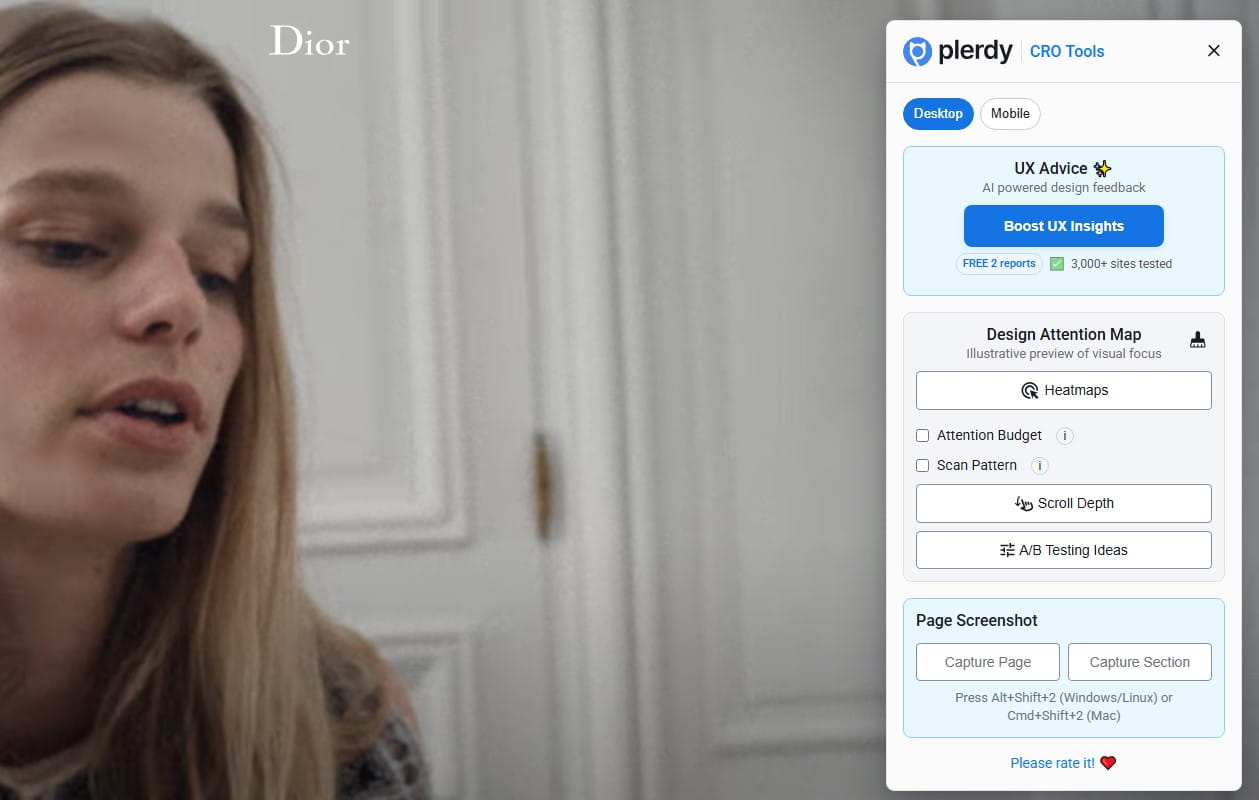
Open a Page and Launch the Extension
Start with one page only. Do not scan the whole site at once. Pick the page that matters most right now: homepage hero, landing page, pricing page, product page, signup page, lead form, or checkout step.
Open the extension and let it generate the first review. At this stage, do not overthink every color zone or every suggestion. First, ask a simpler question: does the page guide attention toward the action you actually want?
Run Heatmap Analysis
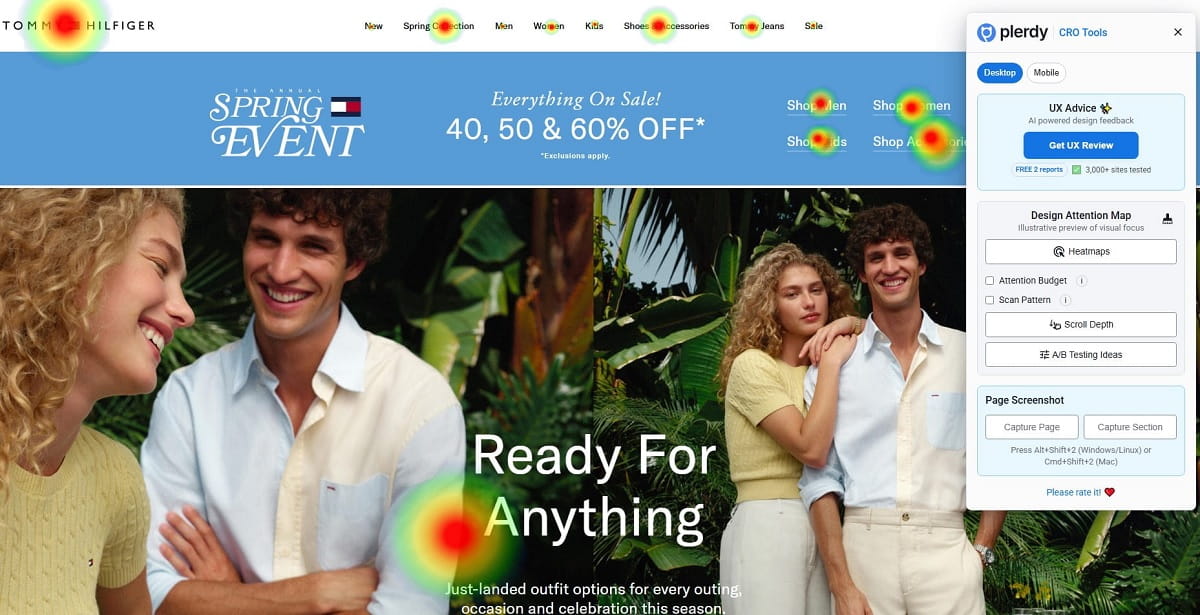
The Heatmap Analysis feature is a predictive heatmap. It estimates where users are likely to click or focus based on layout, design patterns, and page structure. This is one of the fastest ways to check whether your page is pushing attention toward the right elements.
Use heatmap analysis to review:
- Primary CTA visibility
- Competing buttons and links
- Weak or ignored sections
- Distracting images or banners
- Hero section clarity above the fold
A simple rule helps here. If the hottest area is decorative, but the CTA stays weak, the page hierarchy is off. If users are likely to notice a menu, badge, or image before the value proposition, the first screen needs cleanup.
Use the predictive heatmap as a directional tool. It is great for spotting layout issues fast. It is not proof of what real visitors already did.
Check Scroll-Depth Tracking
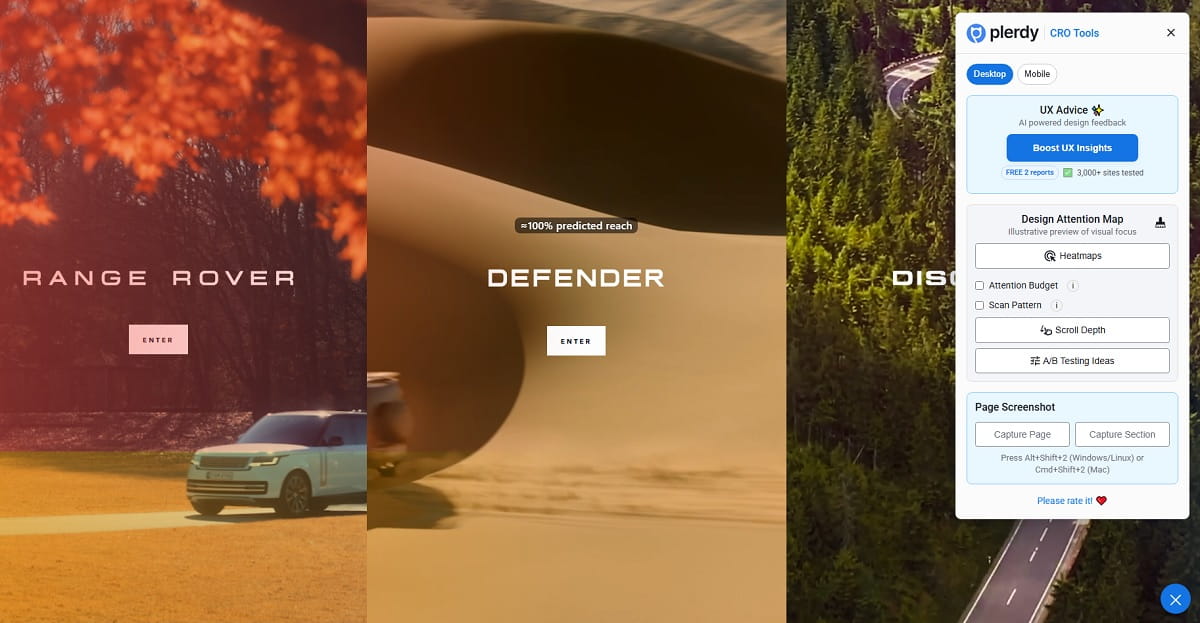
Scroll-Depth Tracking in this extension is also predictive. It helps predict how far users will continue down the page and where interest may start to drop.
This matters more than teams like to admit. Many pages bury trust signals, pricing context, proof blocks, or key CTA repeats too low. Then the team blames the offer, when the real problem is simple: people may never get there.
Use scroll-depth tracking to review:
- Whether the first screen is strong enough to pull the scroll
- Whether the page becomes too dense too early
- Whether proof, features, pricing, or FAQ blocks appear too late
- Whether mobile users are likely to lose interest sooner than desktop users
If predicted scroll drop-off happens before a key section, move that section higher, shorten the page, tighten the copy, or repeat the CTA earlier.
Review Attention Budget
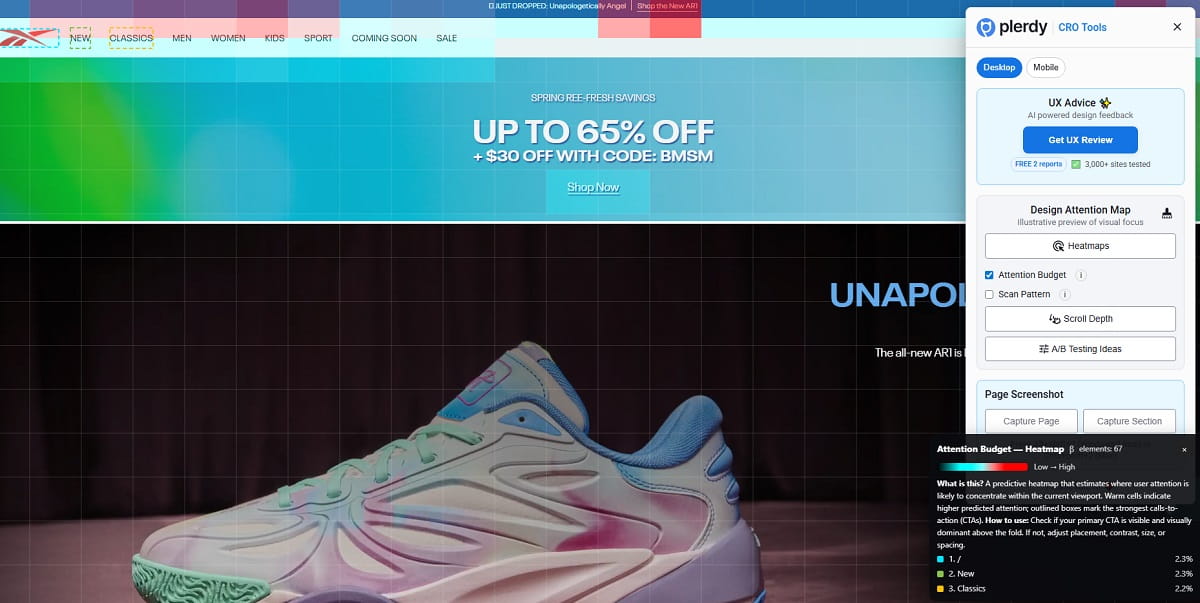
Attention Budget helps you judge how much visual attention different parts of the page are likely to receive. In practical UX audit work, this is useful when a page feels noisy but the reason is not obvious.
Look at whether the budget is being spent on the elements that actually matter: headline, proof, price, form, CTA, and navigation support. If visual weight is leaking into decoration, badges, side blocks, or secondary actions, the page is spending attention badly.
Use this feature to fix:
- Weak visual hierarchy
- Over-designed hero areas
- CTA visibility problems
- Too many equal-priority elements
- Mobile clutter that steals focus from the main action
Read the Scan Pattern
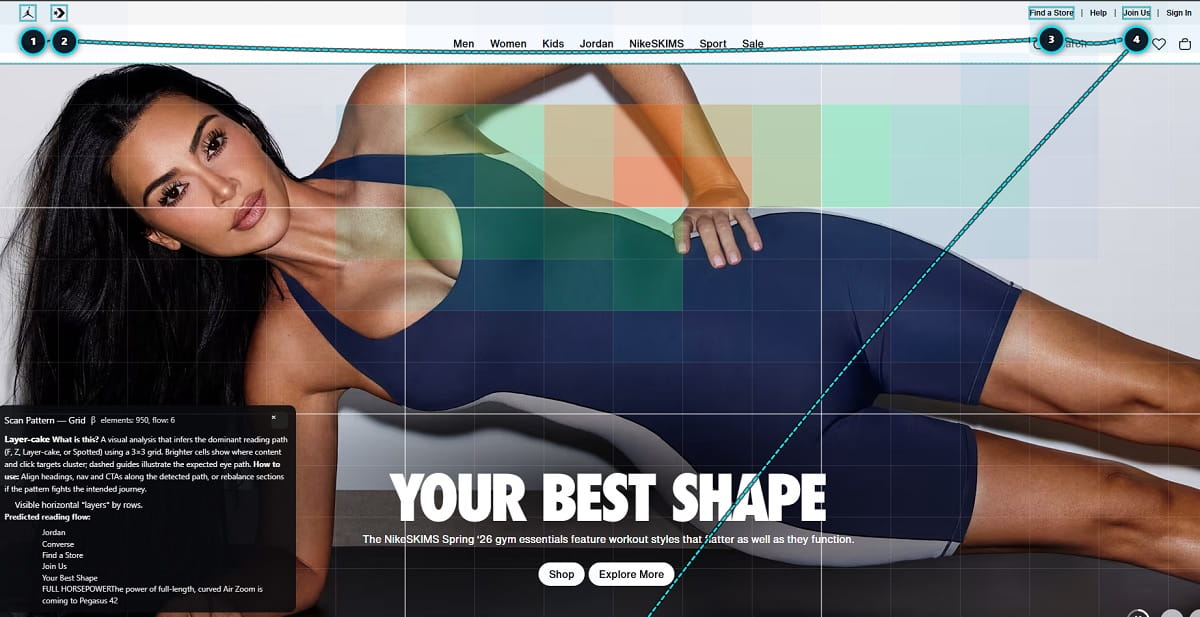
Scan Pattern helps you understand how the eye is likely to move through the page. That makes it valuable for message order, layout sequencing, and above-the-fold review.
Use it to check whether users are likely to notice the page in the order you intended:
- Value proposition
- Supportive proof or context
- Main CTA
If the scan pattern jumps to visual clutter first, skips the headline, or lands on secondary links before the main action, the structure needs work. Usually the fix is not dramatic. Cut one competing element. Increase contrast on the CTA. Tighten the headline. Move proof closer. Remove a decorative distraction. Small changes often improve scan logic more than full redesigns.
Generate UX Advice
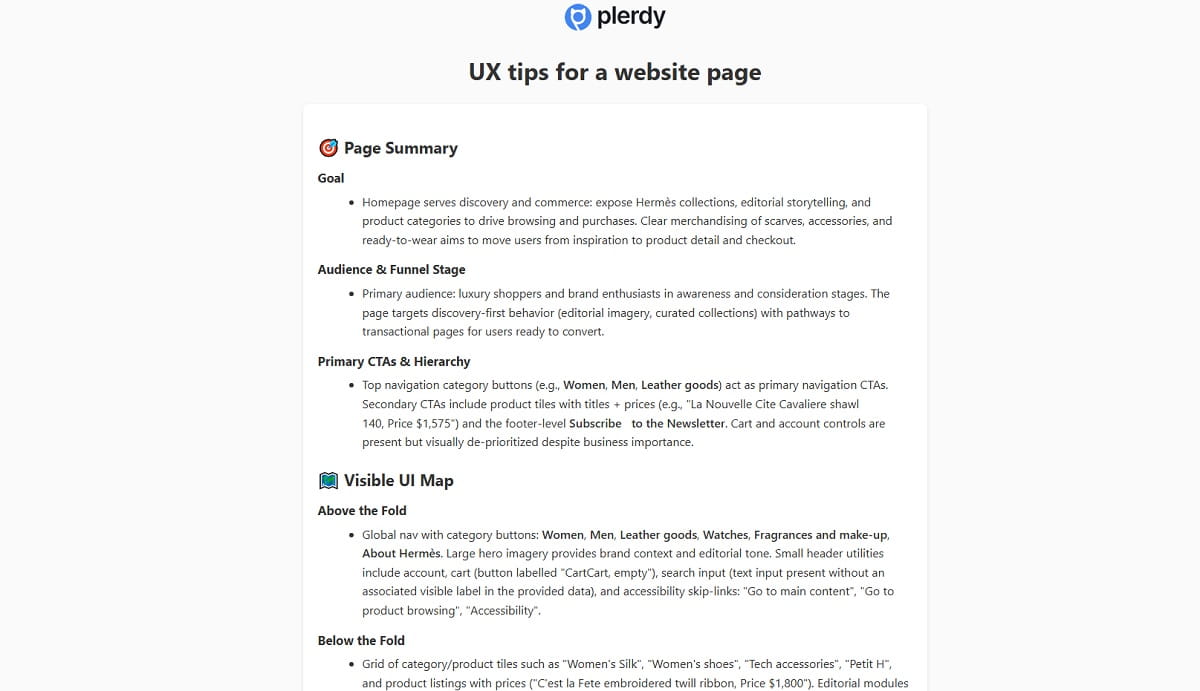
UX Advice, sometimes referred to as AI UX Tips, gives page-wide suggestions you can use as a working backlog. This feature is helpful when you want a fast list of likely friction points instead of manually hunting for everything yourself.
Use the report to spot issues such as:
- Confusing CTAs
- Weak hierarchy
- Low clarity in the hero area
- Missing trust signals
- Noisy or distracting blocks
- Mobile readability problems
The smart way to use UX Advice is simple: do not treat every suggestion as equal. Pull out the items that affect the main conversion path first. Start with headline clarity, CTA visibility, trust placement, block order, and friction in the first screen.
Plerdy also supports multiple report languages, which is helpful when the design team, growth team, and local market team work in different languages. And for quick evaluation, the extension includes two free UX Advice reports, so you can test the workflow before going deeper.
Review A/B Testing Ideas
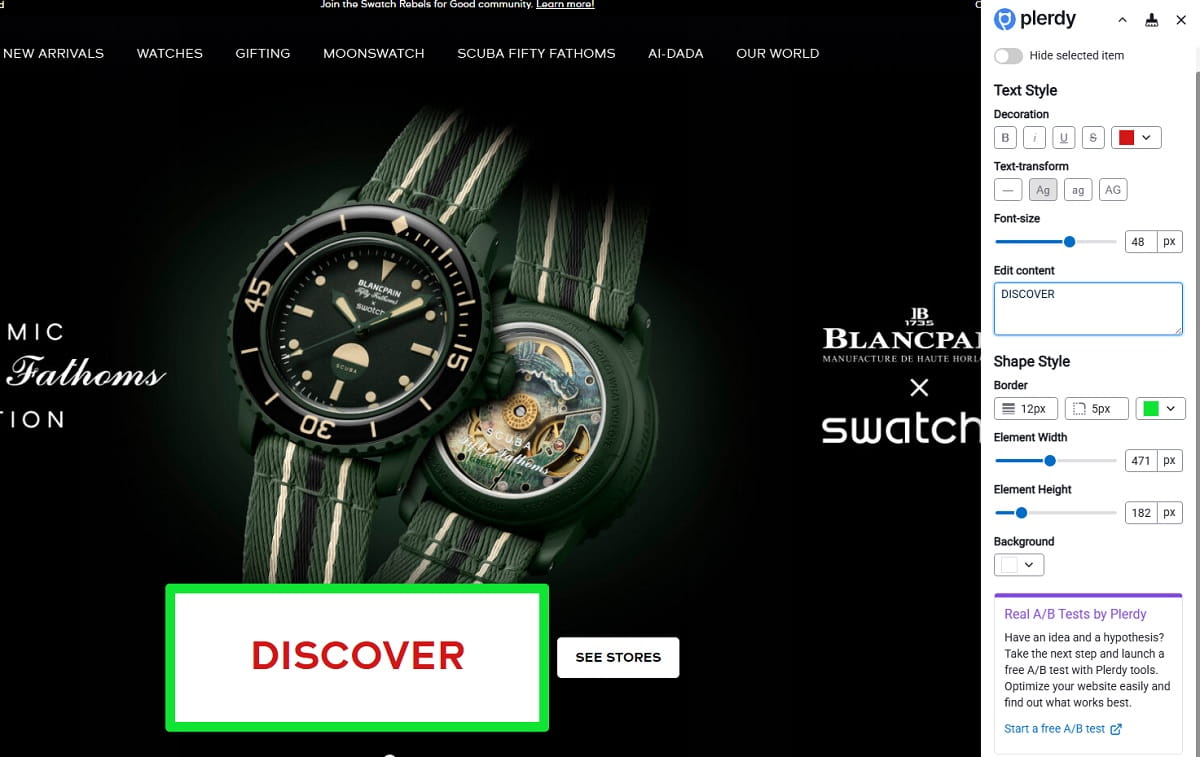
A/B Testing Ideas help turn usability review into concrete test concepts. This is where the extension becomes especially useful for CRO work. Instead of stopping at “the page feels weak,” you move toward “here is the next variation worth testing.”
Good A/B testing ideas usually focus on one clear change at a time:
- Move the CTA higher
- Rewrite a vague headline
- Reduce competing buttons
- Bring proof closer to the offer
- Simplify the mobile hero
- Make the primary button visually stronger
Keep the test idea narrow. If you change everything at once, you lose the learning. The extension is strongest when it helps you create a sharper hypothesis, not when it tempts you into random redesign energy.
Capture and Share Screenshots

The Screenshot Tool is useful when the insight is obvious, but the team still needs a clean visual to act on it. Capture a full-page screenshot, add comments, arrows, or notes, and send it to design, product, or marketing.
This is especially practical for:
- Hero section feedback
- CTA visibility issues
- Visual hierarchy problems
- Mobile clutter examples
- Fast async review with teammates or clients
It sounds small, but it saves time. A screenshot with one arrow and one sentence often moves a fix forward faster than a long Slack message ever will.
How To Audit Desktop and Mobile Layouts Faster
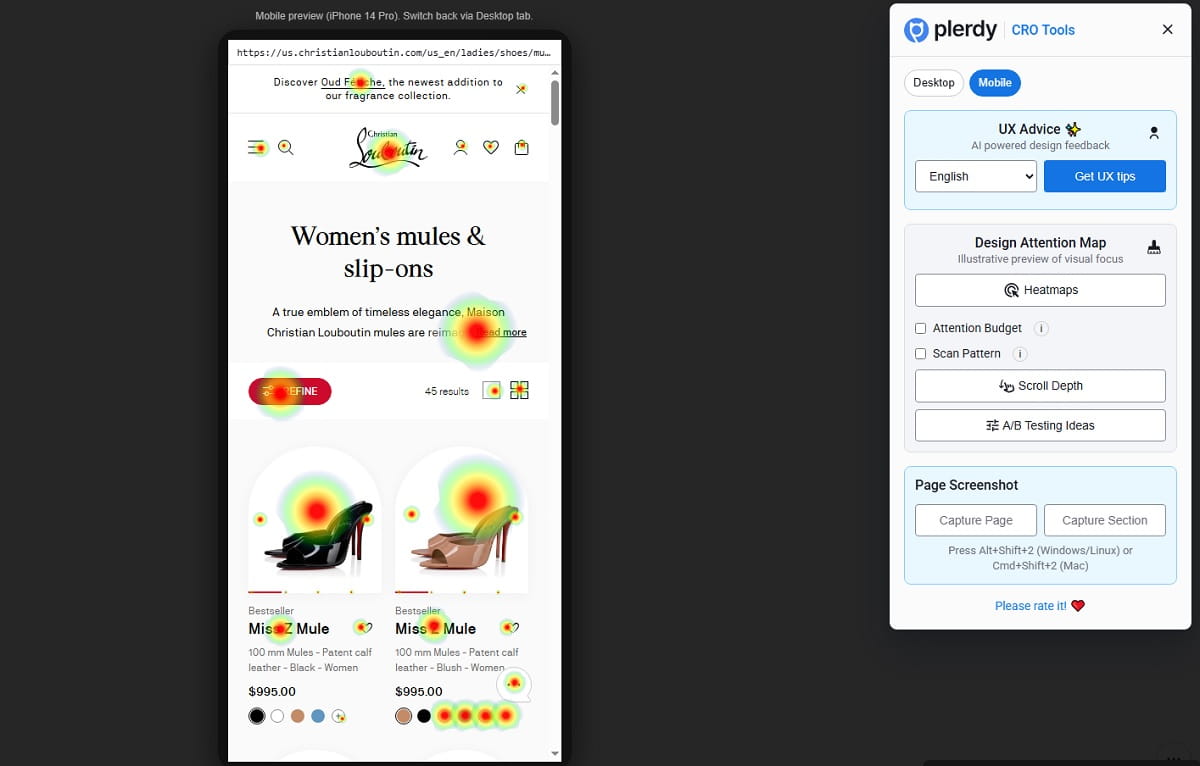
One of the most useful parts of the current workflow is the desktop and mobile analysis toggle. Use it early, not as an afterthought.
Run the same page twice:
- Review the desktop version.
- Switch to mobile and rerun the analysis.
- Compare the hero, header, CTA, proof, and first scroll section.
This is where problems show up fast. A button that looks obvious on desktop may become buried on mobile. A clean hero may turn into stacked clutter. A heading may lose punch because the line breaks get awkward. A secondary button may suddenly compete with the main CTA.
Use desktop and mobile analysis for fast above-the-fold validation. If the first-screen story is weak on either device, fix that before polishing lower sections.
How To Turn Predictions Into Real UX/CRO Actions
The extension becomes valuable when you translate outputs into small, testable changes. A practical workflow looks like this:
- Pick one key page.
- Review the predictive heatmap, scroll-depth tracking, attention budget, and scan pattern.
- Identify one primary friction point.
- Create one clear change or one A/B testing idea.
- Ship the smallest meaningful improvement.
- Validate later with real data.
Common examples:
- If the hero image gets attention but the CTA does not, strengthen the CTA and reduce visual competition.
- If predicted scroll drop-off happens before proof, move proof higher.
- If the scan pattern skips the value proposition, rewrite the headline and tighten the layout.
- If attention budget goes to decoration, remove or soften the decorative block.
- If mobile looks crowded, reduce stacked elements and make the primary action more obvious.
That is the rhythm: spot, decide, simplify, test.
AI Prediction Vs Real User Data
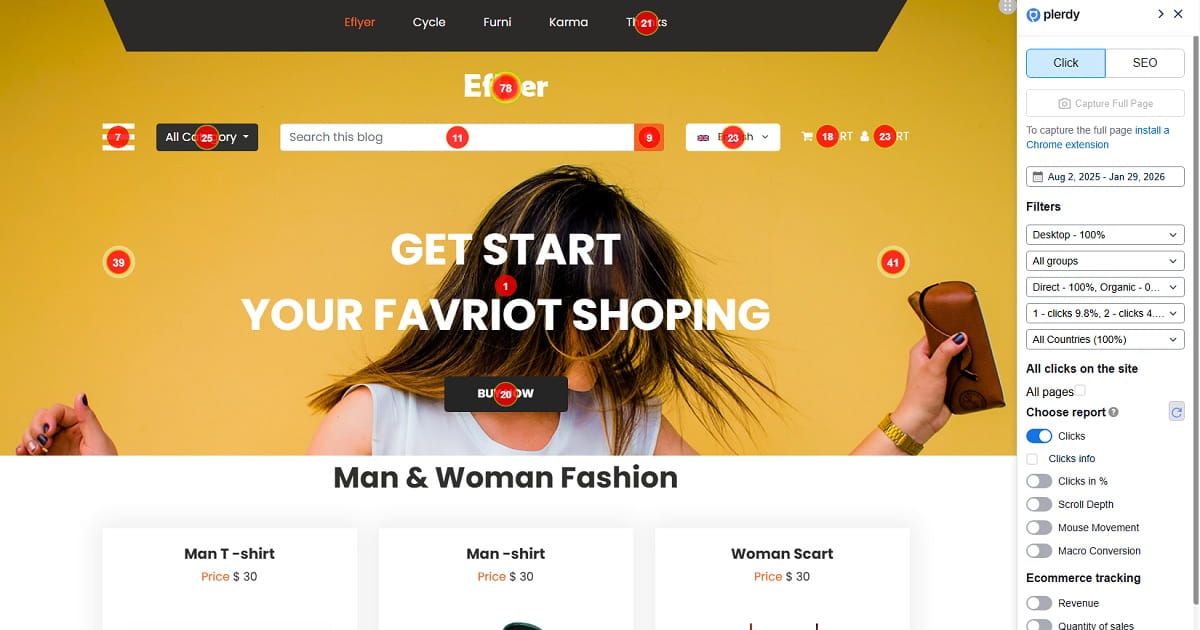
This distinction matters, so let’s keep it plain.
Plerdy UX & Usability Testing shows AI-predicted usability insights. Its heatmap analysis and scroll-depth tracking estimate how users are likely to behave. They do not record real user sessions, real clicks, or real conversion paths.
Real analytics are different. If you want actual user behavior data, install and connect Plerdy’s website analytics script. That is how you validate what visitors really clicked, where they scrolled, where they hesitated, and which steps affected conversions.
Use the extension first when you need speed, direction, and early UX audit insight. Use real analytics when traffic exists and you need proof.
When To Connect Plerdy’s Analytics Script
Connect the script when the page already has live traffic and the decision matters enough to validate with real behavior.
That usually means:
- You are working on pricing, signup, checkout, or lead generation pages.
- You already found a likely issue with the browser extension and want to confirm it.
- You need actual click, session, and conversion behavior before shipping a bigger change.
- You want to compare prediction with real performance after launch.
The strongest workflow is not prediction alone or analytics alone. It is both. Start with the extension for fast usability testing and user behavior prediction. Then validate the important changes with real Plerdy data.
Common Mistakes To Avoid
- Treating prediction as proof. Use it for direction, not final truth.
- Auditing too many pages at once. Start with one high-impact page.
- Ignoring mobile. Desktop and mobile analysis often tell very different stories.
- Fixing everything at once. Make one clear change first.
- Focusing on color zones without context. Always ask what action the page is supposed to drive.
- Skipping validation. When the page affects revenue or lead flow, verify with real analytics.
FAQ
What Is Plerdy UX & Usability Testing?
Plerdy UX & Usability Testing is a browser extension available via the Chrome Web Store. It helps teams run fast website usability testing with predictive heatmap analysis, scroll-depth tracking, attention budget review, scan pattern checks, AI UX tips, A/B testing ideas, and screenshot sharing.
Is It Based on Real User Behavior or Prediction?
The extension’s heatmap analysis and scroll-depth tracking are AI-predicted outputs, not real user data. If you need actual clicks, sessions, and conversion behavior, you should connect Plerdy’s website analytics script.
How Do I Use the Heatmap Correctly?
Use the predictive heatmap to check whether attention is likely to land on the headline, primary CTA, proof, and other key elements in the right order. If decorative areas attract more focus than the conversion path, adjust the layout, contrast, hierarchy, or CTA placement.
What Does Scroll-Depth Tracking Show?
It shows how far users are likely to continue down the page and where attention may drop. This helps you decide whether key sections such as proof, pricing, FAQs, or CTA repeats appear too low.
What Is Attention Budget?
Attention Budget helps you judge how much visual attention different page elements are likely to receive. It is useful for finding weak visual hierarchy, over-designed sections, and CTA visibility issues.
What Is Scan Pattern?
Scan Pattern shows the likely order in which a visitor will move across the page. It helps you check message order, headline visibility, CTA prominence, and whether the first screen supports a clear reading path.
How Do I Use the Extension for Desktop and Mobile Checks?
Run the same page in desktop and mobile modes, then compare the hero, header, CTA, first proof block, and first scroll section. This quickly shows whether mobile clutter, awkward stacking, or weak hierarchy is hurting the page.
Can I Use It Before Running A/B Tests?
Yes. That is one of the best use cases. Use the extension to spot likely friction, then turn those findings into focused A/B testing ideas such as moving a CTA, simplifying a hero, changing message order, or reducing competing elements.
When Should I Connect Real Plerdy Analytics?
Connect real Plerdy analytics when the page already has traffic and you need to validate important changes with actual clicks, session behavior, and conversion evidence. Use prediction first for speed, then confirm with real data when the decision has business impact.
Conclusion
Plerdy UX & Usability Testing is best used as a fast, practical first step in website usability analysis. It helps you review a page, check the hero section, evaluate CTA visibility, study visual hierarchy, compare desktop and mobile layouts, and turn weak areas into clear UX and CRO actions without a heavy research process.
The key thing to remember is simple: this browser extension shows AI-predicted behavior, not real user behavior. Use it to spot likely friction, sharpen ideas, and move faster. Then, when the page has real traffic and the decision matters, connect Plerdy analytics to validate those findings with actual clicks, sessions, and conversion data.