Connecting the Plerdy Ecommerce Tracking Shopify App

Andrew Chornyy - 001

CEO Plerdy — expert in SEO&CRO with over 15 years of experience.

Want more conversions?

Stop guessing — fix what’s killing them in minutes. Install the Plerdy Chrome extensions: SEO Analyzer + UX Testing. Instant SEO insights, AI audit with prioritized fixes, predictive heatmaps & scroll maps, and quick UX actions that actually move the needle.

To connect Plerdy Ecommerce Tracking, follow these steps:

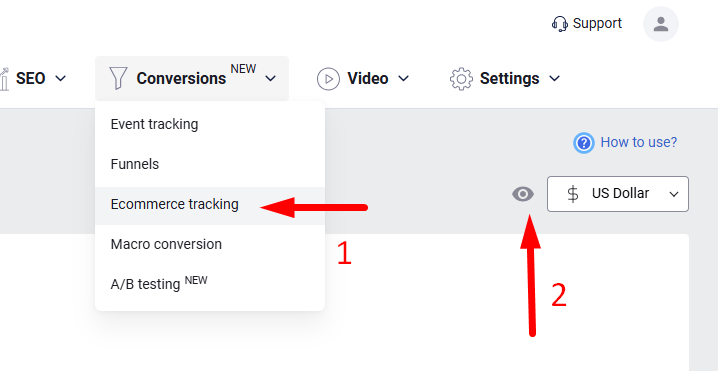
1. Go to the report: Apps > Plerdy > Conversions > Ecommerce tracking.
Connecting the Plerdy Ecommerce Tracking Shopify App - 0001

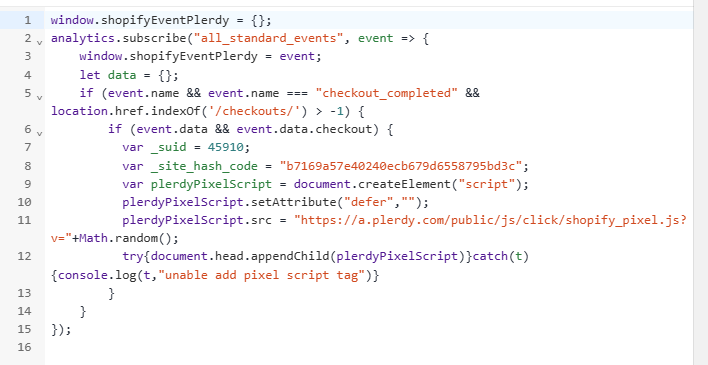
2. Copy the code and save it in a text file or any other accessible format.
Connecting the Plerdy Ecommerce Tracking Shopify App - 0002

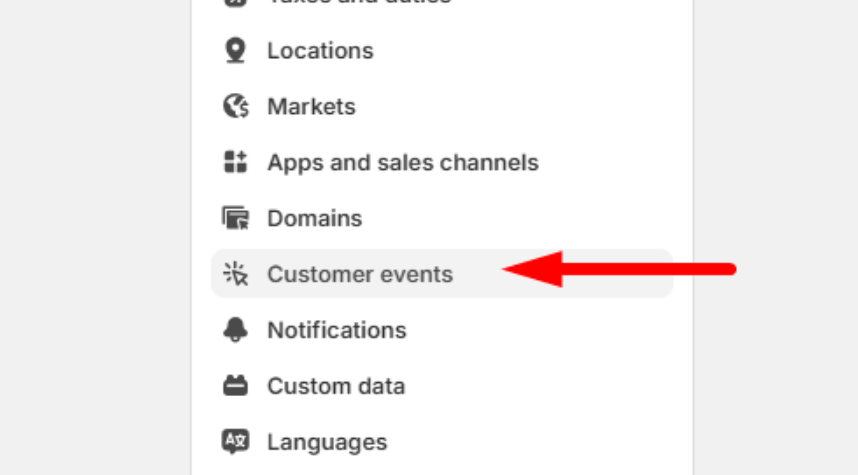
3. Open Settings in Shopify and navigate to the Customer events section.
Connecting the Plerdy Ecommerce Tracking Shopify App - 0003

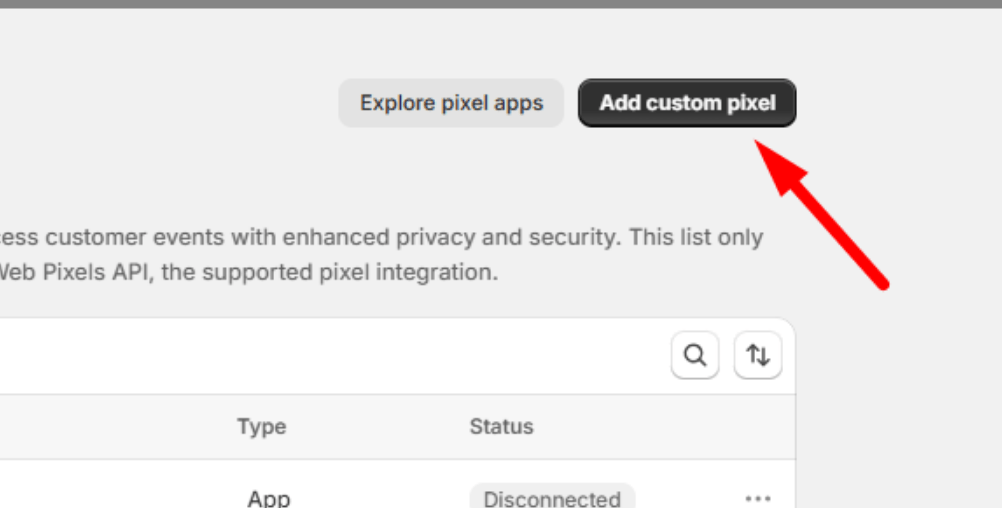
4. Click the Add custom pixel button nd provide a suitable name, such as “Plerdy Ecommerce Tracking”.
Connecting the Plerdy Ecommerce Tracking Shopify App - 0004

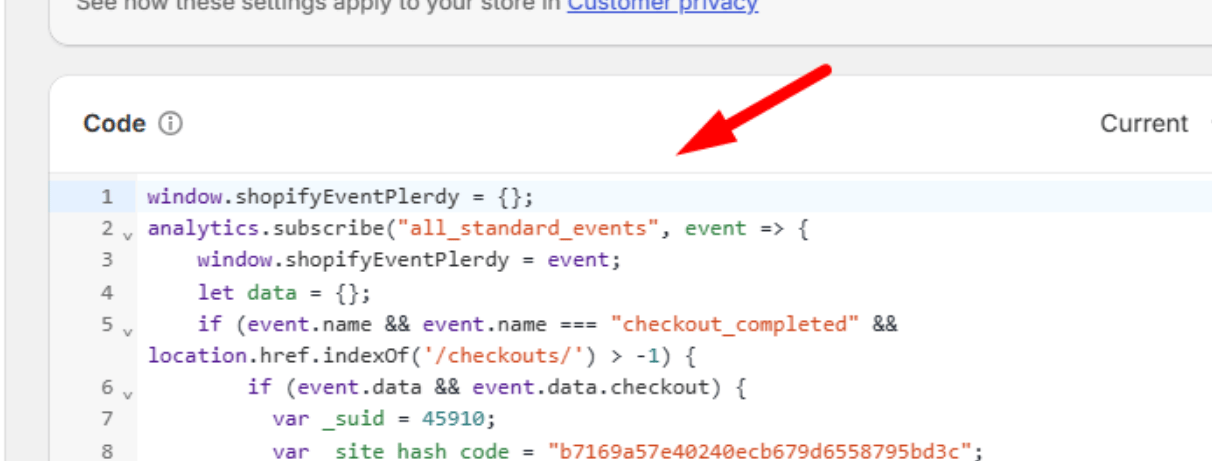
5. Paste the copied code into the field Code, replacing all existing text
Connecting the Plerdy Ecommerce Tracking Shopify App - 0005

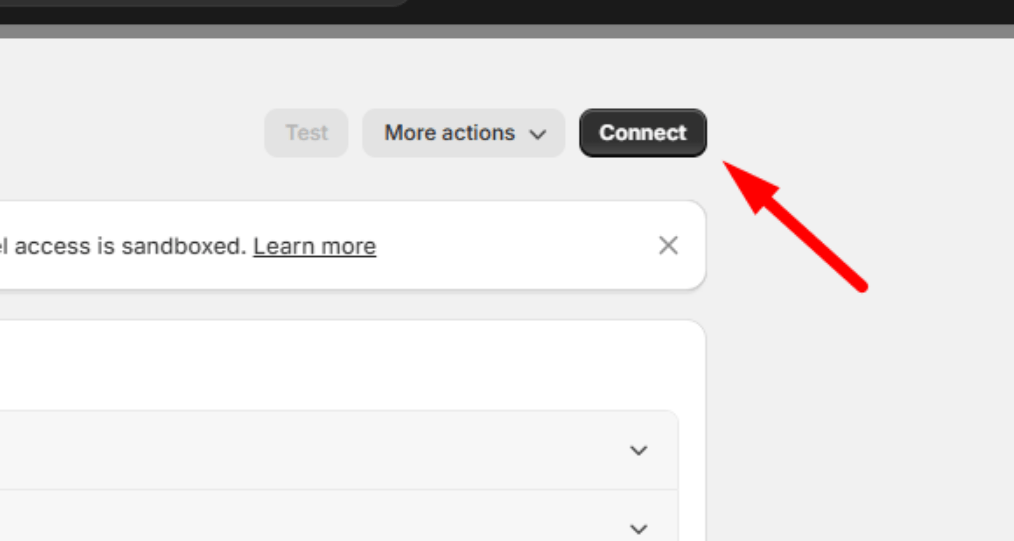
6. Then click Save and then Connect.

Connecting the Plerdy Ecommerce Tracking Shopify App - 0006

That’s it! The data in the report Apps > Plerdy > Conversions > Ecommerce tracking will now appear automatically after purchases made by your customers.

Was this helpful?