

Most business owners already pay for an AI assistant and already collect website data. The two rarely meet: the numbers sit in a dashboard nobody opens, and the assistant answers questions about your site from guesses. This guide shows how to connect them, so that when you ask Claude or ChatGPT “where did I lose sales this week?”, it pulls the answer from your real traffic, revenue, errors and A/B tests. The setup takes about five minutes and needs no developer.
Yes, you can ask ChatGPT and Claude about your website data. Plerdy MCP Server is a read-only connector for Claude, ChatGPT, Cursor and VS Code. You create a token in Plerdy under Settings → AI Connectors, add it to your assistant with the Plerdy server address, and ask in plain English. Included in all paid plans, from $21 a month.
Can I ask ChatGPT about my website data?
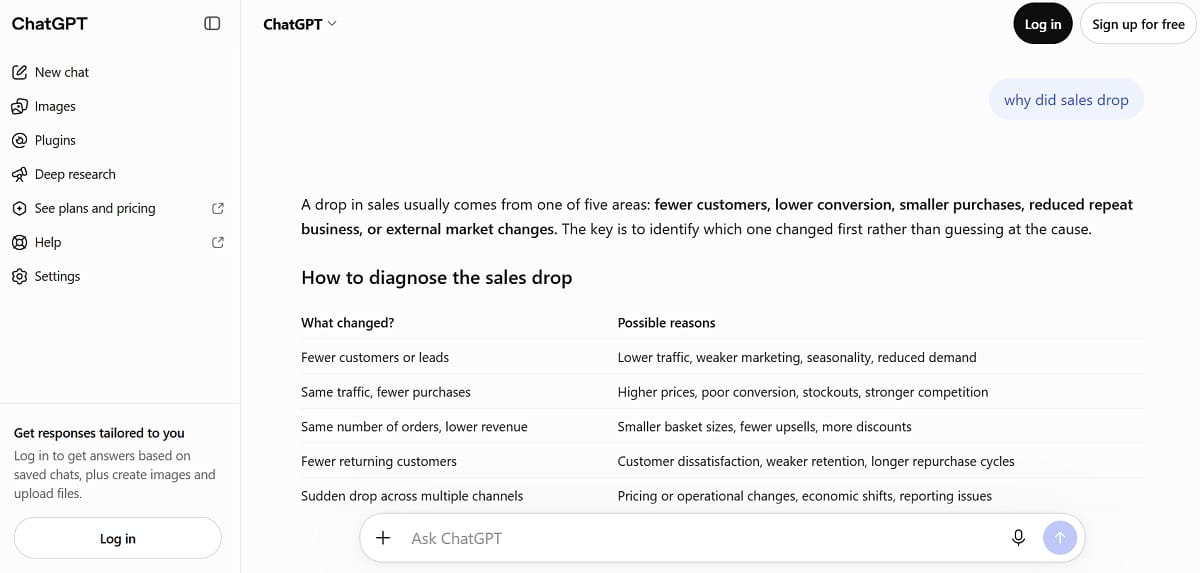
Yes, through MCP. MCP (Model Context Protocol) is an open standard that lets an AI assistant call outside tools while it writes an answer. You add a “connector” once, and from then on the assistant can request a report from that tool, read the numbers and explain them. Anthropic released MCP in 2024; Claude, ChatGPT, Cursor and VS Code all support it now.
For website analytics this changes who does the digging. Without a connector, you export a CSV, paste it into the chat and hope the assistant reads the columns correctly. With Plerdy MCP Server, the assistant picks the right report on its own: traffic for the “why did sales drop” question, form analytics for “why don’t people finish the signup form”, A/B test results for “did the new checkout work”. Every answer comes with the period it covers and a link back to the report in Plerdy, so you can check the numbers yourself.
Plerdy MCP Server is a remote server. Nothing gets installed on your computer, and there is no Node.js or Python to set up. You copy an address and a token, that’s all.
What do I need before I connect?
- A paid Plerdy plan. AI Connectors are on Startup, Scale, Thrive and all Enterprise plans. The Free plan doesn’t include them; the pricing page marks this with a dash.
- The Plerdy tracking code on your site for at least a few days, so there is data to ask about.
- An owner login. Guest accounts can’t create AI connections, so ask the account owner if you only have guest access.
- An AI assistant that accepts custom MCP connectors. In Claude that means a plan with custom connectors (Pro, Max, Team or Enterprise); on Team and Enterprise only the workspace owner can add a connector for everyone. In ChatGPT you need Developer mode, which isn’t offered on every plan, so check your settings first.
The AI subscription is separate from Plerdy. On the Plerdy side there is no charge per question: requests are included in the plan up to a daily limit.
How do I connect Plerdy to Claude?
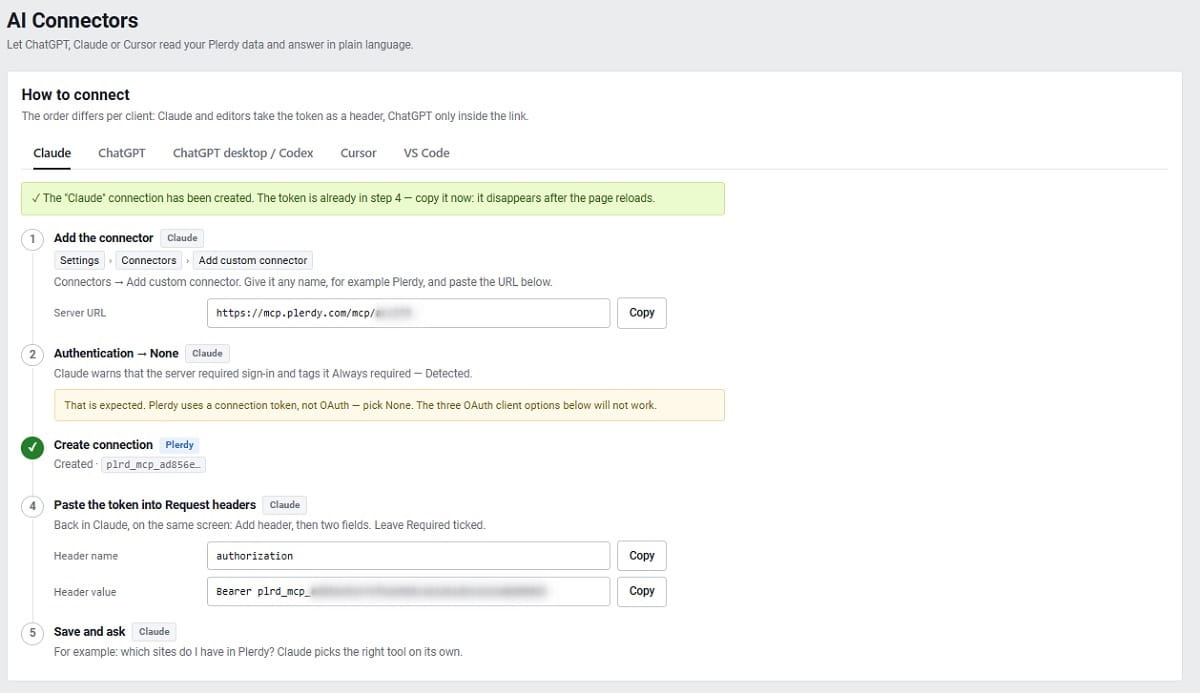
These steps work in Claude on the web and in the Claude desktop app. Keep two tabs open side by side: Plerdy (Settings → AI Connectors, Claude tab) and Claude. You will copy two things from Plerdy into Claude: the server address and the token.
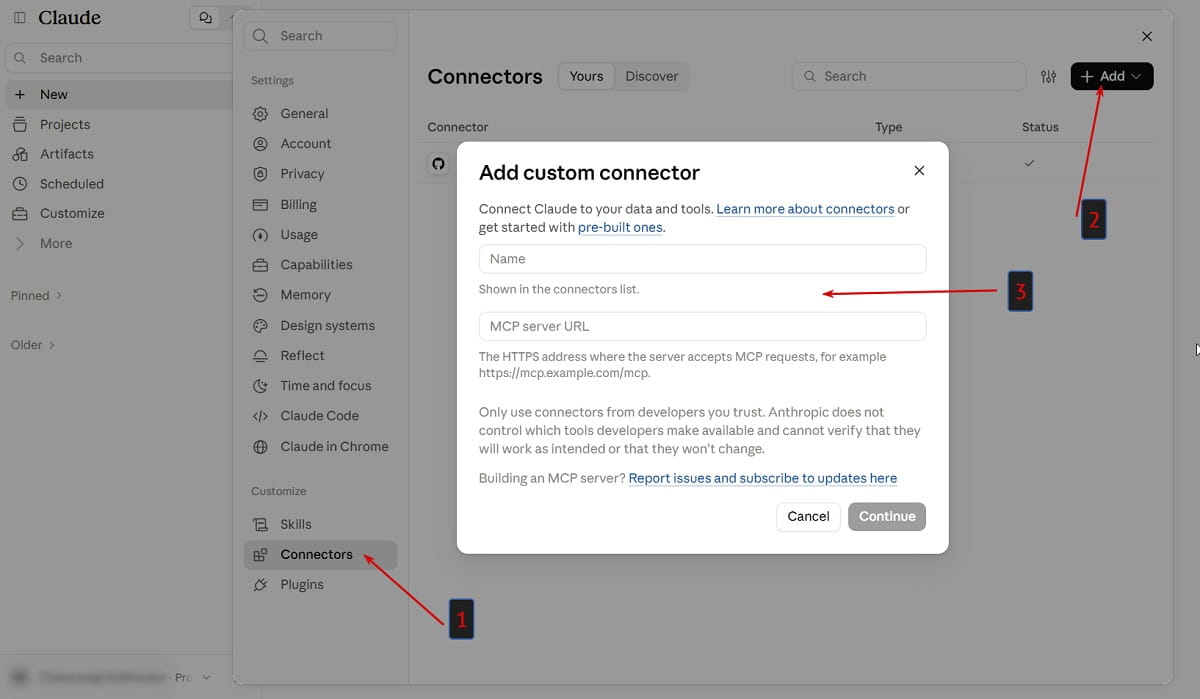
- Add a custom connector in Claude. In Claude, open Settings → Connectors, click Add and choose Add custom connector. Type Plerdy in the name field. In the address field, paste the Server URL from step 1 on the Plerdy page. It looks like “https://mcp.plerdy.com/mcp/acc12345”, where the number is your account ID. Click Continue.
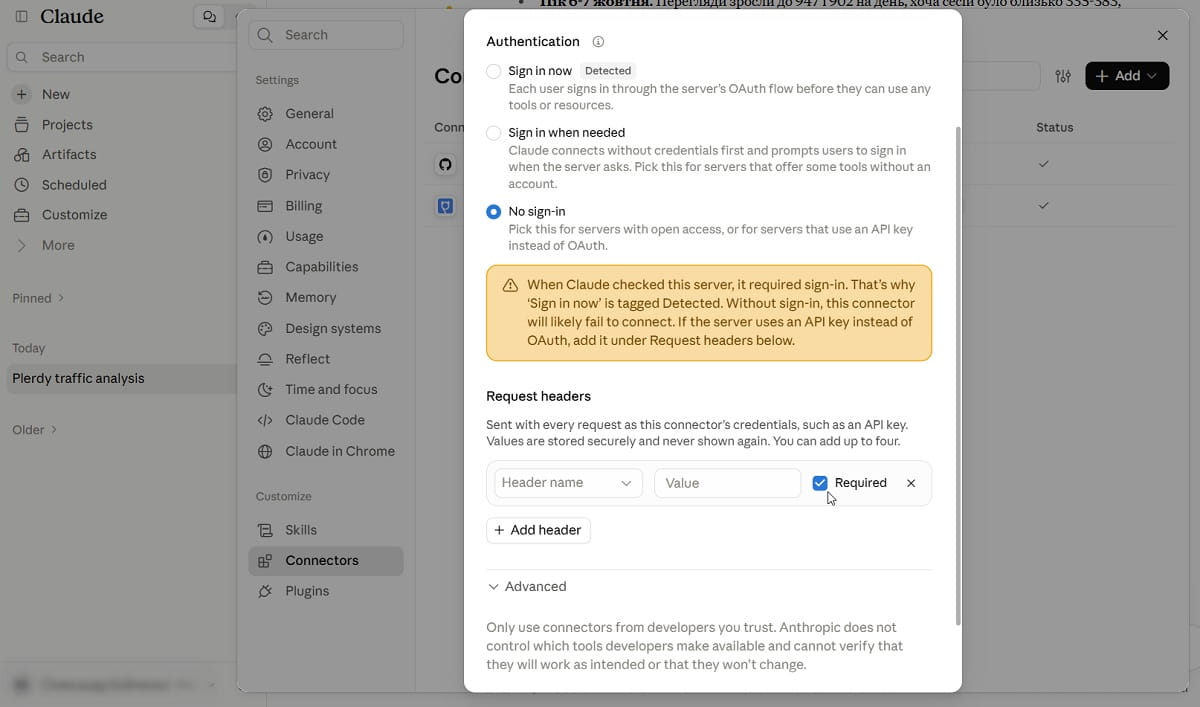
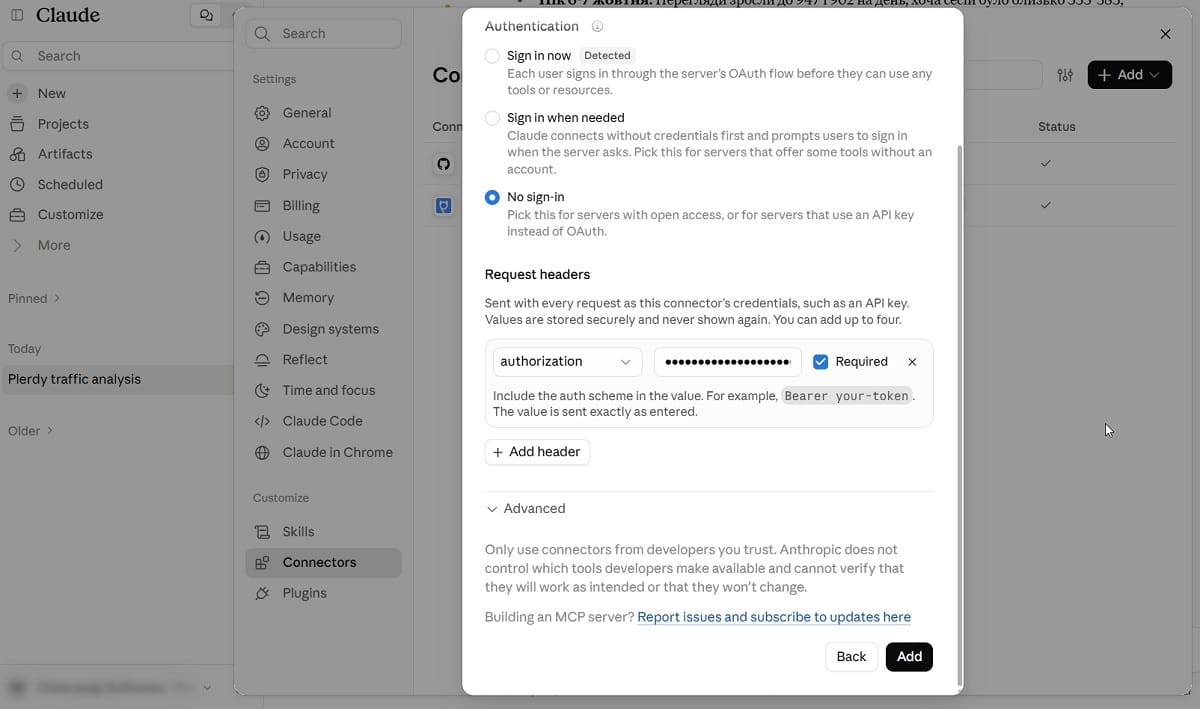
- Choose No sign-in. On the next screen Claude preselects “Sign in now”.” Plerdy uses a token instead of OAuth, so pick “No sign-in.” Don’t close this window yet.
- Create a connection in Plerdy. Switch to Plerdy and click New connection. Choose which sites this connection may read (leave all boxes empty to allow every site in the account) and how long it stays valid: 90 days, 365 days or no expiry. The page reloads and step 4 now shows the header name and the header value with your token. The token is shown once, so copy it before you reload or leave.
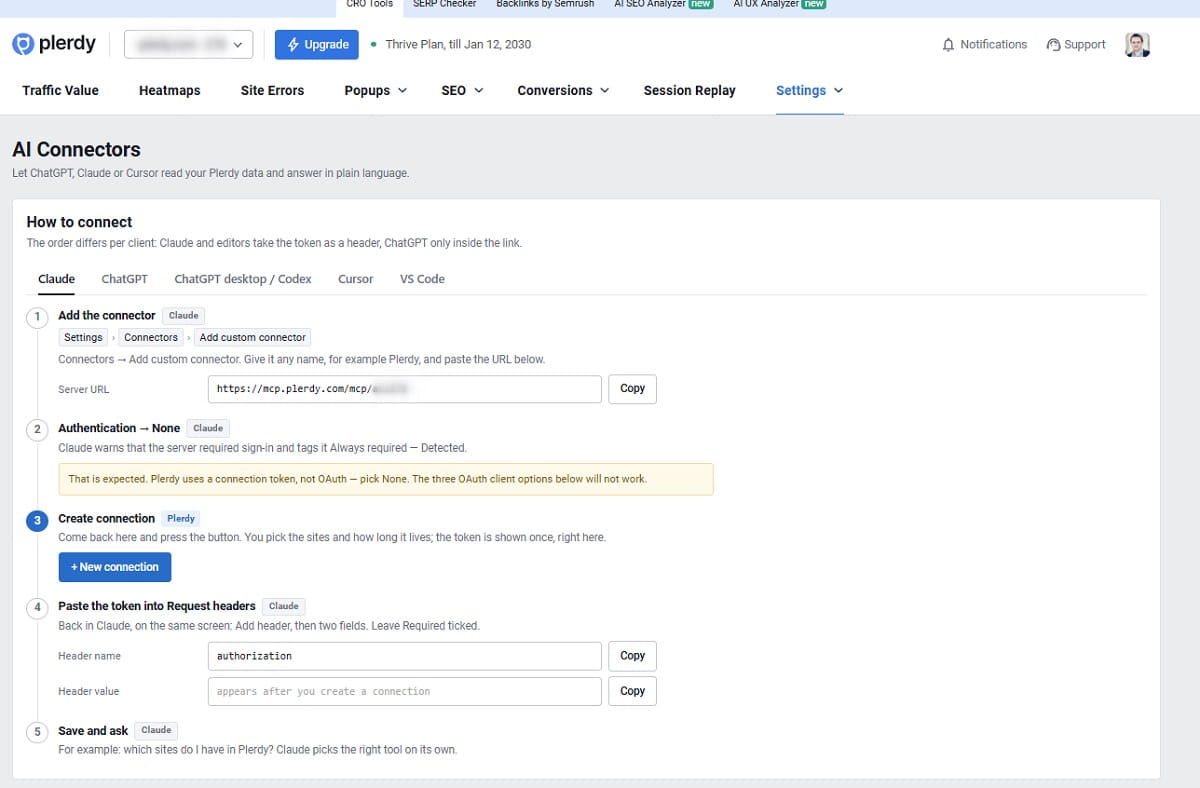
- Paste the header into Claude and add the connector. Back in Claude, under Request headers, click Add header. Copy the header name (“authorization”) and the header value (“Bearer plrd_mcp_…”, the word Bearer, a space and the token) from Plerdy as they are. Leave Required ticked. Claude still warns that the server requires sign-in and that connecting will likely fail. With the header in place it works, so click “Add anyway.”
- Check the tools and ask a question. Claude opens the Plerdy connector page with 12 read-only tools. By default each one is set to “Needs approval,” so Claude asks before every call. If you trust it, switch the group to always allow. Then start a new chat and ask “Which sites do I have in Plerdy?” If Claude lists your sites, the connection works.
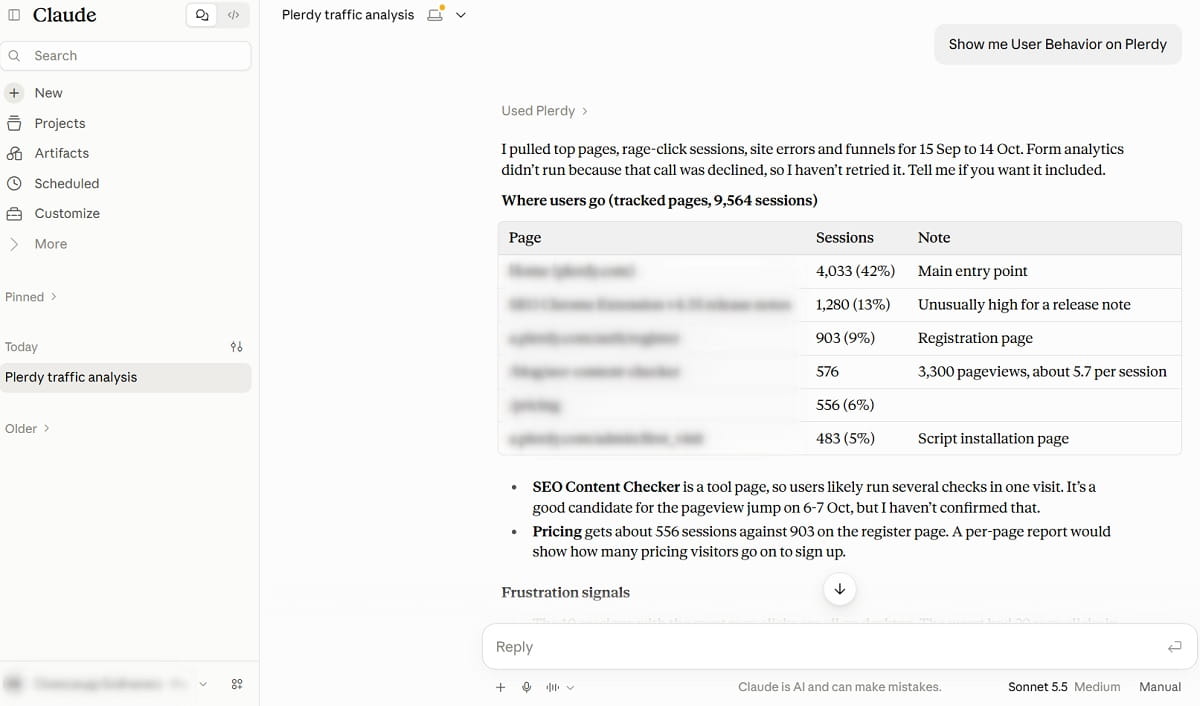
Plerdy shows the result on its side too. Below the instructions on the AI Connectors page you’ll see calls made today against your daily limit, how many connections are active, how far back the assistant can query, when each connection was last used, and which tools your assistant calls most.
How do I connect Plerdy to ChatGPT?
ChatGPT can’t send a custom header, so the order is different: you create the Plerdy connection first and give ChatGPT a link that already contains the token.
- Open Plugins in ChatGPT. In ChatGPT, open Settings and choose Plugins under Integrations. Click Browse directory in the top right corner.
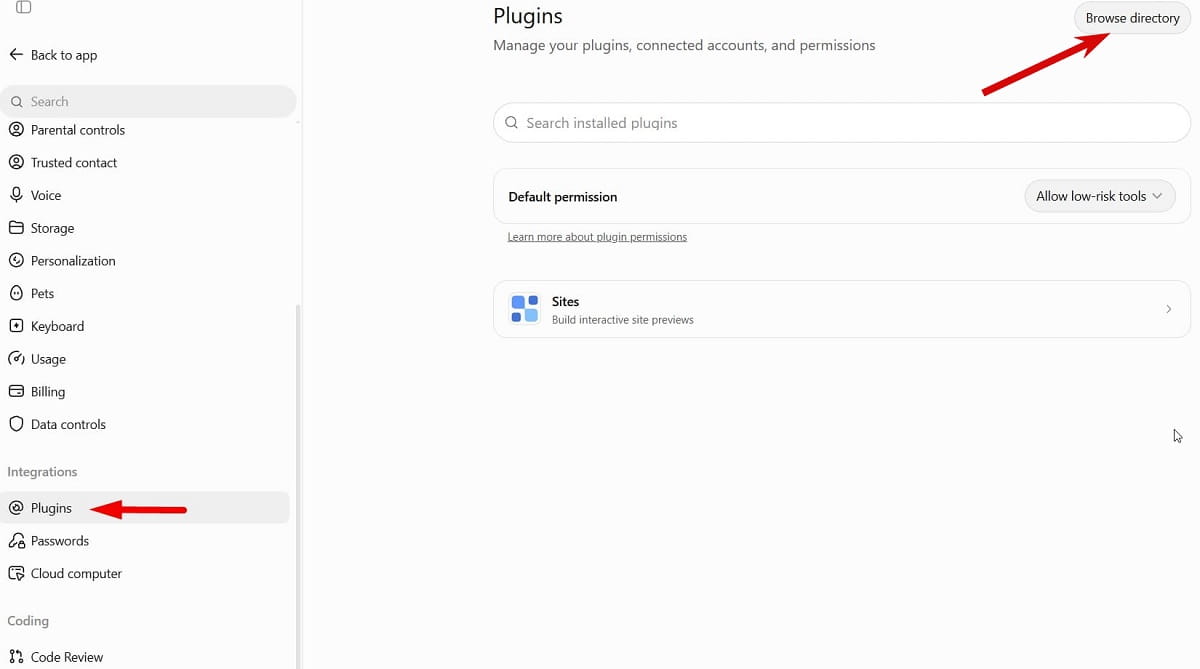
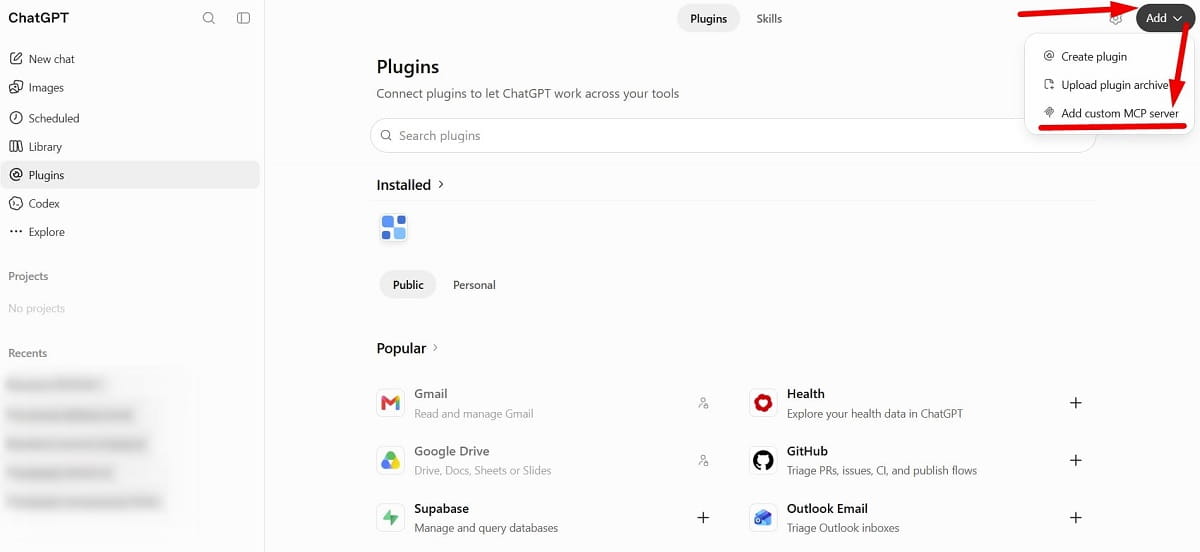
- Choose Add custom MCP server. On the Plugins page click Add in the top right and pick Add custom MCP server from the menu.
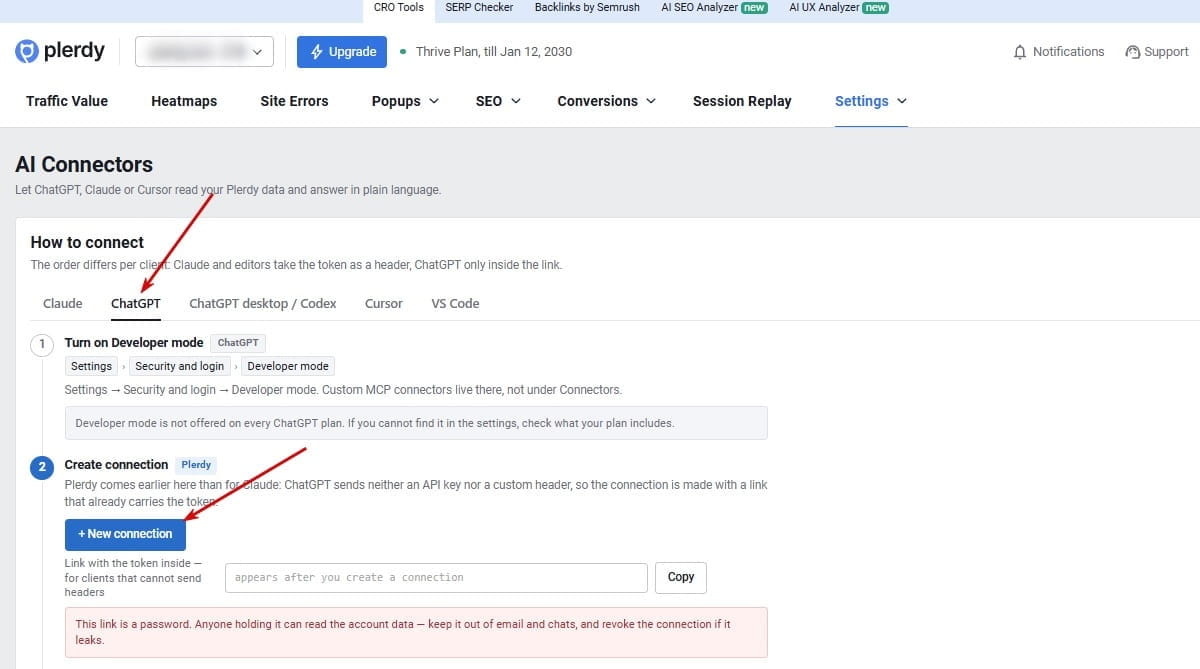
- Create a connection in Plerdy. In Plerdy, open Settings → AI Connectors, switch to the ChatGPT tab and click New connection. Choose the sites it may read and how long it stays valid: 90 days, 365 days or no expiry.
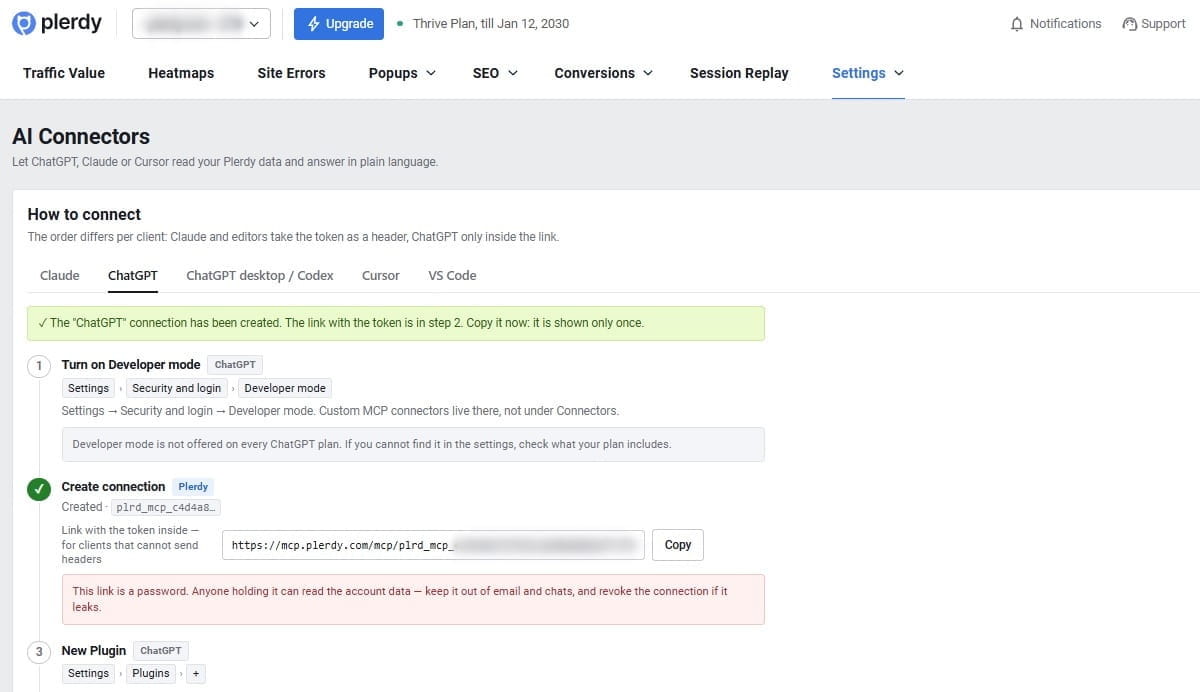
- Copy the link with the token. The page reloads and shows “Link with the token inside” in step 2. It looks like https://mcp.plerdy.com/mcp/plrd_mcp_…. Click Copy. Plerdy shows the link once, so don’t reload the page before you paste it.
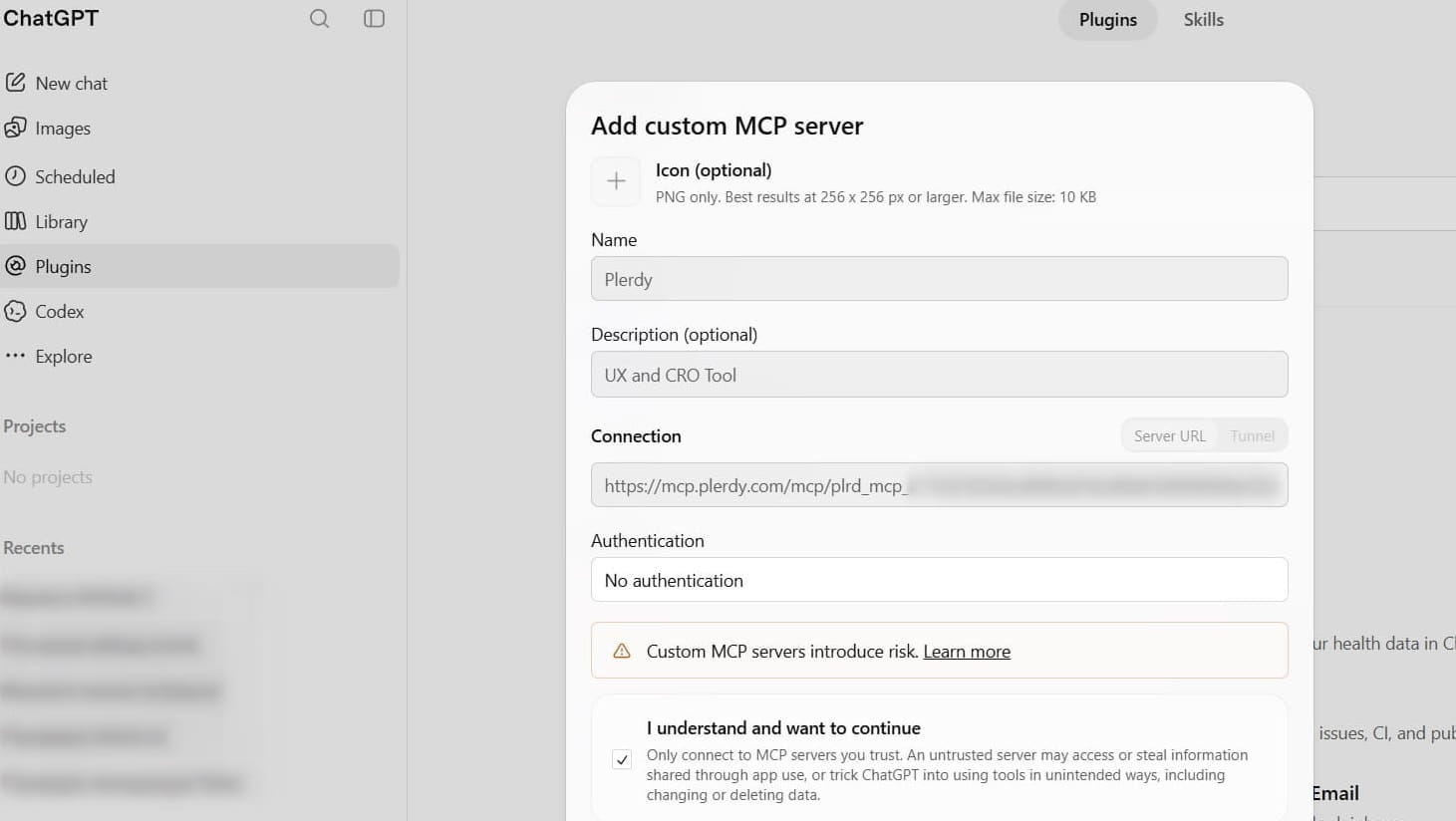
- Fill in the Add custom MCP server form. Back in ChatGPT, type Plerdy in Name. Description is optional (for example, “UX and CRO tool”). Under Connection keep Server URL and paste the link. Set Authentication to No authentication. Tick “I understand and want to continue,” then save the form.
- Click Connect Plerdy and ask a question. ChatGPT shows a “Connect Plerdy” window with its permission notes. Click Connect Plerdy. Then start a new chat, make sure Plerdy is enabled for it, and ask “Which sites do I have in Plerdy?”
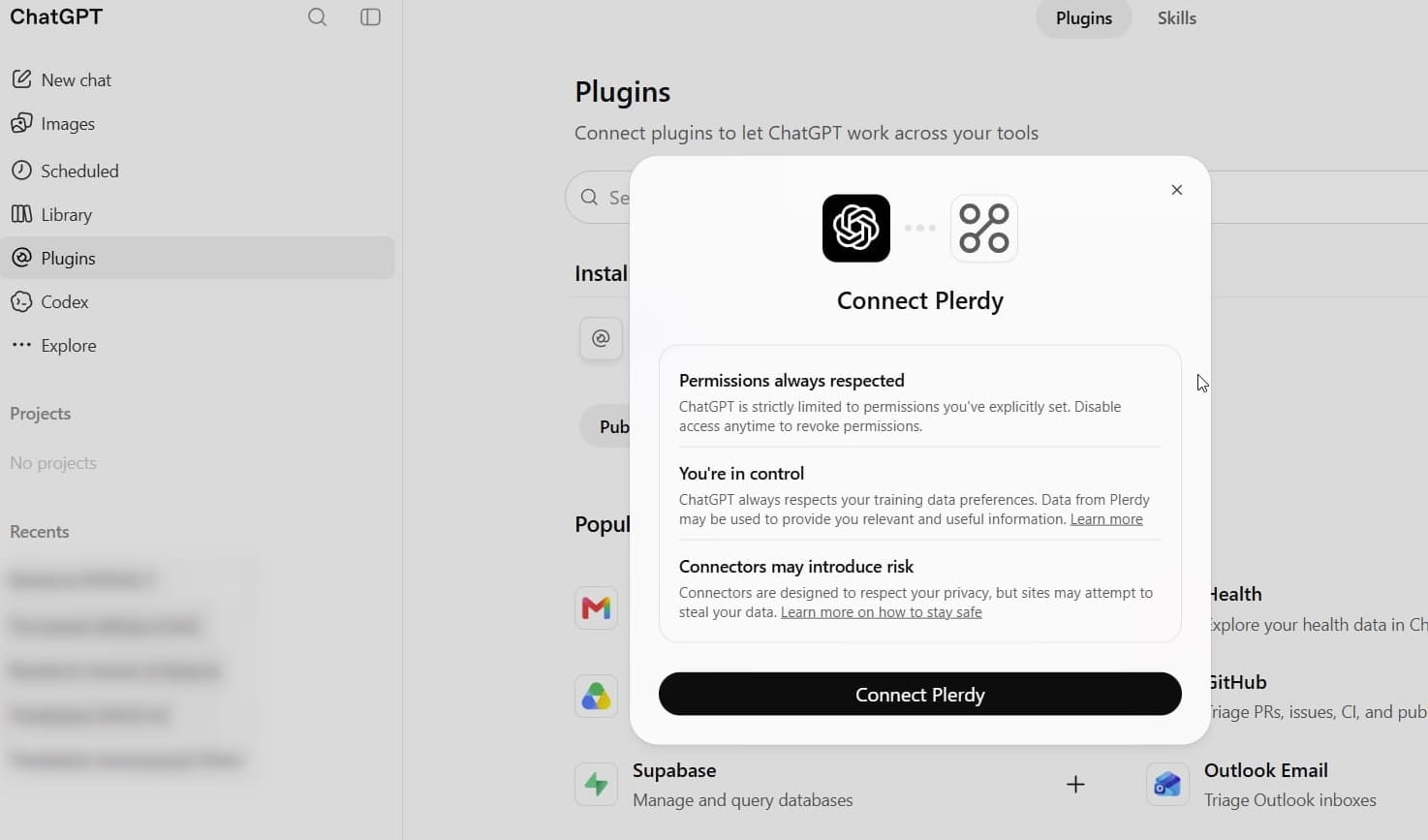
- Turn the plugin on in the chat and ask. ChatGPT doesn’t use a custom plugin in a regular chat on its own. Enable Plerdy in each new conversation, then ask “Which sites do I have in Plerdy?”
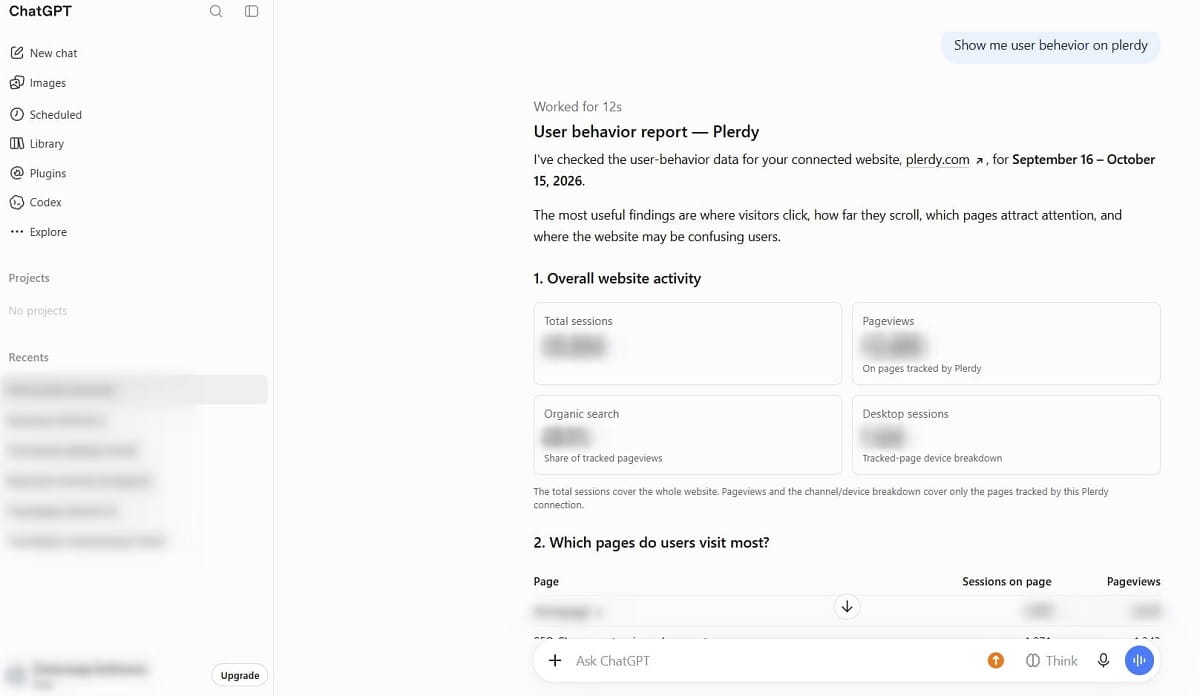
Treat that link like a password. Anyone who has it can read your account data, so don’t send it by email or paste it into a shared chat. If it leaks, revoke the connection in Plerdy and create a new one.
The ChatGPT desktop app has its own “Connect to a custom MCP” form, but it belongs to the Codex agent, not to the ChatGPT chat you use in the browser. If you add Plerdy there (Settings → Plugins → MCP → Connect to a custom MCP, type Streamable HTTP, header “Authorization: Bearer plrd_mcp_…”), Plerdy shows up in Codex conversations only. Plerdy has a separate tab for this case.
Can I use Plerdy data in Cursor or VS Code?
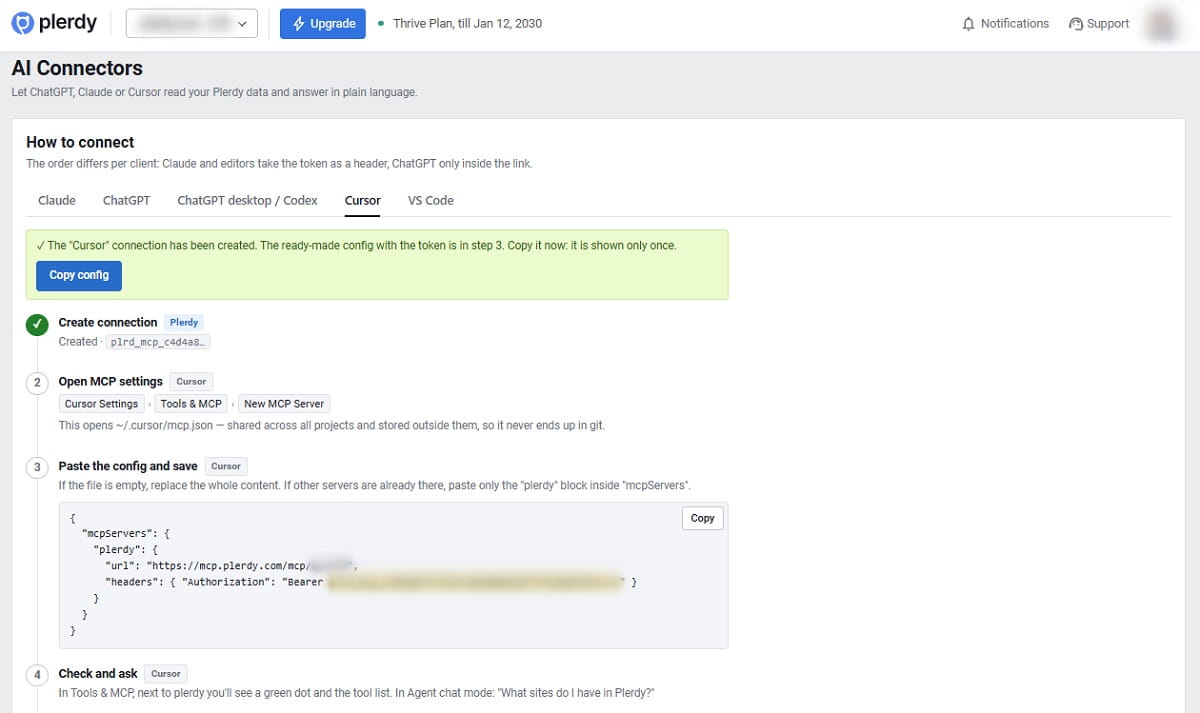
Yes. Editors are handy for agencies and developers who want site data next to the code. Both read a JSON config, and Plerdy builds a ready config with your token already in it after you create a connection on the Cursor or VS Code tab.
Cursor: open Cursor Settings → Tools & MCP → New MCP Server. This opens “~/.cursor/mcp.json”, which lives outside your projects and never ends up in git. Paste:
{
  "mcpServers": {
    "plerdy": {
      "url": "https://mcp.plerdy.com/mcp/acc12345",
      "headers": { "Authorization": "Bearer plrd_mcp_…" }
    }
  }
}
A green dot next to plerdy in Tools & MCP means it’s connected. Ask in Agent mode.
VS Code: press Ctrl+Shift+P (Cmd+Shift+P on macOS), run “MCP: Open User Configuration” and paste the same block with “servers” instead of “mcpServers” and “type”: “http” added. Then open Copilot Chat, switch from Ask to Agent mode and check that plerdy is ticked in the tools list. Copilot Chat needs a GitHub sign-in; GitHub has a free Copilot plan.
If the config sits inside a project folder (“.cursor/mcp.json” or “.vscode/mcp.json”), don’t write the token into the file. Plerdy shows a variant that reads it from an environment variable (Cursor) or asks for it once and keeps it in secure storage (VS Code).
Claude, ChatGPT or an editor: what’s different in the setup?
| Client | Where you add Plerdy | Where the token goes | Plerdy step comes | Good to know |
|---|---|---|---|---|
| Claude (web, desktop) | Settings → Connectors → Add custom connector | Request header “Authorization: Bearer …” | Third, while the Claude form stays open | Pick Authentication: No sign-in, even though “Sign in now” is marked Detected |
| ChatGPT (web) | Settings → Plugins → + (Developer mode on) | Inside the link | Second, before the plugin form | Enable the plugin in every new conversation |
| ChatGPT desktop / Codex | Settings → Plugins → MCP → Connect to a custom MCP | Header | First | Works in Codex, not in browser ChatGPT |
| Cursor | Tools & MCP → New MCP Server | “headers” in mcp.json | First | Use Agent mode |
| VS Code | MCP: Open User Configuration | “headers” in mcp.json | First | Ask in Copilot Chat, Agent mode |
What should I ask my AI assistant first?
Plerdy MCP Server comes with five built-in prompts. Clients that support MCP prompts, such as Claude, list them under the Plerdy connector. In any client you can also just type the request.
- “Give me a weekly money review.” What changed on the site this week, what it’s worth in money, and two or three things to do first.
- “Diagnose my checkout page.” Why one page underperforms, with evidence from real sessions.
- “Why did conversions drop yesterday?” The assistant checks causes in order: tracking, errors, funnel, traffic.
- “What’s broken on my site right now?” Open JavaScript and HTTP errors, dead funnel steps, tracking status.
- “Can I trust this A/B test?” Whether the result is reliable yet and what to do with it.
After that, ask the questions you’d normally ask an analyst. Five that work well on day one:
- Which traffic source brought the most visits but the fewest orders last month?
- On which field do people abandon my contact form?
- Find mobile sessions with rage clicks on my checkout page.
- Which Google queries bring impressions but almost no clicks?
- What do people click on my pricing page, and how far do they scroll?
What data can the AI see in Plerdy?
Plerdy MCP Server gives the assistant 12 read-only tools. Each one returns the same numbers you’d see in the matching Plerdy report, capped at 200 rows per answer.
| Tool | What the AI gets | Example question |
|---|---|---|
| List websites | Sites this connection may read | “Which sites do I have in Plerdy?” |
| Traffic overview | Sessions, pageviews, channels, devices, countries | “How did traffic change compared to last week?” |
| Top pages | Most visited pages with sessions and pageviews | “What are my 10 most visited pages?” |
| Page behavior report | Clicks by element, dead and rage clicks, scroll depth for one URL | “Why does my pricing page convert worse on mobile?” |
| Find session recordings | Sessions filtered by page, device, rage or dead clicks, with a link to each replay in Plerdy | “Find sessions with rage clicks on checkout.” |
| Form analytics | Views, starts and submits per form, plus the field that loses the most people (counts only) | “Where do people quit the signup form?” |
| Conversion funnels | Your funnels and how many people reach and drop at each step | “Which funnel step loses the most people?” |
| A/B test results | Visitors and conversions per variant, lift, confidence | “Is variant B really better, or is it noise?” |
| Site errors | Open JavaScript and HTTP errors by frequency, plus the revenue and conversions in sessions that hit them | “What broke after yesterday’s release?” |
| Revenue and where it leaks | Revenue, orders, average order value and revenue per session vs. the previous period; channels ranked by what they bring in | “Which channel wastes the most ad budget?” |
| On-page SEO issues | Missing or overlong titles, missing descriptions, missing or duplicate H1, noindex pages | “Which pages lost their meta description?” |
| Search queries | Google Search Console queries with clicks, impressions, CTR | “Which queries bring impressions but no clicks?” |
The assistant can look back as far as your plan stores data: 3 months on Startup and Scale, 6 months on Thrive, 12 months on Enterprise plans. Revenue answers need e-commerce tracking, and Search queries need Google Search Console connected in Plerdy.
The AI doesn’t watch recordings. It finds the sessions worth watching and gives you links; the replay itself opens in Plerdy session replay. The same goes for heatmaps: ask which blocks people ignore, then open the heatmap to see them.
Is it safe to connect my analytics to an AI assistant?
Plerdy MCP Server is strict by default:
- Read-only. The assistant can’t change settings, delete data, edit pop-ups or stop A/B tests.
- No visitor personal data. Contacts collected by your forms and pop-ups (emails, names, phone numbers) never leave Plerdy. Visitor IP addresses don’t either; the AI sees the country only. Form analytics returns counts, never the answers people typed.
- Plerdy doesn’t see your chat. It only logs which report was requested, for the daily limit and the usage chart.
- Per-site access. Each connection can be limited to specific sites in your account.
- Expiry and revocation. Tokens expire after 90 or 365 days unless you choose no expiry, and you can revoke any connection in Settings → AI Connectors. The assistant loses access immediately.
One account can have up to 10 active connections. A separate connection per assistant (one for Claude, one for ChatGPT, one for a contractor’s Cursor) means you can cut off one without touching the others. Plerdy also shows when each connection was last used.
Keep in mind what an AI assistant is. Plerdy sends it exact numbers, but the assistant writes the explanation, and it can still draw a wrong conclusion. That’s why every answer links back to the Plerdy report. Before you cut a budget or rebuild a page, open the link and look at the numbers.
How many questions can I ask per day?
Each plan includes a daily number of AI requests. One request is one call the assistant makes to your Plerdy data, and a single question often uses several calls (for example, list sites, then traffic, then page report). The counter resets every day.
| Plerdy plan | AI requests per day | History the AI can query |
|---|---|---|
| Free | Not included | n/a |
| Startup | 100 | 3 months |
| Scale | 300 | 3 months |
| Thrive | 600 | 6 months |
| Enterprise 1 | 1,500 | 12 months |
| Enterprise 2 | 3,000 | 12 months |
| Enterprise 3 | 5,000 | 12 months |
The Settings → AI Connectors page shows calls made today against your limit and the tools your assistants use most.
Why isn’t my AI connection working?
| What you see | Why | Fix |
|---|---|---|
| Claude preselects “Sign in now (Detected)” or opens a sign-in window | Plerdy answers 401 without a token, and Claude reads that as “OAuth required” | Choose Authentication: No sign-in and add the Authorization header |
| “The Plerdy plan on this account does not include AI connector access” | The account is on the Free plan | Upgrade to any paid plan |
| 401 error in Codex or Cursor | The header value is missing “Bearer ” or part of the token | Value must be “Bearer plrd_mcp_…” with one space |
| VS Code shows “Dynamic Client Registration not supported” | The token wasn’t accepted | Click Cancel; check the token is complete, not revoked and from this account |
| ChatGPT ignores Plerdy | Custom plugins aren’t on by default in a new chat | Enable Plerdy in the conversation |
| “Connection limit reached” | 10 active connections already | Revoke one you don’t use |
| It worked, then stopped | The token expired or was revoked, or the daily limit is used up | Check the connection status in Plerdy; create a new one if needed |
| Lost the token | Plerdy shows it only once and doesn’t store it in readable form | Revoke that connection and create a new one |
FAQ about connecting website analytics to ChatGPT and Claude
Can ChatGPT read my website analytics?
Yes, if you connect it through an MCP connector. With Plerdy MCP Server, ChatGPT can request your traffic, revenue, form, error, A/B test and Search Console data from Plerdy and answer in plain English. You turn on Developer mode in ChatGPT, then add Plerdy as a plugin with the link from Settings → AI Connectors.
Do I need a developer to connect Plerdy to Claude or ChatGPT?
No. Plerdy MCP Server runs on Plerdy’s side, so nothing is installed on your computer or website. You copy a server address and a token from Plerdy into the connector form of your AI assistant. For Claude it is five steps, for ChatGPT four, and it usually takes about five minutes.
Is Plerdy MCP Server available on the Free plan?
No. AI Connectors are included in all paid Plerdy plans, starting with Startup from $21 a month. Each plan has a daily limit of AI requests: 100 on Startup, 300 on Scale, 600 on Thrive and from 1,500 to 5,000 on Enterprise plans. There is no extra charge per question.
Can the AI change anything on my site or in Plerdy?
No. Plerdy MCP Server is read-only. The assistant can read reports, but it can’t change settings, delete data, edit pop-ups or stop A/B tests, and it has no access to your website itself. You can limit each connection to specific sites and revoke it at any time in Settings → AI Connectors.
Does the AI see my customers’ personal data?
No. Emails, names and phone numbers collected by your forms and pop-ups never leave Plerdy, and visitor IP addresses are replaced with the country. Form analytics returns counts only. Session recordings play in Plerdy; the AI gets session metadata and a link, not the recording.
Can I connect several sites or several AI assistants?
Yes. One Plerdy account can have up to 10 active connections, for example one for Claude, one for ChatGPT and one for Cursor. Each connection can read all sites in the account or only the ones you select, and you switch between sites in the chat by name.
Does Plerdy see what I write in ChatGPT or Claude?
No. Plerdy receives only the report request the assistant sends, such as “traffic overview for site X, last 7 days.” Your chat stays with your AI provider. Plerdy logs which tool was called and when, to count the daily limit and show usage in Settings → AI Connectors.