

When a landing page doesn’t convert, the cause sits in one of two places. Either your ads, search results or emails bring people who were never going to buy, or the right people arrive and the page lets them down. The fixes go in opposite directions. A traffic problem means changing targeting, keywords and ad copy. A page problem means changing the page. Guess wrong, and you spend a month redesigning a page that was fine, or cut the one campaign that brought buyers to a broken checkout.
This guide gives you a five-minute check that settles the question for one page, using numbers you already collect: sessions, conversion rate, bounce rate, and a few session recordings. Plerdy Traffic Value runs the same logic on every landing page and channel of your site and labels each one, so you can do the check by hand first and then let Plerdy repeat it for all pages at once.
To tell a traffic problem from a landing page problem, compare bounce rate and conversion rate for the same page across traffic sources. If visitors from one source leave right away and the rest convert, it’s the traffic. If visitors from every source stay, scroll and still don’t convert, it’s the page. Judge only pages with 100 or more sessions.
How do I tell if low conversions are a traffic problem or a landing page problem?
Ask two questions about the page: do people stay, and do the people who stay do anything? Bounce rate answers the first, conversion rate the second. Put them together and you get four cases.
| Visitors convert | Visitors don’t convert | |
|---|---|---|
| Most visitors stay (bounce rate up to 75%) | Traffic and page both work | Page problem: people read and don’t act |
| Most visitors leave (bounce rate above 75%) | Mixed traffic: part of it is right, part isn’t | Traffic problem: the page isn’t what they expected |
The second test is comparison. Take the same page and split it by source. Say organic visitors convert at 2% on your pricing page and Google Ads visitors convert at 0.2% on that very page. The page is identical for both groups, so it can’t be the main cause. The people are different. If every source converts badly on the page, the page is the common factor.
The same split works by device. A page that converts at 3% on desktop and 0.4% on mobile usually has a mobile layout problem: a button below the fold, a form that’s hard to fill on a phone, a pop-up that covers the content.
The 5-minute diagnosis, step by step
You need the page’s numbers for one period, split by traffic source, and access to session recordings or a heatmap. Each step takes about a minute.
- Check that the data is worth reading. Look for at least 100 sessions on the page in the period. Between 30 and 99, treat any conclusion as preliminary. Under 30, don’t conclude anything. Then submit a test form or make a test purchase and confirm the conversion was counted. A goal that stopped firing after a site update looks exactly like a page that stopped converting.
- Split the page by traffic source. Write down sessions, conversions and bounce rate for Google Ads, organic search, social, email and direct. Ignore sources with a handful of sessions.
- Read bounce rate and conversion rate together. Use the decision table below. One source far worse than the others points to that source. All sources weak points to the page.
- Check how fast people leave. If more than half of the visits last under 15 seconds, visitors decided from the first screen that the page isn’t for them: wrong audience or a promise the page doesn’t keep. Long visits with deep scrolling, several pages viewed and no conversions mean the opposite. They wanted it, and something stopped them.
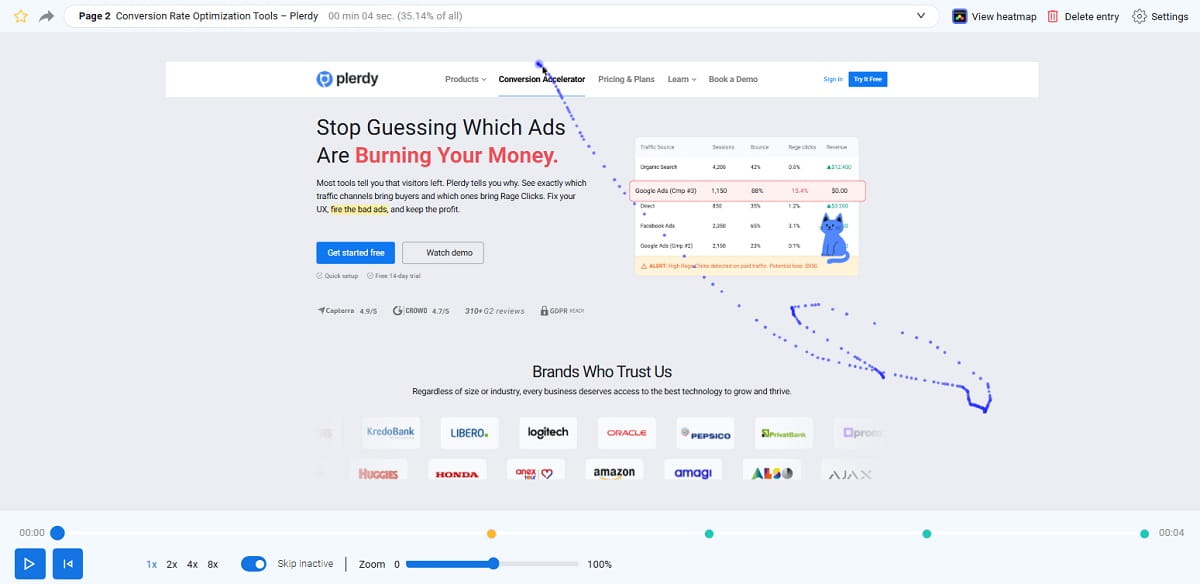
- Watch five recordings from the worst source. Visitors who leave at the first screen confirm a traffic or message problem. Visitors who scroll, click the size selector, open the form and then quit confirm a page problem. On the heatmap, check whether the main button is among the most clicked elements.
Five recordings won’t prove anything statistically. They do show what kind of problem you’re looking at, which is all this check needs to do. The numbers say where to look, and the recordings say what’s wrong.
What does each combination of bounce rate and conversion rate mean?
These rules come from the way Plerdy Traffic Value labels landing pages. They apply to pages with 100 or more sessions in the period. Bounce rate here means the share of sessions that viewed only one page.
| Conversion rate | Bounce rate | Verdict in Plerdy | What it usually means | First move |
|---|---|---|---|---|
| 2% or more | Any | All Good | Traffic and page work | Leave it, or test one change |
| 1–2% | Up to 75% | All Good | Working page with room to grow | A/B test the main call to action |
| 0.5–1% | Up to 75% | Growth Point | People stay, some convert, fewer than could | Offer, form, trust signals |
| 0.5–1% | Above 75% | Worth Checking | Conversions exist, but most visitors leave at once | Compare sources, then check message match |
| Under 0.5% | Up to 75% | Page Problem | People read the page and still don’t act | Offer, price, broken elements |
| Under 0.5% or 1–2% | Above 75% | Complex Issue | Both the audience and the page are off | Message match first, then the page |
| 0 | Above 90%, paid source | Budget Loss | You pay for visits that end in seconds | Pause the ad today, then investigate |
| 0 | Above 90%, unpaid source | Traffic Problem | Visitors who arrive aren’t looking for this page | Check which queries or links bring them |
| 0 | 75–90% | Traffic Problem (paid) or Questionable Traffic (unpaid) | Wrong audience or a promise the page doesn’t show | Targeting, keywords, ad text |
| 0 | 50–75% | Complex Issue | The numbers contradict each other | Watch recordings before changing anything |
| 0 | Under 50%, 200+ sessions | Page Problem | Visitors stay, click around and leave with nothing | Find what stops them on the recordings |
Pages with fewer than 30 sessions get the label Data collection, or Positive Start if conversions have already appeared. Between 30 and 99 sessions the verdict is preliminary. For example, a page with no conversions and bounce above 85% is marked Questionable Traffic.
Direct traffic gets a note in Plerdy. People who type your address are mostly returning visitors, so a high bounce rate on Direct means something different from the same number on a paid ad.
Which behavior signals change the verdict?
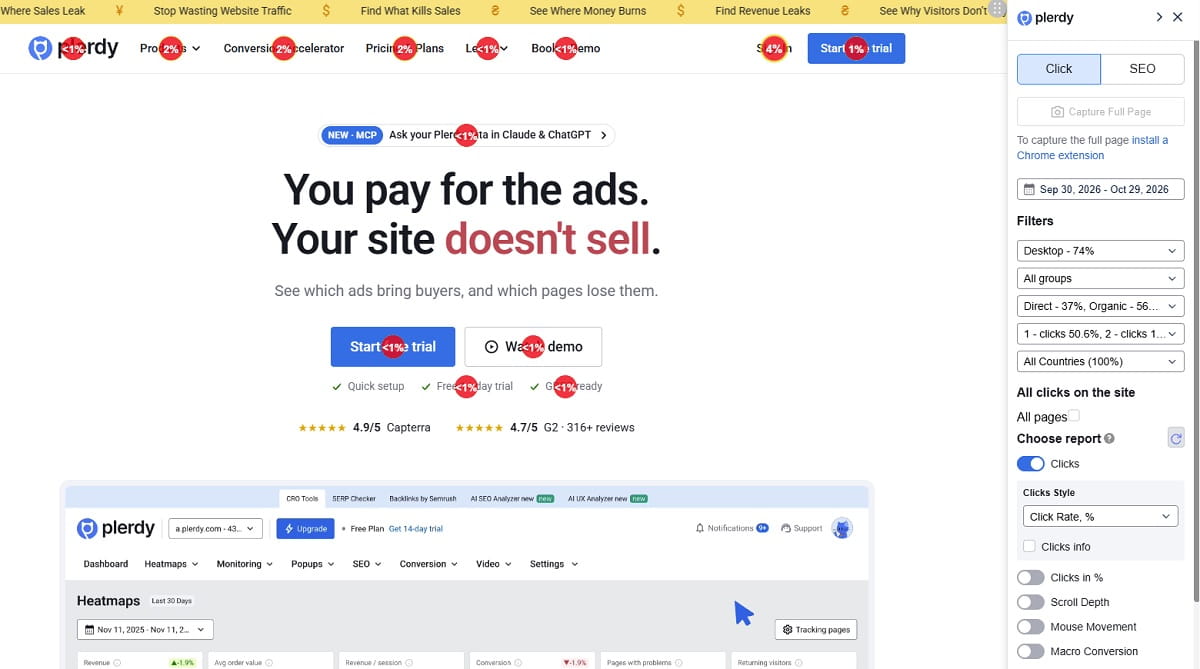
Conversion rate and bounce rate can’t see what visitors do on the page. Behavior can, and in Plerdy it can override the verdict from the table above:
| What visitors do | Label in Plerdy | Points to |
|---|---|---|
| More than 50% of sessions end in under 15 seconds, or bounce is above 85% and more than 70% of sessions have no clicks | Mismatch | Traffic: the ad or link promises something else |
| Bounce under 50%, scroll depth above 70%, more than 2 pages per session, 2 or fewer conversions on 100+ sessions | Conversion Barrier | Page: people browse and don’t buy (price, shipping, checkout) |
| Rage clicks in more than 10% of sessions, or a friction score above 60 out of 100 | UX Blocker | Page: something probably doesn’t work |
| Visits longer than 60 seconds on average, more than 50% without a click, scroll depth under 30% | Low Engagement | Page: the first screen doesn’t lead anywhere |
| The cursor moves in fewer than 30% of sessions, and more than 80% of sessions have no clicks | Suspicious Traffic | Traffic: bots or a tracking problem |
| Trust score under 40 and bounce above 60% | Trust Issue | Page: reviews, contacts, guarantees are missing or hard to find |
The UX Blocker row is the one owners most often miss. A page with a JavaScript error on the “Add to cart” button can have a normal bounce rate, because people stay and try again. Only rage clicks and recordings show it. If you suspect errors, Plerdy Error Tracking lists JavaScript errors, broken scripts and failed requests together with the sessions they hit.
What does a traffic problem look like, and what does a page problem look like?
Here are the causes behind each verdict, as they usually show up in recordings and reports.
Typical traffic problems:
- Search terms that will never buy: “free,” “jobs,” “how to,” “template,” a competitor’s brand name. The search terms report in Google Ads shows them.
- The ad promises a discount, a product or a delivery time that the page doesn’t show on the first screen.
- Geography outside your delivery area, or a language your page isn’t written in.
- A broad audience on Meta or display ads that clicks out of curiosity.
- An email sent to an old list, or a partner link from a site with a different audience.
- Bots and accidental clicks: sessions with no cursor movement and no clicks.
Typical page problems:
- The main button sits below the fold on mobile, or a pop-up covers it.
- Slow loading. Google’s Core Web Vitals treat a Largest Contentful Paint above 2.5 seconds as needing improvement; check yours in PageSpeed Insights.
- A form that asks for too much, or shows an error people can’t understand.
- Shipping costs, taxes or a minimum order that appear only at checkout.
- No reviews, no contact details, no return policy near the main button.
- A broken element: a size selector that doesn’t respond, a payment method that fails, a link to a 404.
A message mismatch belongs to both lists. The ad brings the right person, and the page greets them with the wrong headline. It’s the cheapest fix of all: make the first screen repeat what the ad promised.
How do I run this check for every page in Plerdy Traffic Value?
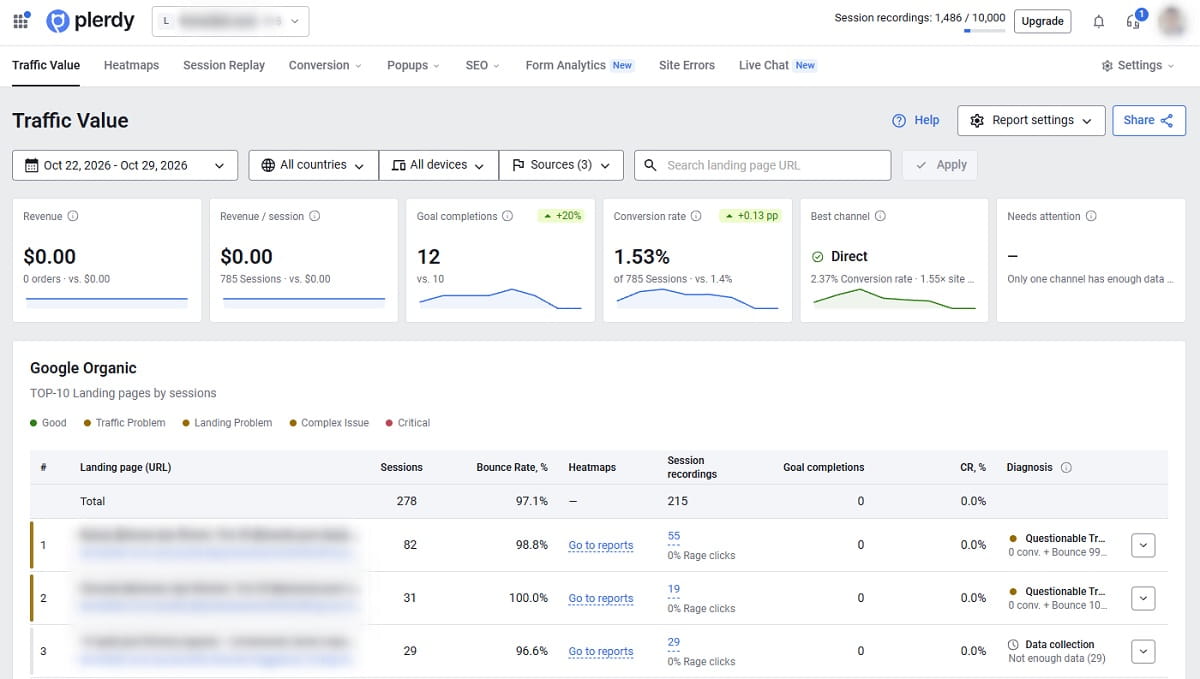
Doing the check by hand works for one page. For a site with dozens of landing pages and five or six traffic sources, Plerdy Traffic Value does it for all of them in one table: Google Ads, Google Organic, Paid Social, Social, Email, Referral, Direct and Other, detected from UTM tags and referrers.
- Install the Plerdy script and set a conversion goal: a form submission or a visit to a thank-you page. Stores with e-commerce tracking also get revenue and revenue per session for each row.
- Open Traffic Value and pick the period. The default is the last 7 days; on a small site, take 30 days so more pages pass 100 sessions. Filter by device to catch pages that fail only on mobile.
- Read the verdict column. Each row is a landing page within a channel, so the same page shows up under Google Ads and Google Organic with its own verdict. That’s the source comparison from step 2, done for you.
- Expand a row with Page Problem, Traffic Problem or Budget Loss. You’ll see the behavior signals for that page and channel (rage clicks, sessions without clicks, scroll depth, Trust and Friction scores) and suggested next steps.
- From the same row, open the heatmap or the session recordings of that page and watch the five sessions from step 5.
The Best channel and Needs attention cards above the table answer the question one level up: which source earns the most per session, and which one loses the most compared with your site average. Agencies can send a client the report through a read-only link, without a Plerdy login.
If you use Claude or ChatGPT, Plerdy MCP Server (paid plans) adds two built-in prompts for this job: “Diagnose one page” and “Landing page audit.” You name the page, and the assistant pulls its clicks, scroll depth, rage clicks and a recording that shows the problem from your Plerdy data. The setup takes a few minutes; see how to connect your website analytics to ChatGPT and Claude.
Can I run the same check in GA4 or Google Ads?
Yes, with more manual work. In GA4, open the Landing page report, add Session default channel group as a secondary dimension, and add bounce rate if the report doesn’t show it. In Google Ads, the search terms report shows what people typed before clicking, and the landing page experience part of Quality Score tells you whether Google rates the page as below average.
One trap: GA4 defines bounce rate differently. In GA4, bounce rate is the share of sessions that weren’t engaged: 10 seconds or less, with one page view and no key event. Plerdy counts a bounce as a session with one page view, the way Universal Analytics did. GA4 numbers are therefore usually lower. The thresholds in this guide assume one-page bounce, so don’t apply them to GA4 numbers as is, and don’t compare bounce rates between tools.
| Plerdy Traffic Value | GA4 | Google Ads | |
|---|---|---|---|
| Landing page × channel in one table | Yes, by default | Yes, with a secondary dimension | Google Ads traffic only |
| Verdict for each page: traffic or page | Yes, rule-based | No | Landing page experience rating per keyword |
| Organic, email, social and direct | Yes | Yes | No |
| Rage clicks, scroll depth, sessions without clicks | Yes, in the same row | Scroll event only | No |
| Heatmaps and recordings of the same visits | Yes, one click from the row | No | No |
| Bounce rate | One-page sessions | Sessions that weren’t engaged | Not reported |
| Clicks, CTR, cost per click | No, take them from the ad platform | Google Ads cost, if accounts are linked | Yes |
GA4 can tell you which page and which channel underperform. It can’t show you why. For the last minute of the check, the recordings, you need a behavior analytics tool either way.
What conversion rate counts as low?
It depends on the page. Unbounce’s Conversion Benchmark Report puts the median conversion rate of landing pages at 6.6% across industries, based on 41,000 pages built in Unbounce. Those are mostly dedicated lead-gen pages with one form. A product page, a category page or a homepage will convert lower, and that’s normal.
The thresholds in the table above (2%, 1%, 0.5%) are triage rules for any page on a site. They aren’t a benchmark for your niche. There’s no reliable public benchmark for “your kind of page in your industry,” and the useful comparison is internal: each channel and each landing page against your own site average. A page at 1% is fine if the site converts at 0.8%, and a warning if the site converts at 4%.
For the basics of the metric itself, see what conversion rate is and how to calculate it.
What should I fix first?
Start with the cheapest change that matches the verdict, and change one thing at a time so you know what worked.
- Budget Loss: pause the ad group or point it to a page that already converts for similar traffic. Then check the destination URL, the mobile version and the promise in the ad. There’s a full routine for this in how to find wasted ad spend by landing page.
- Traffic Problem or Mismatch: add negative keywords from the search terms report, narrow the geography and audience, and make the page headline repeat the ad.
- Page Problem, Conversion Barrier or UX Blocker: fix what’s broken first, then the first screen, then the form, then trust signals. Errors cost the most and are the fastest to fix; here’s how to estimate what they cost you.
- Complex Issue: fix message match first. It often moves bounce rate and conversion rate together.
- Growth Point: the page works. Test changes with an A/B test instead of rebuilding it.
After two to four weeks, compare the page with the previous period. If the verdict didn’t change, the cause was somewhere else, and the recordings are the place to look again. More page-level ideas are in our guide to landing page optimization.
Don’t buy more traffic for a page with a Page Problem verdict. Doubling the budget on a page that converts at 0.3% doubles the loss.
What can’t this check tell you?
- Why exactly the page fails. The numbers narrow it down to traffic or page. Recordings and heatmaps show the actual cause.
- Purchases that happen later. Plerdy counts a conversion in the same session. A visitor who clicks an ad today and returns through Direct to buy on Friday is credited to Direct.
- Verdicts on small pages. Under 30 sessions there’s no verdict, and under 100 it’s preliminary. On a small budget, pick a longer period.
- One-page funnels. If your form sends without opening a new page, a visitor who converted still counts as a one-page session. On such pages, bounce rate runs high for everyone; rely on conversion rate, visit length and clicks. A thank-you page after the form fixes this and gives you a clean goal.
- What the traffic cost. Traffic Value shows what each source brought in. Spend and cost per click stay in your ad platform.
Plerdy Traffic Value is available on every Plerdy plan, including Free, which keeps one month of data. Paid plans start at $21 per month billed annually and keep data longer; current limits are on the pricing page.
FAQ: landing page not converting
Why is my landing page getting traffic but no conversions?
Either the traffic doesn’t match the page, or the page stops the people who do match. Check bounce rate first. If most visitors leave within seconds, the ads or links bring the wrong audience or promise something the page doesn’t show. If visitors stay, scroll and still don’t convert, the problem is on the page: the offer, the form, missing trust signals or a broken element.
Is a high bounce rate always a traffic problem?
No. A high bounce rate with zero conversions usually points to traffic, but a high bounce rate with normal conversions can be fine, for example on a page where people call from the first screen. A slow page or a pop-up covering the content can also push bounce rate up. Compare the same page across traffic sources: if only one source bounces heavily, it’s the traffic.
How many visitors do I need before I judge a landing page?
Aim for at least 100 sessions on the page in the period you analyze. Between 30 and 99 sessions, any verdict is preliminary, and under 30 the numbers are too noisy to read. Plerdy Traffic Value uses the same thresholds: pages with fewer than 30 sessions are marked Data collection.
What is a good landing page conversion rate?
Unbounce’s benchmark report puts the median for dedicated landing pages at 6.6% across industries. Product, category and home pages convert lower. The more useful comparison is internal: a page or channel well below your own site average is the one to check first, whatever the industry figure says.
Why does my landing page convert on desktop but not on mobile?
When the same traffic converts on desktop and fails on mobile, the cause is almost always the mobile layout: the main button below the fold, a form that is hard to fill on a phone, slow loading, or a pop-up that covers the content. Filter the page by device and watch a few mobile session recordings to find the exact spot.
Can Plerdy tell me automatically whether it’s the traffic or the landing page?
Yes. Plerdy Traffic Value shows every landing page split by traffic channel and labels each row, for example Page Problem, Traffic Problem, Complex Issue or Budget Loss, based on conversion rate, bounce rate and visitor behavior. From the same row you can open the heatmap and session recordings of that page. Traffic Value is included in every plan, including Free.