

Most sites that break during a sale or right after a redesign don’t go down. They load fine and look fine, and somewhere in the middle a coupon stops applying, a size selector stops responding on iPhones, or the new checkout template ships without the analytics script. Nobody on the team sees it, because everyone tests on their own laptop. This checklist covers only that: the errors that cost orders, how to find them before the traffic arrives, and what to watch in the first week after.
For the wider prep work (offers, stock, shipping, email), use our Black Friday checklist or the website launch checklist. This page is the technical sweep you run on top of them.
A website error checklist before Black Friday or a redesign has five parts: record a baseline of current errors, buy something on real phones, test every promo link and coupon, check each new app or script on its own, and confirm tracking on every page. Run it two weeks before, again on the day, and daily for a week after.
When should I check my website for errors before Black Friday or a launch?
Start four to six weeks out and finish the full sweep two weeks before. Black Friday 2026 falls on November 27, and Cyber Monday on November 30. Many retailers freeze code around then; Digivante’s code freeze checklist suggests setting the freeze at least two weeks before Black Friday. Anything you find after the freeze is harder to fix, so the sweep has to happen before it.
A redesign works the same way, just with the launch date in place of the sale.
| When | Before Black Friday | Before and after a redesign |
|---|---|---|
| 4–6 weeks before | Record a baseline of errors and conversion rate. List every app, theme change and promo page you plan to add. | Record a baseline on the old site: errors, top landing pages, conversion rate by device. Build the redirect map. |
| 2 weeks before | Run the full checklist below. Fix the costly errors. Freeze code. | Run the full checklist on staging, then again on production right after the switch. |
| The day itself | Test purchase on a phone every few hours. Watch new errors. | Test purchase and form submit in the first hour. Check tracking and redirects. |
| First 7 days | Daily error review against the baseline. | Daily error review, 404s on old URLs, conversion rate against the old site. |
| After 30 days | Post-sale review: what broke, what to do earlier next year. | Compare organic traffic and conversion rate with the baseline. |
What should I check on my website before a sale or a redesign?
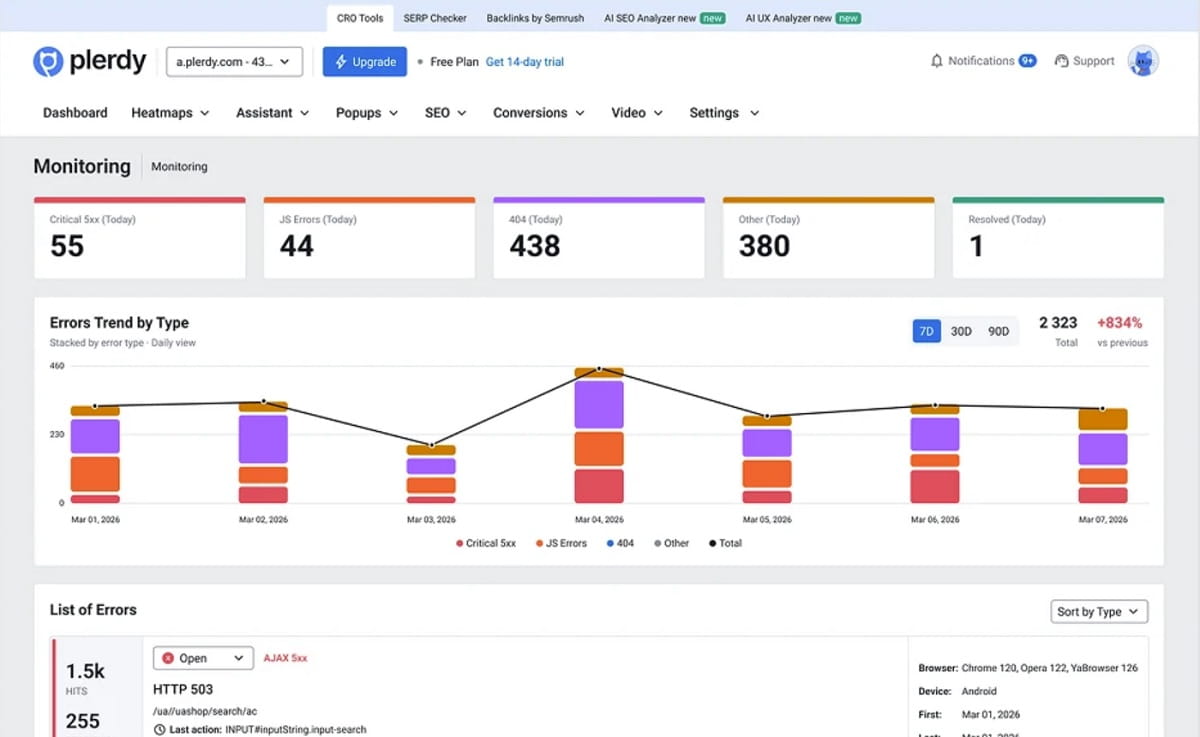
Go through the groups in this order. The first one makes the rest readable, because without a baseline you can’t tell a new error from one that has been firing for a year.
1. Record a baseline before anything changes
- Open the Site Errors report in Plerdy Error Tracking, set the period to 30 days and write down four numbers: open errors, the top five errors by impact, Revenue at Risk and affected users per day.
- Mark the errors you already know are harmless as Ignored: browser extensions, ad blockers, a third-party widget that throws errors while visitors still buy. New errors will stand out against a short list.
- Write down your conversion rate by device for the last four weeks. During the sale you’ll compare against these numbers.
- Check how long your plan keeps error history. On plans with 15 or 30 days, a baseline taken in mid-October is gone by Cyber Monday, so take screenshots now.
2. Buy something on real phones
Mobile is where the money is during the sale. Adobe reported that on Thanksgiving 2025, 61.6% of US online sales came through mobile devices, and 57.5% on Cyber Monday (Adobe, December 2025). Your team probably tests on desktop Chrome.
- Place a real order on an iPhone in Safari, an Android phone in Chrome and a desktop browser. Go the whole way: product page, size or variant, add to cart, change quantity, coupon, shipping, payment, thank-you page. Use a cheap product and refund it.
- Do it twice: once as a guest and once logged in. They often run different code.
- Cancel a payment on purpose, for example by closing the PayPal window, and come back. The cart should still be there, with a message that makes sense.
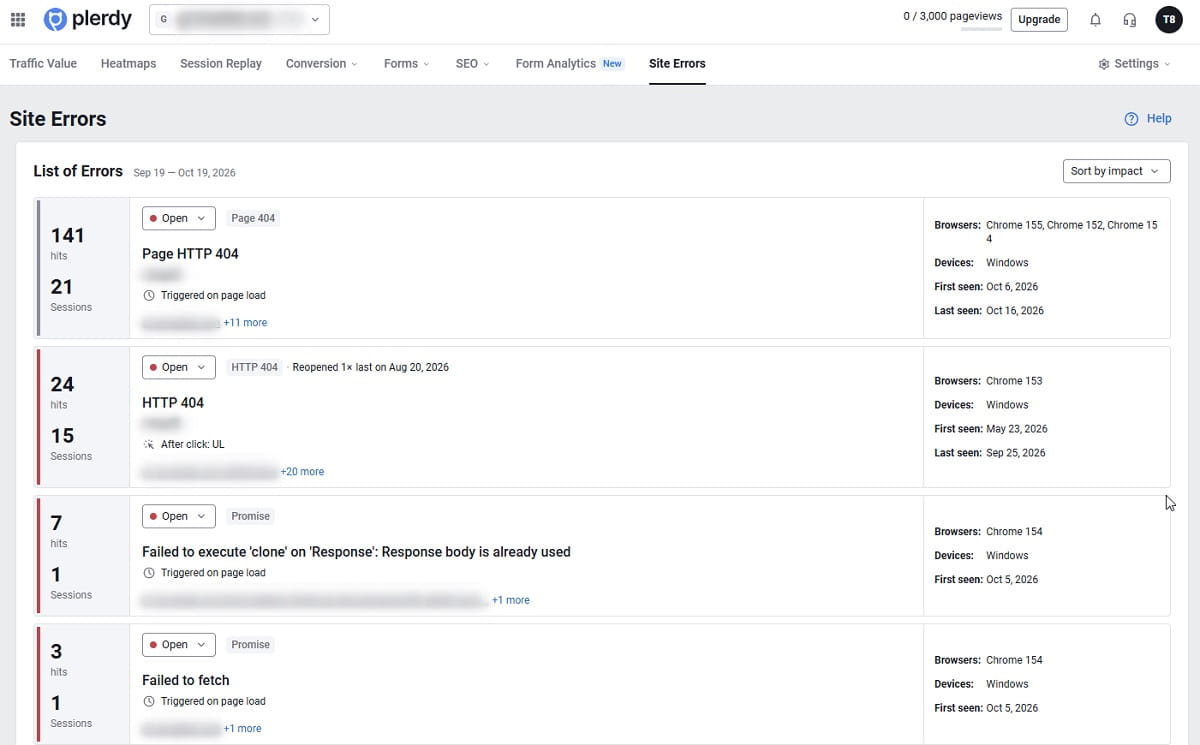
- After each test, open Site Errors and filter by the URLs you just visited. If an error fired during your purchase, you already know how to reproduce it.
In 2018, J.Crew’s site let people browse on Black Friday but not add to cart or pay. Business Insider, citing LovetheSales.com, estimated the cost at about $775,000 in sales over the first five hours (Business Insider, November 2018). The pages loaded. The buying path didn’t.
3. Test every sale link, coupon and price
- Click every link in the sale emails, SMS, ads and banners. A link that redirects can drop the UTM tags or the coupon, and a link to a page you renamed lands on a 404.
- Apply each coupon code in the cart. Coupons are usually checked by a background request, and when that request fails the buyer only sees that the price didn’t change. Plerdy records these as AJAX 4xx or 5xx errors.
- Compare the sale price on the category page, product page, cart and checkout. All four should match.
- Add a sold-out size to the cart and see what happens. Then let the countdown timer reach zero on a test page and check that the banner and price behave.
4. Check each new app, script and theme change on its own
- List everything added since the baseline: popup and upsell apps, review widgets, chat, timers, new ad pixels, theme updates.
- Add them one at a time and check Site Errors 24 hours after each. If five apps go live the same night, you won’t know which one broke the cart.
- Remove apps installed for last year’s sale that nobody uses. Each one loads code on every page.
Apps break checkouts more often than people expect. A Shopify merchant described on the Shopify Community forum how a pre-order app’s script stopped the checkout button from working on every device. Sales came back only after the script was removed.
5. Submit every form
- Send the signup, newsletter, contact, login and password reset forms with real data, and confirm the email or the CRM record arrives.
- Make a typo on purpose in an email field and a phone field. The error message should say what’s wrong. A form that turns red without explaining loses the lead.
6. Confirm tracking on every page
- Check that the Plerdy script and GA4 load on every template: product, cart, checkout, thank-you, and each new landing page. Errors on a page without the script are invisible.
- Place a test order and confirm your goals and purchase events counted it. If the thank-you page isn’t tracked, you’ll see sessions during the sale but no sales.
7. Ask your host or developer about capacity
- Ask whether the site was load-tested at the traffic you expect at the peak. An average day tells you nothing. Load testing is a developer’s job, but the question is yours.
- Ask who is on call during the sale, how a hotfix gets approved during the freeze, and how fast a release can be rolled back.
8. For a redesign, add these
- Every old URL that had traffic redirects with a 301 to the closest new page. Check your top 50 old URLs one by one.
- The new templates don’t carry a “noindex” tag left over from staging. Plerdy’s daily SEO checks flag extra noindex tags, a missing title and duplicate descriptions.
- The tracking script is on every new template. This is the most common thing to lose in a redesign, and nobody notices until someone asks why sales dropped.
- The new theme doesn’t load files that no longer exist. Missing scripts, styles, fonts and images show up in Site Errors as 404 resources.
- Forms still send leads to the same inbox or CRM as before.
For page-level 404s on old URLs, use the Pages report in Google Search Console or a crawler. Plerdy shows the missing files inside pages that loaded.
How do I know if an error is new or was always there?
Compare against the baseline and read the signals below. Most of them are visible on the Site Errors cards without opening a single error.
| What you see in Plerdy | What it usually means | What to do |
|---|---|---|
| New today is above zero after a release | The release broke something | Compare the error’s first-seen time with the release time, then roll back or hotfix |
| A Resolved error shows a Reopened label | The fix didn’t hold, or a release brought the bug back | Send it back to the developer with the reopen time |
| One browser or OS has most of the affected sessions | A bug in your code for that browser | Test the buying path on that exact device |
| Revenue at Risk is well above the baseline | An error landed on the buying path | Sort the list by impact and filter by cart and checkout URLs |
| The error comes from another domain, and recordings show people buying anyway | A third-party script you can’t fix | Mark it Ignored |
Revenue at Risk is the revenue that passed through sessions with errors. Some of those orders went through anyway, so the real loss is smaller. To estimate what an error actually costs, compare the conversion rate of sessions with and without it, then multiply by affected sessions and average order value.
Can ChatGPT or Claude run a pre-launch check for me?
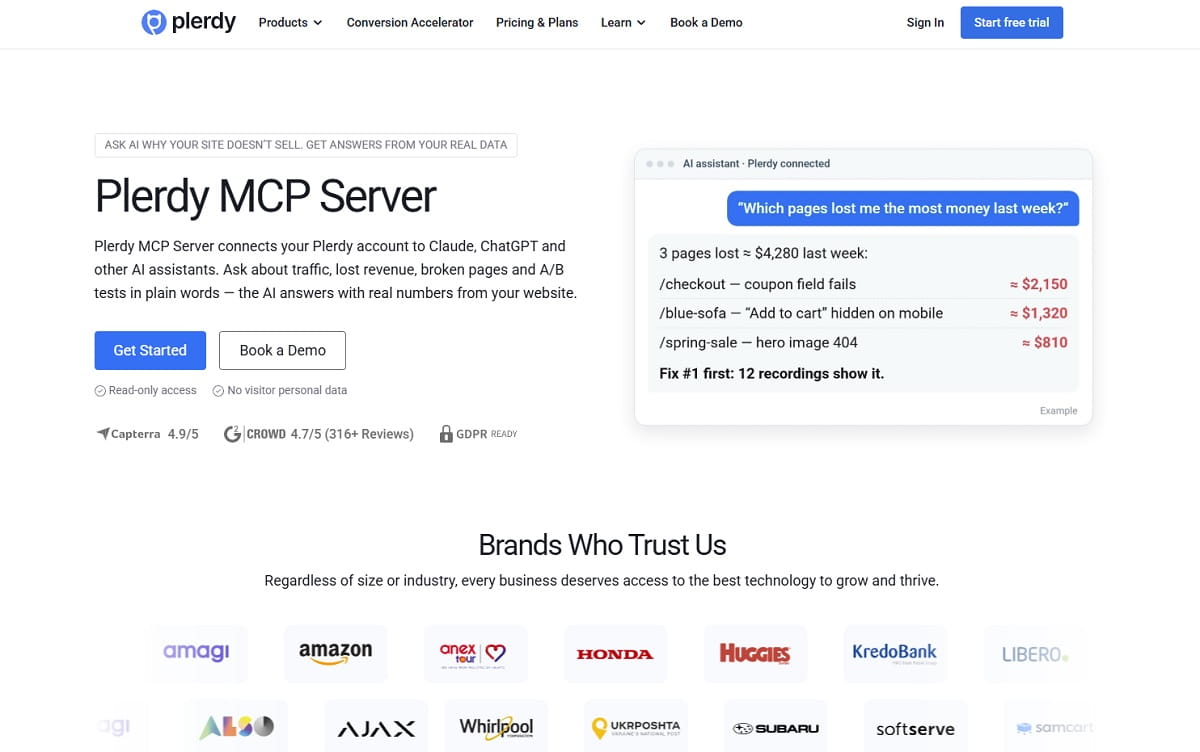
Yes, if your Plerdy account is connected to the assistant through Plerdy MCP Server (paid plans, from $21 a month billed annually). It comes with a ready-made prompt called Pre-launch check. You give it the site and, if you want, the landing page the campaign will point at, and the assistant runs this sequence on your real data:
- Is the tracking code working? If not, it says so first, because every number after that is unreliable.
- Site errors over the last 7 days. Anything frequent or recent on the landing page or the checkout path is a blocker.
- Funnel steps. Each one has to be receiving data, or the campaign can’t be measured.
- Goals. It names any goal with no data.
- SEO blockers on the landing page, such as noindex or a missing title.
- Popups and forms that nobody completes, since they’ll eat the new traffic too.
The answer starts with a verdict (ready, ready with caveats, or not ready) and then lists the blockers ranked by how much traffic they would waste. The connection is read-only. The assistant can’t change anything on your site or in Plerdy.
It doesn’t replace the test purchase on a phone. It tells you what the data already shows; your own hands find what the data can’t.
What should I watch on launch day and the week after?
The same short routine, at the same time every day, for seven days:
- Buy something in the first hour. Place one order on a phone and one on a desktop as soon as the sale or the new site goes live. Submit one form.
- Open Site Errors and read the cards. Look at New today, Affected users today and Revenue at Risk, and compare them with the baseline you wrote down.
- Sort by impact and filter the buying path. Choose Sort by impact, then filter by URLs that contain cart, checkout or order, and by device.
- Watch two or three affected sessions. Click the Revenue at Risk card to open Session Replay filtered to sessions with errors. A recording shows whether the error stopped a purchase or fired in the background.
- Send costly errors to the developer the same day. Include the error text, the pages, the browser and OS breakdown and the last user action before the error. Mark the error Resolved after the fix; Plerdy reopens it if it fires again.
- Write down what broke. After Cyber Monday or 30 days after the launch, list every error that cost money and when it started. Next year’s checklist starts from that list.
If you’d rather not check by hand every morning, Plerdy can send an alert when the tracking code on your site goes silent for six hours or when new errors appear. After a redesign, a silent tracking code is often the first sign that a template lost the script.
Recordings matter more than they seem. An error like “Cannot read properties of undefined” means nothing to a store owner, but a session recording where a buyer taps “Place order” four times and leaves needs no explanation.
Which errors should I fix during a code freeze?
Only the ones that cost more than the risk of a release. A rough rule:
| Error | During the freeze |
|---|---|
| 5xx or failed AJAX requests on cart, checkout, payment or login | Hotfix now |
| A JavaScript error that disables a buy button in one browser | Hotfix now |
| An error that started with a new app | Turn the app off; no code change needed |
| Missing product images | Fix in the CMS if many products are affected; no release needed |
| Missing decorative files, third-party noise, errors with no sessions on the buying path | Wait until after the sale |
Turning off an app is the cheapest fix there is. If an error appeared the day an app went live and the sale doesn’t depend on it, switch it off first and investigate later.
What breaks more often: a Black Friday sale or a redesign?
They break different things. A sale adds traffic and promo code on top of a site that otherwise stays the same. A redesign changes the site itself while traffic stays the same.
| Before a sale | After a redesign | |
|---|---|---|
| Main cause | Traffic peak, new promo apps, coupons and landing pages | New templates, URLs and scripts |
| Typical errors | 5xx under load, failed coupon requests, JavaScript errors from timers and popups | Old URLs returning 404, missing tracking, leftover noindex, broken forms, missing files |
| Where they show up | Cart, checkout, promo pages | Every template |
| When they show up | The first hours of the sale | The first 72 hours; SEO damage takes weeks to show |
| Baseline to compare with | The four weeks before the sale | The last four weeks on the old site |
What won’t this checklist catch?
- Errors on pages without the Plerdy script. If checkout runs on a separate domain or a hosted payment page, Plerdy only sees the buyer coming back.
- Server problems that never reach the browser, such as a failed order export to your warehouse. That’s for server logs and developer tools.
- Hidden errors from scripts on other domains. Browsers often report them only as “Script error.” with no details, and Plerdy skips those.
- Problems that aren’t errors at all: a confusing shipping step, a price that looks wrong, a coupon field that sends people to search for codes. For those, see our checkout and cart abandonment checklist and the mobile checkout checklist.
Plerdy Error Tracking is on every plan, including Free, but the plan sets how much history you keep: 5 days on Free, 15 on Startup, 30 on Scale, 60 on Thrive and up to 250 on Enterprise plans (Plerdy pricing). To compare Black Friday week with a baseline from October, you need about 60 days, or notes taken in advance. If you also want uptime checks from outside the site, our website monitoring software comparison covers tools for that.
FAQ about website errors before Black Friday and redesigns
How long before Black Friday should I test my website?
Record a baseline four to six weeks before and run the full error check at least two weeks before, ahead of the code freeze. For Black Friday 2026 (November 27), that means a baseline in mid-October and the full check by November 13. Then test a purchase on the day and review errors daily for a week.
What breaks most often after a website redesign?
Missing redirects from old URLs, a tracking script missing from new templates, a noindex tag left over from staging, forms no longer connected to the inbox or CRM, and new themes loading scripts, styles or images that don’t exist. Check all five in the first hour after launch.
How do I find website errors without a developer?
Use a tool that collects errors from real visitors. Plerdy Error Tracking works from the same tracking script as Plerdy heatmaps and session replay and collects JavaScript errors, 404 resources, 5xx and AJAX errors and unhandled promise rejections. You still need a developer to fix them.
How long should I monitor errors after a redesign?
Check errors daily for the first week, then compare conversion rate and organic traffic with the old site’s baseline after 30 days. Most functional errors show up in the first 72 hours; SEO problems from missing redirects or noindex take weeks to appear in traffic.
Should I fix website errors during a code freeze?
Fix errors on cart, checkout, payment and login right away, since they cost more than the risk of a release. If an error started with a new app, turn the app off instead of changing code. Leave decorative and third-party errors until after the sale.
Is Plerdy Error Tracking free?
The Free plan includes error monitoring with the top error and 5 days of history. Paid plans show more errors and keep longer history: 15 days on Startup, 30 on Scale, 60 on Thrive and up to 250 days on Enterprise plans. For a Black Friday baseline you need about 60 days.