

A checkout button that does nothing on Safari. A cart update that fails without a message. Neither shows up in Google Analytics, nobody on your team sees them on their own laptop, and most customers don’t write to complain. They just leave. This guide shows how to put a dollar figure on website errors, find the ones that cost you sales, and hand them to a developer with everything needed for a fix. You won’t need to read code for any of it.
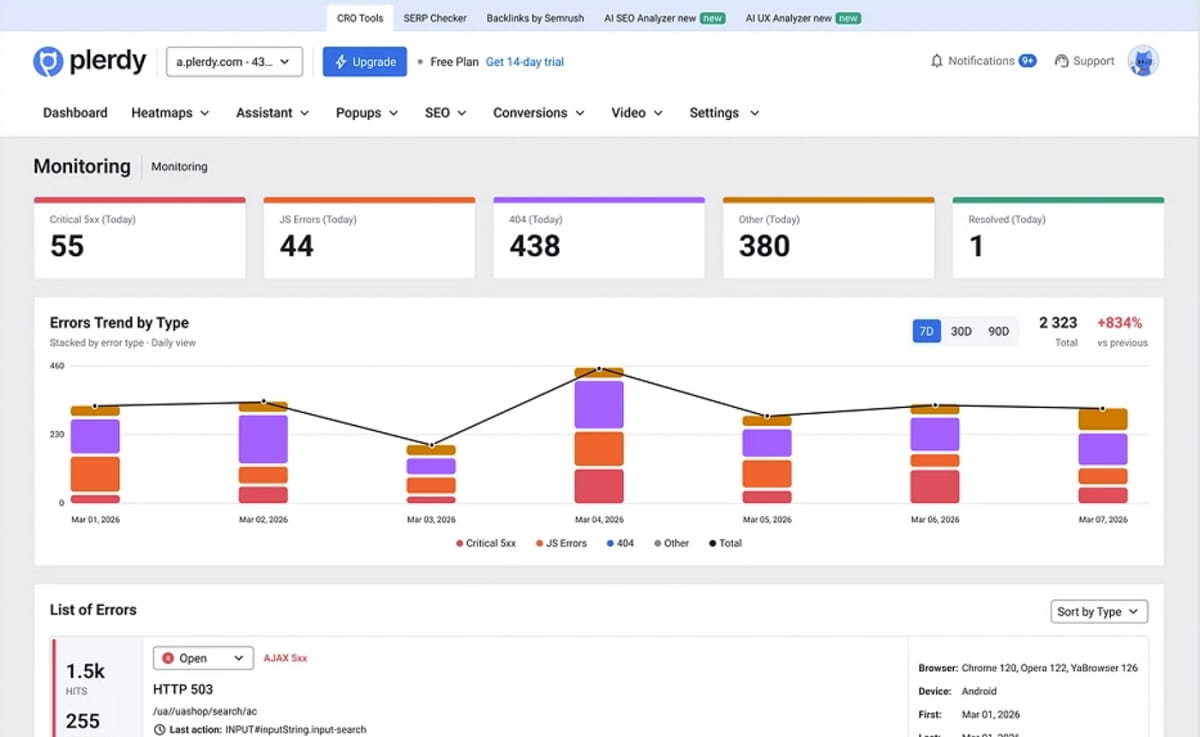
Website errors cost you the orders that people in error sessions would have placed if the page had worked. Estimate it as affected sessions × (conversion rate of clean sessions − conversion rate of error sessions) × average order value. Plerdy Error Tracking collects JavaScript, 404, 5xx and AJAX errors with the same tracking script and shows revenue in affected sessions.
How do website errors lose sales?
Most errors that cost money never take the whole site down. The page loads, the design looks fine, and one piece in the middle stops working. A script that runs the size selector throws an exception, so “Add to cart” stays gray. The request that applies a promo code returns HTTP 500, so the total never updates. The payment provider sends the buyer back to a “failed” page, and nobody on your side ever sees it.
The visitor sees a button that doesn’t respond, a spinner that never stops or a form that refuses to submit. A few people try again. Most of them close the tab and buy somewhere else.
Shoppers say this out loud when asked. In Baymard Institute’s checkout survey of US online shoppers, 17% of those who abandoned an order during checkout named “website had errors / crashed” as a reason. That puts errors level with “checkout too long or complicated” and ahead of “not enough payment methods” (9%).
The damage also reaches beyond one lost order. A 2020 BCG study done with Ryte analyzed more than 350 websites of 20 large European companies and found a strong negative correlation between the number of website errors and the number of visits. BCG estimated that lost visitors cut the effectiveness of marketing spend by as much as 20%. You pay for the click, the visitor lands on a broken page, and the budget is gone.
You’ll also find claims online that website errors take “18% of revenue” or cost the industry tens of billions a year. We couldn’t trace those numbers to a published study; most come from vendors that sell error monitoring. A reliable public benchmark for your type of site doesn’t exist, and that’s fine, because your own data gives you a better number.
Which website errors cost the most money?
Error type matters less than where the error fires and what the visitor was trying to do. A missing icon in the footer costs nothing. The same 404 on the script that runs your checkout costs every order. Here’s what each type looks like to a buyer:
| Error type | What the buyer sees | Typical money risk | Fix first when |
|---|---|---|---|
| JavaScript runtime error | A button, menu, size selector or slider stops working; the page looks normal | High on product, cart and checkout pages | It fires on a page with “Add to cart,” a form or payment |
| Unhandled promise rejection | Something loads forever or a background action fails with no message | Medium to high; often breaks cart updates and live search | It repeats in many sessions after a release |
| 404 resource (script, style, font, image) | Missing product photos, broken layout, or a feature that never loads | High if the missing file is a script; low for a decorative image | The file is a script or a product image |
| 5xx server error | “Something went wrong” page, blank page, failed order | Highest: the request didn’t go through at all | Always, especially on cart, checkout and login |
| AJAX 4xx / 5xx | Cart doesn’t update, coupon “doesn’t apply,” filters return nothing, form spins and stops | High, and invisible in page-level analytics | The failing request is cart, checkout, search or form submit |
| Form validation error | Red fields, form won’t submit, unclear what’s wrong | Medium; each repeat is a lead or signup at risk | Many sessions hit it on the same field |
| Failed payment return | Payment page sends the buyer back with “failed” or “declined” | Direct: the buyer was ready to pay | The number grows on one provider |
Two patterns cost the most. The first is errors that only hit part of your audience: one browser, one phone model, one country. Your team tests in Chrome on a desktop and sees nothing, while every iPhone user on Safari gets a dead button. The second is errors that appear after a release or a new third-party app. A Shopify merchant described on the Shopify Community forum how a pre-order app’s script broke the checkout button on every device; sales came back only after the script was removed.
How do I calculate how much revenue an error costs?
You need four numbers: how many sessions hit the error, the conversion rate of sessions without errors, the conversion rate of sessions with the error, and your average order value. Then:
Estimated lost revenue = affected sessions × (CR of clean sessions − CR of error sessions) × average order value
Here’s a worked example with round numbers for a store. An error on the cart page hit 1,200 sessions last month. Sessions without errors converted at 2.5%. Sessions that hit the error converted at 0.8%. The average order is $85.
- Conversion gap: 2.5% − 0.8% = 1.7 percentage points
- Orders lost: 1,200 × 0.017 = 20.4 orders
- Revenue lost: 20.4 × $85 = about $1,734 per month
A quicker version skips the error-session conversion rate and assumes nobody who hit the error bought: affected sessions × normal CR × AOV. In the example that’s 1,200 × 0.025 × $85 = $2,550. Treat it as the upper limit. Some people buy anyway: they reload, switch to a laptop or call you.
Two things keep the estimate honest:
- Don’t count revenue that passed through error sessions as lost. If 300 people placed orders in sessions where a broken tracking pixel fired, those orders happened. That money was exposed to the bug. It wasn’t lost.
- Compare like with like. Errors often cluster on mobile, and mobile converts worse anyway. If the error is mobile-only, use the mobile conversion rate for the clean sessions too, or the gap will look bigger than it is.
For a lead-gen or SaaS site, replace orders with conversions (form submits, signups, demo requests) and AOV with the value of a lead: average deal size × lead-to-customer rate.
How can I find website errors without a developer?
Your analytics doesn’t do it by default. GA4 has no built-in report for JavaScript errors; to see them there, someone has to set up a JavaScript Error trigger in Google Tag Manager and send it to GA4 as a custom event. Developer tools such as Sentry catch errors well, but they need an SDK added to the site’s code, and they’re built for engineers reading stack traces.
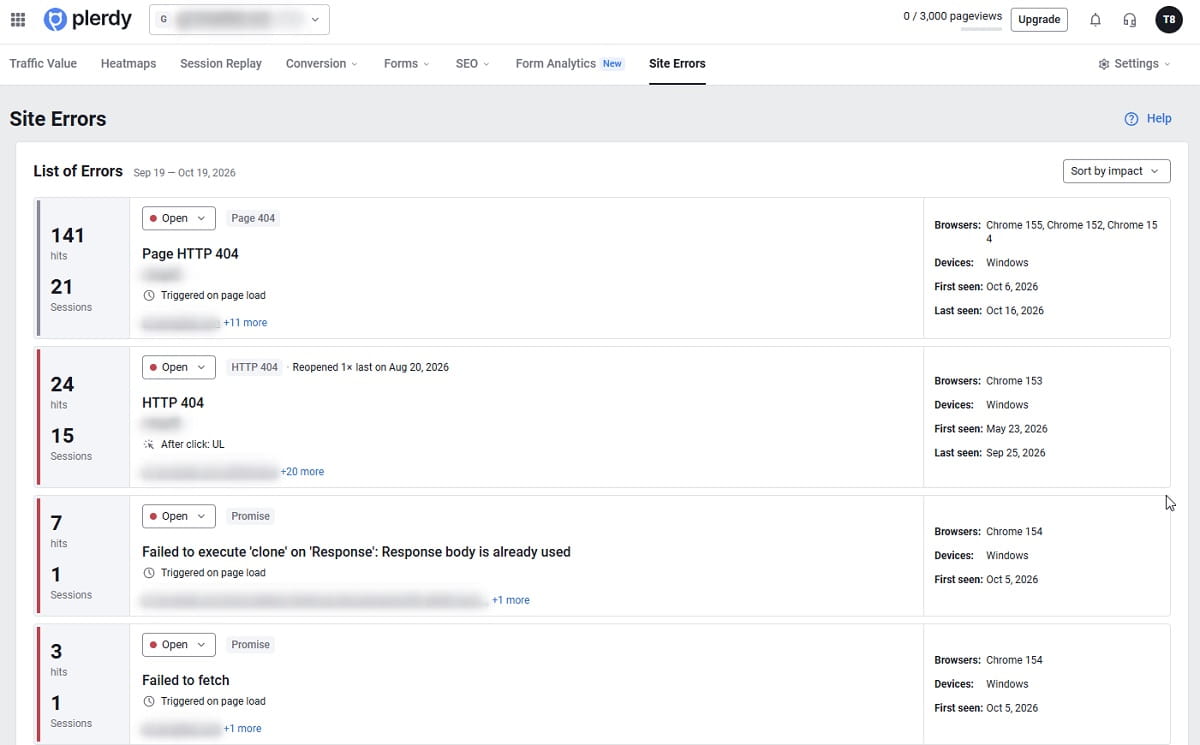
Plerdy Error Tracking works from the Plerdy tracking script you may already have on the site, so there’s nothing extra to install. Once the script is on your pages, errors start appearing in the Site Errors report. Here’s the routine:
- Open Site Errors and pick a period. In Plerdy, choose your site and open Site Errors in the left menu. Switch the trend to 7, 30 or 90 days. If the page says “Error collection is not enabled for this site yet,” check that the Plerdy script is installed on every page, including cart and checkout.
- Read the summary cards. Revenue at Risk shows the revenue and orders from sessions that hit an error in the last 7 days. Non-store sites see Conversions at risk instead. Top issue now names the error that hurts most right now, and New today and Affected users today show whether something broke since yesterday.
- Sort the list by impact. In List of Errors, choose Sort by impact. Then filter by URL (contains “cart,” “checkout” or “order”) and by device. A checkout error on mobile goes above a footer error on desktop, even if the footer error fires more often.
- Open the error and read the context. For each error, Plerdy shows the browser message, file, line and column, the pages where it fired, how many times and in how many sessions, device, browser and operating system, first and last time seen, and the last thing the visitor did before it happened, such as clicking a specific button.
- Watch two or three affected sessions. Click the Revenue at Risk card to open Session Replay filtered to error sessions. Watching what the visitor did tells you whether the error actually stopped a purchase or fired in the background without anyone noticing.
- Put a number on it and send it to your developer. Use the formula above to estimate the monthly cost, then send the details from step 4 together with that estimate. After the fix, mark the error Resolved. If it fires again, Plerdy reopens it automatically.
The session recordings matter more than they seem. An error message like “Cannot read properties of undefined” means nothing to a business owner. A recording where a buyer taps “Place order” four times and leaves makes the case without explanation.
If you have Plerdy MCP Server connected to Claude or ChatGPT (paid plans), you can also just ask “What’s broken on my site right now?” The assistant pulls open errors and the revenue in affected sessions from Plerdy and answers in plain English, with the period the numbers cover.
Where do I get each number for the formula in Plerdy?
| Number in the formula | Where to find it | Note |
|---|---|---|
| Affected sessions | Site Errors → the error → sessions | One session can hit the same error many times, so count sessions |
| Orders and revenue in error sessions | Site Errors → Revenue at Risk | Always the last 7 days, whatever date filter you pick. Needs e-commerce tracking; without it, Plerdy counts conversions from your goals |
| CR of error sessions | Orders at risk ÷ sessions with errors | Both numbers sit on the Revenue at Risk card |
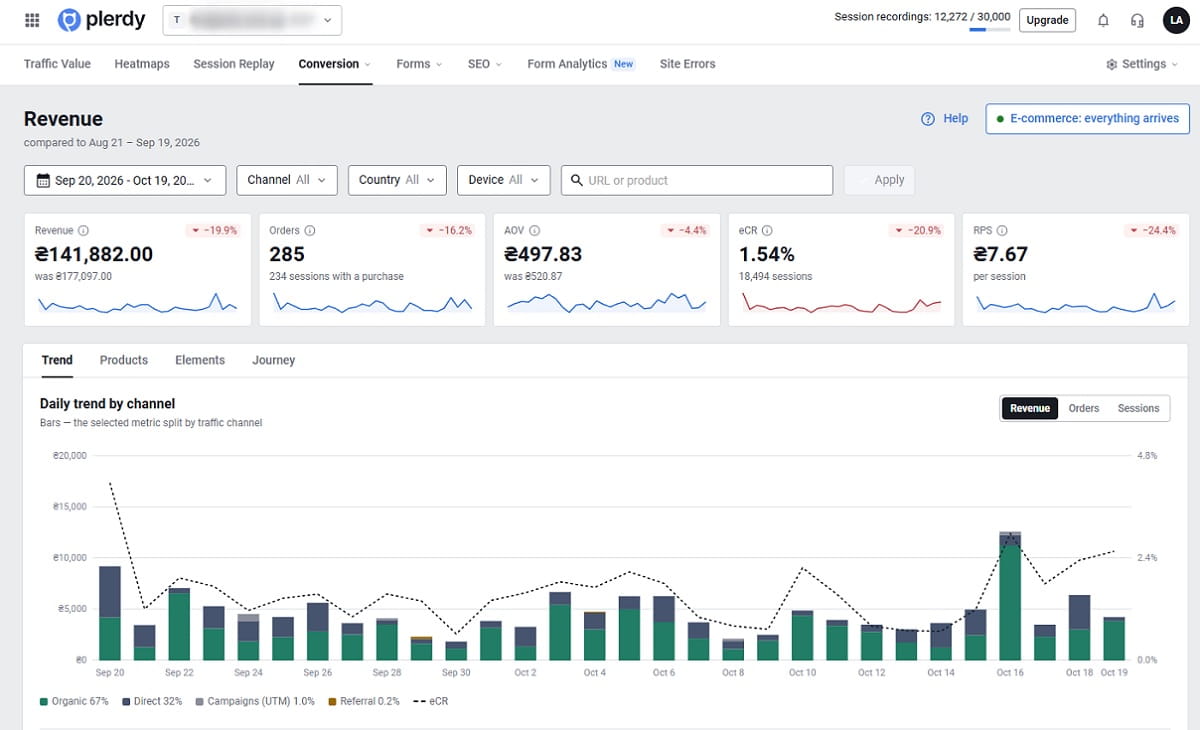
| CR of clean sessions | Sales Performance: (all orders − orders at risk) ÷ (all sessions − sessions with errors) | Use the same last 7 days and, if the error is mobile-only, the same device |
| Average order value | Sales Performance | For lead-gen sites, use the value of one lead |
Revenue at Risk covers all errors on the site, so the formula with its numbers gives you the weekly cost of everything that’s broken. Multiply by 4.3 for a month. For a single error, take its affected sessions and use the same conversion gap. It’s an approximation, but good enough to decide what gets fixed first.
How do I explain a website error to my developer?
“The checkout is broken” turns into a day of back-and-forth. A message with the exact error, where it happens, who it hits and what it costs usually gets fixed the same week. Copy this and fill it in from the error page in Plerdy:
Error: TypeError: Cannot read properties of undefined (reading 'price')
File: /assets/js/cart.js, line 214, column 18
Pages: /cart/, /checkout/
Who: mobile, Safari 17-18, iOS. Not seen on desktop.
Last user action before the error: click on "Apply coupon"
Since: first seen Oct 3, still firing
Volume: 1,200 sessions in 30 days
Estimated cost: ~$1,700 per month (CR 0.8% vs 2.5% in clean sessions, AOV $85)
Recording: link to one affected session in Plerdy
The last user action line saves the most time. Developers can’t fix what they can’t reproduce, and “clicked Apply coupon on an iPhone” gives them the exact path to repeat. The browser and OS breakdown answers the next question before they ask it.
When the developer says it’s fixed, mark the error Resolved in Plerdy. If the same error fires again, Plerdy reopens it on its own and adds a “Reopened” label with a count, so a fix that didn’t hold, or a release that brought the bug back, won’t go unnoticed.
Which website errors should I fix first?
Rank by money. An error that fires 50,000 times in a tracking pixel matters less than one that fires 300 times on “Place order.” A simple order that works for most stores:
- 5xx errors and failed requests on cart, checkout, payment and login. Nothing else can sell if these fail.
- JavaScript errors on pages with a buying action: product page, cart, checkout, pricing, signup form.
- Errors that started after a release, a theme update or a new app. They’re the easiest to fix because you know what changed.
- Errors that hit one browser or device hard: if 90% of the sessions are iOS Safari, that’s a bug in your code.
- Missing images and styles on product and category pages.
- Everything else, ranked by affected sessions.
Some errors aren’t yours to fix. Browser extensions, ad blockers and third-party widgets throw errors on many sites. If an error comes from a file you don’t host and the recordings show visitors buying normally, mark it Ignored so it stops cluttering the list.
Before a sale season, run this list for every page in the buying path. The checkout and cart abandonment checklist covers the rest of that path, and our breakdown of why 70% of carts still get abandoned explains the problems that aren’t technical.
Plerdy Error Tracking, Sentry or GA4: which one do I need?
They answer different questions. Developer tools tell an engineer why the code failed. A business tool tells the owner which failure costs money. Many teams use both.
| Plerdy Error Tracking | Developer error monitoring (e.g. Sentry) | GA4 | |
|---|---|---|---|
| Who it’s built for | Owners, marketers, agencies | Developers | Marketers |
| Setup | Same Plerdy tracking script, no extra code | SDK added to the site’s code by a developer | JS errors need a GTM trigger and a custom event |
| Front-end JavaScript errors | Yes | Yes, with stack traces and source maps | Only if you set it up |
| 404 resources, AJAX and 5xx in the browser | Yes | Yes | No |
| Back-end errors that never reach the browser | No | Yes | No |
| Revenue in sessions with errors | Yes (Revenue at Risk) | No | No |
| Recording of the session | Yes, Plerdy Session Replay | Sentry has its own Session Replay | No |
| Heatmaps and form analytics in the same tool | Yes | No | No |
What can’t Plerdy Error Tracking show?
- Errors on pages without the Plerdy script. If checkout runs on a separate domain or a hosted payment page, Plerdy only sees the buyer coming back from it.
- Hidden cross-origin errors. When a script from another domain fails, browsers often report only “Script error.” with no details. Plerdy skips those, because there’s nothing in them to act on.
- Failed payments from providers it doesn’t recognize. Plerdy flags a failed payment when a buyer returns from a known provider (Stripe, PayPal, Adyen, Square, Paddle and others) to a URL that says fail, decline or cancel. A custom return URL without those words won’t be caught.
- Server errors that never reach a visitor’s browser, such as a failed background job. That’s what server logs and developer tools are for.
- Proof of loss. Revenue at Risk is money that passed through error sessions. Use the formula above to estimate what was actually lost.
How much you see depends on the plan. Plerdy’s pricing page lists error monitoring on every plan, with a limit on how many top errors you see and how long history is kept:
| Plerdy plan | Top errors shown | Error history | Price |
|---|---|---|---|
| Free | 1 | 5 days | $0 |
| Startup | 5 | 15 days | $32/month, $21 billed annually |
| Scale | 10 | 30 days | $64/month, $42 billed annually |
| Thrive | 20 | 60 days | $108/month, $70 billed annually |
| Enterprise 1 | 40 | 180 days | $149/month, $97 billed annually |
| Enterprise 2 | 80 | 250 days | $248/month, $161 billed annually |
The Free plan is enough to see whether your site has a serious problem right now. To track a checkout across a sale season, you need a plan that keeps at least 30 days of history.
FAQ about website errors and lost sales
How do I know if website errors are losing me sales?
Compare the conversion rate of sessions that hit an error with sessions that didn’t. If error sessions convert noticeably worse on the same device and pages, the error is costing orders. Plerdy Error Tracking shows sessions with errors and the orders and revenue in them on the Revenue at Risk card.
How do I calculate revenue lost to website errors?
Multiply affected sessions by the gap between the conversion rate of clean sessions and error sessions, then by average order value. Example: 1,200 sessions × (2.5% − 0.8%) × $85 = about $1,734 per month. Affected sessions × normal conversion rate × AOV gives the upper limit.
Can I track JavaScript errors in Google Analytics 4?
Not out of the box. GA4 has no built-in JavaScript error report. You can set up a JavaScript Error trigger in Google Tag Manager and send errors to GA4 as a custom event, but you won’t see 404 resources, failed AJAX requests or the revenue in affected sessions that way.
Do I need a developer to set up Plerdy Error Tracking?
No. Plerdy Error Tracking uses the same tracking script as Plerdy heatmaps and session replay. If the script is on your pages, errors are collected automatically. You will need a developer to fix the errors, and Plerdy gives them the error text, file, line, browser and last user action.
Which website errors hurt ecommerce sales the most?
Errors on the buying path: 5xx errors and failed AJAX requests on cart and checkout, JavaScript errors that disable “Add to cart” or payment buttons, and failed payment returns. Errors limited to one browser or device are easy to miss, because the team usually tests on desktop Chrome.
Is Plerdy Error Tracking free?
The Free plan includes error monitoring with the top 1 error and 5 days of history. Paid plans show more errors and keep longer history: 5 errors and 15 days on Startup, 10 and 30 days on Scale, 20 and 60 days on Thrive, up to 80 errors and 250 days on Enterprise plans.