

Converting PDFs to Word documents is a common task, but it doesn’t always go as smoothly as you’d hope. While PDF to Word conversion tools are convenient and easy to use, they can sometimes result in formatting errors like broken fonts, tables that don’t align, or strange spacing. This can be especially frustrating if you’re trying to work with business documents or reports that require a high level of accuracy.
In this article, we’ll cover how to handle and fix common conversion errors, so that your PDF to Word conversion works as seamlessly as possible.
When Online PDF to Word Conversion Makes Sense (and When It Doesn’t)
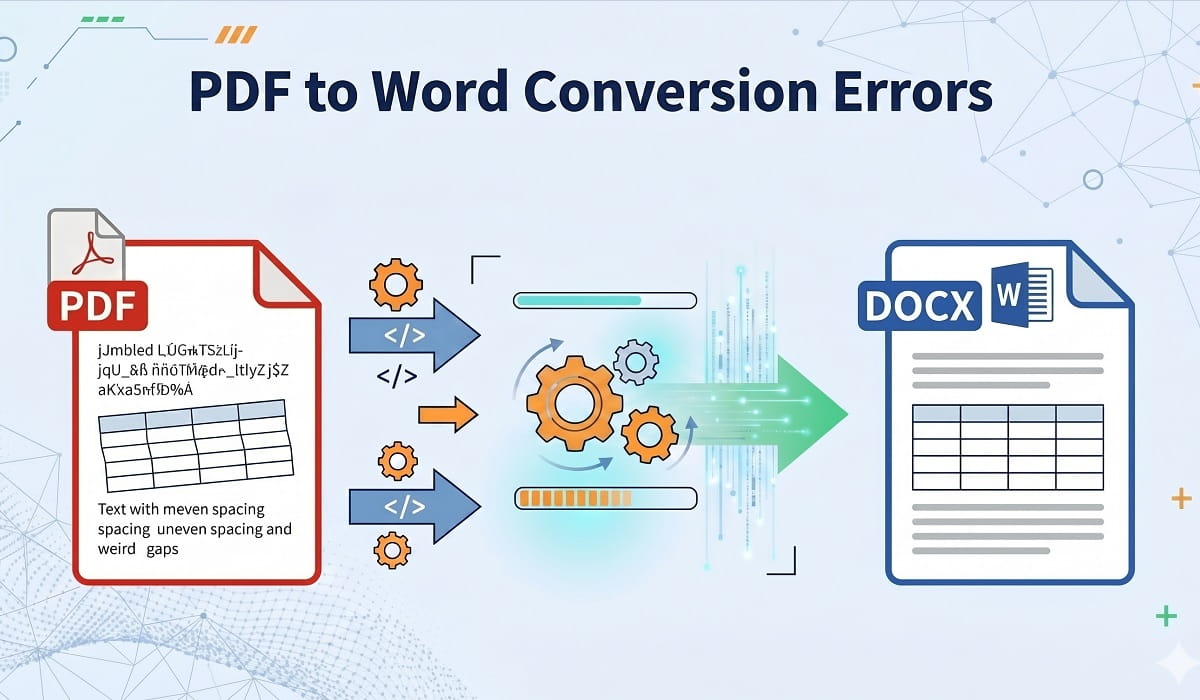
Online PDF to Word converters are great for quick, basic conversions. However, they aren’t perfect for every situation. Here’s when they’re most useful, and when you might want to reconsider using them.
When It Makes Sense
- Simple Documents: If you’re working with a text-heavy document with no complex formatting or images, online converters are perfect. They quickly convert your PDF to Word without much hassle.
- On-the-Go Conversions: When you’re on a mobile device or need to convert documents quickly while traveling, an online tool is convenient and easy to access from any device.
When It Doesn’t
- Complex Documents: If your PDF has intricate tables, embedded images, or special fonts, online tools can struggle to maintain the original layout. You may end up with broken tables, missing text, or font issues.
- Scanned Documents: When converting scanned PDFs or image-based documents, you’ll need OCR (Optical Character Recognition) to extract the text accurately. Many basic online converters don’t include OCR, leading to incomplete or inaccurate conversions.
What You Need Before You Start
Before you dive into PDF to Word conversion, make sure your PDF is ready for the process. There are a few key considerations to keep in mind:
File Type
Make sure your PDF is a text-based file, not a scanned image. If it’s a scanned document, the conversion tool may struggle to pull out the text, which can lead to missing or garbled content. In this case, look for a tool with OCR functionality.
File Size
Large files can cause conversion tools to slow down or even fail. If your document exceeds the tool’s size limit, you may need to break it up into smaller sections before converting.
Permissions
Ensure your PDF isn’t password-protected or restricted in any way. Many PDF to Word converters won’t work on encrypted files. If your document is locked, you’ll need to unlock it before starting the conversion.
The Fastest Way to Convert PDF to Word Online (Step-by-Step)
Converting a PDF to an editable Word document is easy with the right tool. Here’s the fastest way to do it:
- Choose a Reliable Converter in Google: Pick a PDF to Word converter with a solid reputation. Look for one with positive user reviews and reliable features, such as OCR and formatting retention.
- Upload Your PDF: Most tools let you upload your PDF to Word converter via drag-and-drop or by selecting the file from your computer.
- Select Word Format: Choose the desired Word format (DOC or DOCX) from the conversion options.
- Convert the PDF: Hit the “convert” button and let the tool process your PDF.
- Download Your Word File: After the conversion is complete, download the Word document and start editing.
Keep Formatting Intact: Fonts, Tables, and Page Layout Tips
One of the biggest concerns when converting PDFs to Word is maintaining formatting. If you don’t want your document to end up looking like a mess of broken fonts and misaligned tables, follow these tips:
Fonts
Not all fonts in the original PDF will transfer well into Word. If the converter doesn’t support the exact font, it might substitute it with something else, which could alter the document’s appearance. To avoid this, choose a converter that supports font retention or manually adjust fonts after conversion.
Tables
Tables are often the most difficult part of a PDF to Word conversion. To get the best results, choose a converter that recognizes and converts tables accurately. After conversion, double-check the alignment and structure of any tables that were part of your document.
Page Layout
Some converters struggle with complex page layouts, such as multi-column text or embedded media. To ensure consistency, use a tool that preserves the original layout, or make small adjustments to fix any misalignments in the Word document after conversion.
Scanned PDFs Online: Using OCR Without Ruining the Output
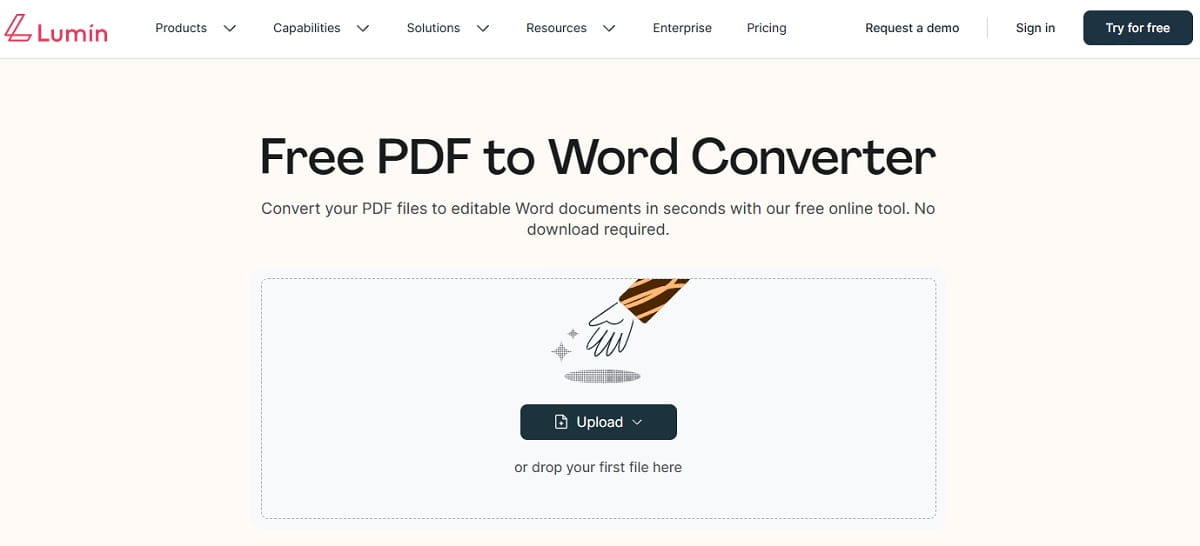
OCR is essential when converting scanned PDFs, as it allows the tool to recognize and extract the text from an image. However, OCR can sometimes produce inaccurate results, especially with poor-quality scans. Here’s how to handle OCR conversion without ruining the output:
- Choose an OCR-Friendly Tool: Look for a PDF to Word converter that includes OCR functionality. These tools are designed to convert scanned PDFs into editable text with a higher degree of accuracy.
- Clean Up the Scan: Ensure your scanned document is clear and legible. If the scan is blurry or contains artifacts, OCR tools may struggle to produce accurate text.
- Manually Review After Conversion: After converting a scanned PDF, review the output for any errors or missing text. OCR is not always perfect, especially with poor-quality scans.
Fix Common Online Conversion Issues
When converting PDFs online, common issues include bad spacing, broken tables, or missing text. Here’s how to fix these:
Bad Spacing
After conversion, use Word’s built-in tools to adjust paragraph spacing, line spacing, and margins. This is often necessary when the original PDF layout doesn’t transfer correctly.
Broken Tables
If tables are misaligned or split into different sections, manually adjust them in Word. Use the table formatting tools in Word to fix any broken tables, ensuring the structure remains intact.
Missing Text
If text is missing after conversion, check if the PDF editor has OCR functionality. If it does, running the OCR process again might resolve the issue. If not, you may need to manually re-enter the missing text.
Privacy and Security: How to Convert Sensitive PDFs Online Safely
When converting sensitive documents, security is a top priority. Here’s how to keep your data safe:
- Use Trusted Tools: Stick with reputable PDF to Word converters that use encryption and secure connections. Look for tools that offer clear privacy policies and ensure your documents are deleted after conversion.
- Password Protection: If your document contains sensitive information, consider password-protecting the PDF before conversion. Some tools will maintain this protection when converting the file.
Mobile Workflow: Convert on iPhone/Android Without Extra Apps
Need to convert PDFs to Word on the go? Many PDF to Word converters work on mobile devices, allowing you to convert PDFs directly from your phone or tablet. Here’s how:
- Use a Mobile-Friendly Converter: Choose an online converter that works well on mobile devices. Many converters have mobile-optimized websites that let you upload PDFs and convert them quickly from your phone.
- No Extra Apps: The best part? You don’t need to download additional apps or software. Just use your phone’s browser to access the converter and start the conversion.
FAQ
How do I fix broken fonts after converting a PDF to Word?
After conversion, manually adjust the fonts in Word to match the original PDF. Some converters may allow you to choose fonts before conversion.
Can I convert scanned PDFs to Word without losing text?
Yes, using a tool with OCR functionality will help convert scanned PDFs into editable text, though you may need to clean up errors afterward.
How can I convert sensitive PDFs securely?
Use trusted PDF to Word converters that offer encryption and ensure documents are deleted after conversion. Avoid using random online tools that don’t have clear security policies.