

Bounce rate is the percentage of visits that end without any meaningful engagement. In Google Analytics 4 that means a session that lasted less than 10 seconds, triggered no key event, and viewed only one page. A high bounce rate is not automatically bad, but when it shows up on pages that are supposed to sell, capture leads, or move people deeper into your site, it is one of the fastest ways to spot lost revenue.
This guide explains how bounce rate works after the switch from Universal Analytics to GA4, how to calculate and find it, what numbers are realistic, and which fixes actually move it. Where a number alone can’t tell you why people leave, we’ll show how Plerdy helps: its heatmaps, session recordings, and SEO checker turn a percentage in a report into a concrete list of things to fix.
Contents
- What Is Bounce Rate?
- Bounce Rate In GA4 Vs. Universal Analytics
- How To Calculate Bounce Rate
- How To Find Bounce Rate In GA4
- What Is a Good Bounce Rate?
- Bounce Rate Vs. Exit Rate
- Does Bounce Rate Affect SEO?
- Why Visitors Bounce: 8 Common Causes
- How To Reduce Bounce Rate: 9 Tactics That Work
- How To Diagnose a High Bounce Rate With Plerdy
- Bounce Rate FAQ
- Conclusion
What Is Bounce Rate?
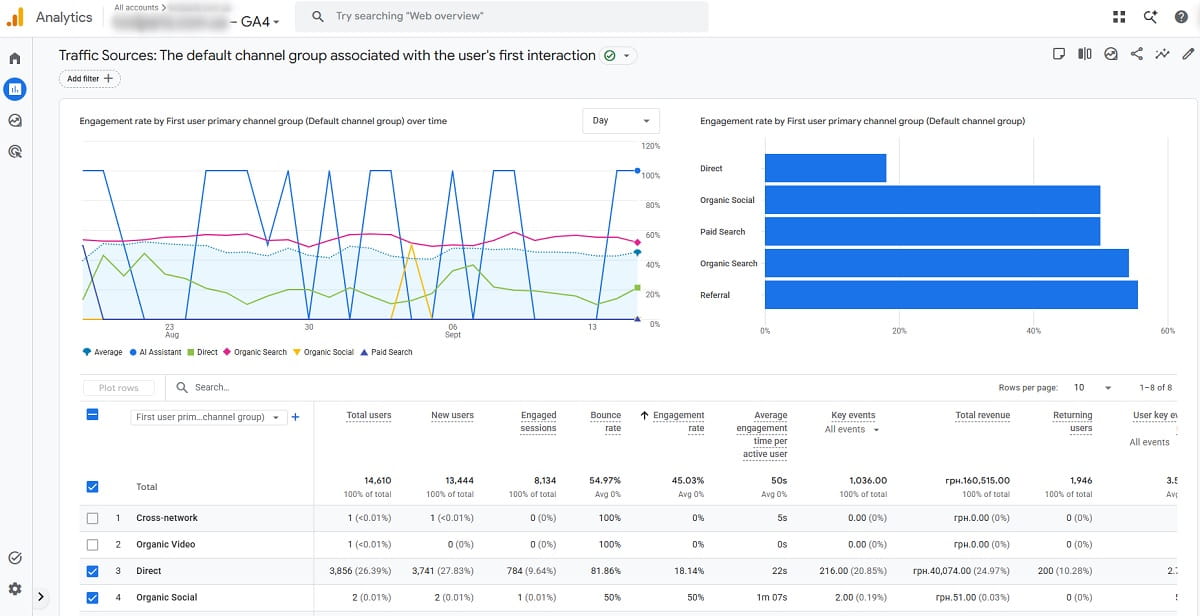
Bounce rate is the share of sessions on your website or app that were not engaged. A “bounce” is a visit where the person lands, doesn’t interact in a way your analytics counts as engagement, and leaves. Google defines it in its GA4 help article on engagement rate and bounce rate as the percentage of sessions that were not engaged — the exact opposite of engagement rate.
A session in GA4 counts as engaged if it meets at least one of three conditions:
- it lasts longer than 10 seconds;
- it has a key event (what GA4 used to call a conversion — a purchase, form submission, sign-up, and so on);
- it has 2 or more page or screen views.
Everything else is a bounce. So if someone opens your pricing page, glances at it for six seconds and closes the tab, that session is a bounce. If they read the same page for two minutes and leave without clicking anything, it is not a bounce in GA4 — even though it was a single-page visit.
Think of a local coffee shop’s website. A visitor who lands on the homepage, checks the opening hours in five seconds and leaves has bounced — and that is perfectly fine. A visitor who lands on the online-order page and leaves in five seconds has also bounced — and that one is probably a problem. The metric is the same; the meaning depends on what the page is for.
Bounce Rate In GA4 Vs. Universal Analytics
Most confusion about bounce rate comes from the fact that the definition changed. Universal Analytics stopped processing data for standard properties on July 1, 2023, and Google moved everyone to GA4. Older articles, dashboards, and benchmarks still quote the old logic.
| Aspect | Universal Analytics (legacy) | Google Analytics 4 |
|---|---|---|
| What counts as a bounce | A single-page session with no interaction hit sent to Analytics | A session that is not engaged: under 10 seconds, no key event, fewer than 2 page views |
| Long read of one page, then exit | Bounce (unless an interaction event fired) | Not a bounce — the session lasted more than 10 seconds |
| Related metric | Exit rate, avg. session duration | Engagement rate (bounce rate = 100% − engagement rate) |
| Visible by default | Yes, in most standard reports | No — you add it to reports manually |
| Can be tuned | Only indirectly, via interaction events | Yes — the engaged-session timer is adjustable in Google tag settings |
| Status | Shut down; no new data | Current standard |
The practical consequence: a GA4 bounce rate is not comparable with a Universal Analytics bounce rate for the same site. If your number “dropped” after the migration, your site probably didn’t get better overnight — the ruler changed. Compare GA4 periods only with other GA4 periods.
How To Calculate Bounce Rate?
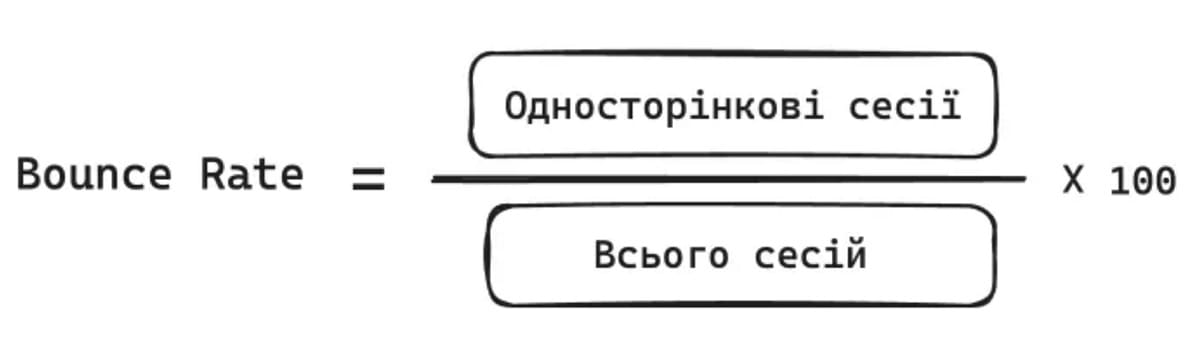
The formula is simple:
Bounce rate = (non-engaged sessions ÷ total sessions) × 100%
Or, since GA4 already calculates engagement rate for you:
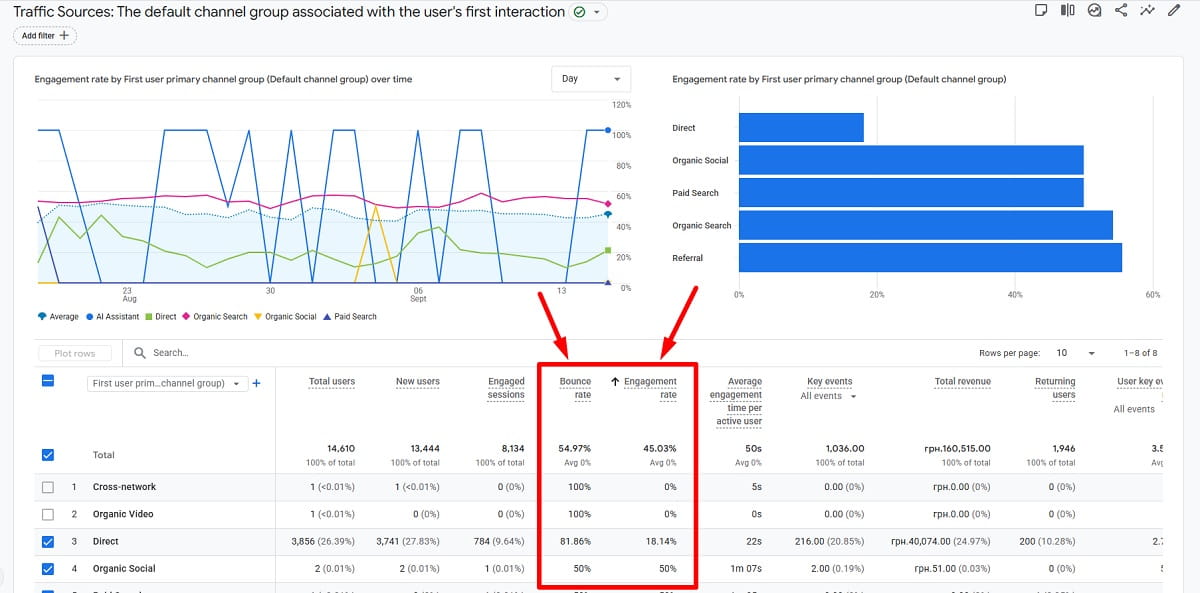
Bounce rate = 100% − engagement rate
Example: a landing page got 1,000 sessions last month. 750 of them lasted under 10 seconds, viewed only that page and didn’t trigger a key event. The bounce rate is 750 ÷ 1,000 × 100% = 75%, and the engagement rate is 25%.
Two details matter when you calculate it yourself:
- Report choice changes the number. In the Landing page report, bounce rate belongs to the page where the session started. In Pages and screens, it covers every session that included the page. For “why do people leave right after arriving?” use the landing page view.
- Small samples lie. A page with 20 sessions can swing from 30% to 70% week to week without anything changing. Judge bounce rate on pages with enough traffic, and over periods long enough to smooth out weekdays and campaigns.
How To Find Bounce Rate In GA4
GA4 doesn’t show bounce rate in standard reports out of the box. To add it:
- Open Reports → Engagement → Pages and screens (or Reports → Acquisition → Traffic acquisition if you want it by channel).
- Click the Customize report (pencil) icon in the top-right corner.
- Select Metrics, then Add metric, and search for Bounce rate. Add Engagement rate too — reading them side by side is easier.
- Click Apply, then Save the report so the columns stay for your team.
For deeper analysis, build a Free-form exploration with Landing page + query string as a dimension and Sessions, Bounce rate, and Key events as metrics. Add Device category and Session default channel group as breakdowns: the gap between mobile and desktop, or between two traffic sources, is often bigger than the gap between pages.
One setting worth knowing: the 10-second threshold is a default, not a law. Google lets you adjust the timer for engaged sessions in the Google tag settings. If you change it, write down the date — every comparison across that date becomes apples to oranges.
What Is a Good Bounce Rate?
There is no universal “good” bounce rate, and anyone quoting a single number without naming the page type, traffic source, and analytics version is guessing. Here is what the public data actually says, and how to read it.
| Source | Figure | What to keep in mind |
|---|---|---|
| Databox website traffic benchmarks | 60.78% median across industries (April 2023); from 46.85% (Real Estate) to 67.24% (Construction) | Collected while Universal Analytics was still running — mostly the old definition |
| Contentsquare 2025 Digital Experience Benchmarks | Businesses that increased reliance on paid social saw bounce rates rise 9.2%; slow-loading content caused 53% of users to leave after one page | 90 billion sessions on 6,000 websites, Q4 2023 vs. Q4 2024; Contentsquare’s own tracking, not GA4 |
Notice the problem: the most-quoted benchmarks either predate GA4 or come from a different measurement tool. We did not find a reliable, free, industry-wide benchmark built on the GA4 definition. That’s why the most useful benchmark is your own site, split the right way:
| Page type | What a bounce usually means | How to judge it |
|---|---|---|
| Product and category pages | The visitor didn’t find a reason to continue shopping | Compare against your best-performing category; watch mobile separately |
| Pricing and demo pages | Doubt, missing information, or a weak CTA | Should bounce less than your site average; any spike deserves a session-recording review |
| Paid landing pages | Ad promise and page don’t match, or the page is slow | Compare by campaign and ad group, not by page |
| Blog posts and help articles | Often nothing — the reader got the answer | Look at scroll depth and time; a high bounce rate with deep scroll is fine |
| Contact and “thank you” pages | Task completed | Ignore bounce rate; track the key event instead |
A workable rule: set a baseline per page type and per device for the last 90 days, then flag pages that are clearly worse than their own group. That tells you far more than comparing your blog with someone else’s online store.
When a High Bounce Rate Is Fine
- The page answers a quick question. Store hours, a phone number, a definition — the visitor leaves satisfied.
- The conversion happens off-site or offline. A click-to-call button or a WhatsApp link may not be tracked as a key event, so a successful visit looks like a bounce. Fix the tracking, not the page.
- It’s a single-page site or a one-screen landing page. Without a second page to visit, engagement depends entirely on time and events.
- Returning visitors check for updates. News, changelogs, and status pages get short, purposeful visits.
The question is never “is my bounce rate high?” but “are people leaving pages that were supposed to move them forward?”
Bounce Rate Vs. Exit Rate
The two metrics are often mixed up, but they answer different questions.
| Bounce rate | Exit rate | |
|---|---|---|
| Question it answers | Did the session engage at all? | How often was this page the last one in a session? |
| Which sessions count | Only sessions that started on this page | All sessions that viewed this page |
| Typical use | Landing pages, ads, organic entry pages | Checkout steps, forms, funnels |
| Red flag | High bounce on a page built to convert | High exit on a middle step of a funnel |
Every bounce is an exit, but not every exit is a bounce. If people leave on step 2 of your checkout, bounce rate won’t show it — exit rate and a funnel report will. We cover the difference in more detail in Bounce Rate vs. Exit Rate: What’s the Difference?
Does Bounce Rate Affect SEO?
Not directly. Google has never confirmed that it reads bounce rate from Google Analytics, and many sites that rank well don’t use Google Analytics at all. So lowering the number in your GA4 report is not, by itself, a ranking tactic.
But the behavior behind the number matters. Google states on its How Search Works page that it uses “aggregated and anonymized interaction data” to assess whether results are relevant to queries. If searchers land on your page and immediately go back to find a better answer, that’s a sign the page doesn’t satisfy the query — and pages that don’t satisfy queries tend to lose visibility over time.
Two things are closely connected to both bounces and rankings:
- Page experience. Core Web Vitals are part of Google’s page experience signals. The current metrics are Largest Contentful Paint (good: 2.5 seconds or less), Interaction to Next Paint (good: 200 ms or less), and Cumulative Layout Shift (good: 0.1 or less). INP replaced First Input Delay as a Core Web Vital in 2024 — if an article still talks about FID, it’s outdated.
- Search intent match. A title and meta description that promise one thing and a page that delivers another produce fast returns to the results page. This is the most common reason organic entry pages bounce.
In short: treat bounce rate as a diagnostic for user satisfaction. Fix what makes people leave, and the SEO benefit follows from the better experience — not from the metric.
Why Visitors Bounce: 8 Common Causes
Before changing anything, find out which of these is actually happening on your pages. Each cause leaves a different trace in the data.
| Cause | Typical signal | How to confirm |
|---|---|---|
| Slow loading | Higher bounce on mobile and on slower connections | PageSpeed Insights field data; Core Web Vitals report in Search Console |
| Search intent mismatch | High bounce from organic traffic only, on specific queries | Compare queries in Search Console with the page’s title and first screen |
| Ad or email promise not kept | Bounce varies strongly by campaign | GA4 exploration by campaign; review the ad text next to the landing page |
| Weak first screen | Low scroll depth, few clicks above the fold | Plerdy scroll and click heatmaps |
| Broken mobile layout | Mobile bounce much higher than desktop | Plerdy session recordings filtered by device |
| Technical errors | Sudden spike after a release | Plerdy error tracking; browser console on affected pages |
| Intrusive pop-ups | People close the tab right after a pop-up appears | Session recordings around the pop-up trigger; pop-up close rate |
| Wrong audience | High bounce from one referral site or social channel | GA4 Traffic acquisition with bounce rate by source/medium |
How To Reduce Bounce Rate: 9 Tactics That Work

These tactics are ordered by how often they fix the real problem, starting with the ones that cost the least. Don’t apply all nine at once: change one thing per page, then measure, so you know what worked.
1. Match the Page To Search Intent
Open Search Console, filter by the page, and read the queries that bring people in. If people search “how to lower bounce rate” and land on a page that spends five screens on theory, they will leave. Put the answer the searcher expects on the first screen, and make the title and meta description describe exactly what the page delivers — no clickbait. This is the single most effective fix for organic entry pages.
2. Improve Page Speed And Core Web Vitals
Slow pages lose people before they see anything. Start with the field data in PageSpeed Insights, not lab scores: compress and properly size images, lazy-load media below the fold, defer non-critical JavaScript, and remove third-party scripts nobody uses. Aim for the “good” thresholds listed on web.dev for at least 75% of visits.
3. Fix the Mobile Experience
Check your bounce rate by device first. If mobile is much worse, watch 10–20 mobile session recordings of bounced visits. You’ll usually see the culprit within minutes: a cookie banner covering the CTA, text that needs zooming, a menu that won’t open, or a form field hidden behind the keyboard.
4. Make the First Screen Do Its Job
Visitors decide whether to stay within the first screen. It should answer three questions immediately: where am I, is this what I was looking for, and what should I do next? Use a headline that repeats the promise of the ad or search result, one clear call to action, and a visual that supports the message instead of decorating it. A scroll heatmap shows how many people ever see what’s below the fold — if it’s a minority, your key message is in the wrong place.
5. Use One Clear Call To Action

Pages with five competing buttons often get zero clicks. Pick the next step that matters most for this page — “Start free trial”, “See pricing”, “Read the setup guide” — and make it visually dominant. A click heatmap quickly shows whether people click your CTA or something that isn’t even a link (a sign they expected it to be clickable).
6. Make Content Easy To Scan
Walls of text drive people away even when the content is good. Use descriptive subheadings, short paragraphs, bullet lists, tables for comparisons, and a table of contents on long pages. Put the key answer near the top and details below it — readers who need more will scroll, and readers who don’t will at least leave satisfied rather than confused.
7. Add Purposeful Internal Links
Every page should offer a logical next step: a related guide, a case study, a product page that solves the problem the article describes. Link where the question naturally arises in the text rather than in a generic “related posts” block at the very bottom. In GA4, a second page view makes the session engaged — but more importantly, it keeps the visitor moving toward a decision.
8. Find And Fix Technical Errors
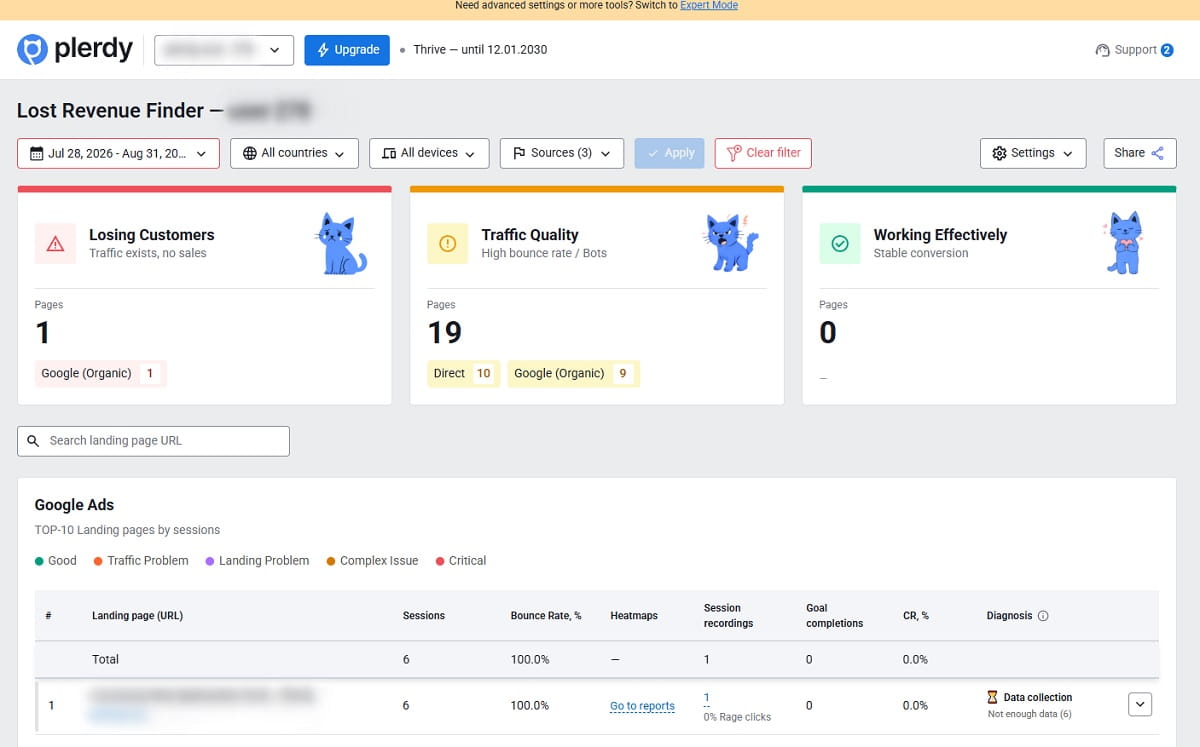
A JavaScript error that breaks a filter, a form that won’t submit, or an empty product image can double the bounce rate of an otherwise good page. Check pages whose bounce rate jumped after a release first. Plerdy’s error tracking shows which errors happen on which pages, so you can tie a spike in bounces to a specific bug instead of guessing.
9. Use Pop-Ups Carefully And A/B Test Changes
A well-timed offer can keep a leaving visitor — an exit-intent pop-up with a guide, a discount, or a short survey asking what they were looking for. A pop-up that covers the content the moment the page loads does the opposite, and Google warns against intrusive interstitials on mobile. Show pop-ups after a meaningful delay or on exit intent, and never on top of the answer the visitor came for.
Whatever you change, validate it. Run an A/B test on high-traffic pages, and compare before/after periods of equal length on the rest. Measure bounce rate together with a key event: a change that lowers bounces but also lowers sign-ups is not an improvement.
How To Diagnose a High Bounce Rate With Plerdy
GA4 tells you where and how many. It can’t show why. That’s the gap behavior analytics fills. Here is how the tools fit together:
| Tool | What it answers | Best for |
|---|---|---|
| Plerdy | Why visitors leave: clicks, scroll depth, session recordings, errors, funnels, pop-ups, A/B tests, SEO checks | Finding and fixing the cause on specific pages |
| Google Analytics 4 | Which pages, channels, and devices bounce most | Prioritizing pages |
| Google Search Console | Which queries bring visitors to a page | Checking search intent match |
| PageSpeed Insights | Whether real users experience the page as slow | Core Web Vitals diagnostics |
A practical workflow that takes about an hour per page:
- Pick the pages. In GA4, sort landing pages by sessions and bounce rate. Take pages that combine high traffic, high bounce rate, and business value (pricing, product, key landing pages).
- Check the first screen with heatmaps. In Plerdy heatmaps, look at scroll depth and clicks. Are people reaching the CTA? Are they clicking non-clickable elements?
- Watch bounced sessions. Filter session recordings to single-page visits on that page, split by device. Note every pattern you see three times or more.
- Rule out technical causes. Check error tracking for that URL and run the SEO checker for title, description, and heading issues that create intent mismatch.
- Fix and test. Turn the top pattern into one hypothesis, test it with A/B testing or a clean before/after comparison, and track a key event with event tracking alongside bounce rate.
Plerdy has a free plan that includes heatmaps and session recordings, so you can run this workflow on your most important pages before committing to a paid plan — check the current limits on the pricing page.
Bounce Rate FAQ
What Does Bounce Rate Mean?
Bounce rate is the percentage of sessions that were not engaged. In Google Analytics 4, a session is engaged if it lasts longer than 10 seconds, has a key event, or has at least two page or screen views. Every other session counts as a bounce.
How Is Bounce Rate Calculated?
Divide non-engaged sessions by total sessions and multiply by 100%. In GA4 you can also subtract the engagement rate from 100%. For example, 750 non-engaged sessions out of 1,000 give a 75% bounce rate.
What Is a Good Bounce Rate?
There is no universal good bounce rate. It depends on page type, traffic source, device, and analytics version. Public benchmarks are mostly based on Universal Analytics, so the most reliable benchmark is your own site: compare each page with pages of the same type and device over the last 90 days.
Is a High Bounce Rate Bad?
Not always. A high bounce rate is normal for pages that answer a quick question, contact pages, and pages where the conversion happens by phone or off-site. It is a problem on pages designed to move visitors forward, such as product, pricing, and paid landing pages.
Where Do I Find Bounce Rate In GA4?
Bounce rate is hidden by default. Open Reports, then Engagement, then Pages and screens, click Customize report, choose Metrics, add Bounce rate and Engagement rate, then apply and save the report.
Does Bounce Rate Affect Google Rankings?
Google has not confirmed using the Google Analytics bounce rate for ranking. However, Google says it uses aggregated and anonymized interaction data to assess relevance, and page experience signals such as Core Web Vitals matter. Fixing the reasons people leave helps both users and search visibility.
What Is the Difference Between Bounce Rate And Exit Rate?
Bounce rate looks only at sessions that started on a page and shows whether they engaged at all. Exit rate shows how often a page was the last one viewed in any session, including sessions that started elsewhere. Exit rate is more useful for funnels and checkout steps.
What Is the Fastest Way To Lower Bounce Rate?
Start with the pages that combine high traffic and business value. Check whether the first screen matches the search query or ad, fix page speed on mobile, and watch session recordings of bounced visits to find the specific reason people leave before changing design.
Conclusion
Bounce rate is a useful alarm, not a goal. In GA4 it shows the share of sessions that didn’t engage, and it only means something when you read it by page type, device, and traffic source. Old Universal Analytics numbers and generic benchmarks won’t tell you whether your site is doing well — your own segmented baseline will.
When a page that should convert starts losing visitors, work from cause to fix: check search intent, speed, the first screen, mobile layout, and technical errors, then test one change at a time and measure it against a real outcome. Plerdy brings heatmaps, session recordings, error tracking, pop-ups, A/B tests, and SEO checks into one place, so you can see exactly why people bounce — and prove that your fix worked.