


What is Conversion Rate?
Conversion rate shows how often people complete the action you want. You put numbers into a calculator, keep currency and units tidy, and read the signal. Google Analytics, Shopify, or Plerdy—same flow: one conversion, one rate, fast decision for growth. Use this website conversion rate calculator to get a clean percent you can report in seconds.
Exact Formula (Ads vs. Website)
Use a calculator to compute conversion rate from raw counts, not vibes. Exact math: rate = conversions ÷ base × 100. Keep bases consistent: clicks for ads; visits or sessions for site. Micro-check: 98/1960 → 5%. Align currency only for revenue views; rate itself is unitless. Forward point: examples come next, short and practical. Tools: Plerdy, Google Analytics, Shopify, Meta Ads Manager—all fine if your counts and time windows match.
- Ads/Emails/Links: Conversions ÷ Clicks × 100
- Website: Conversions ÷ Visits (Sessions) × 100
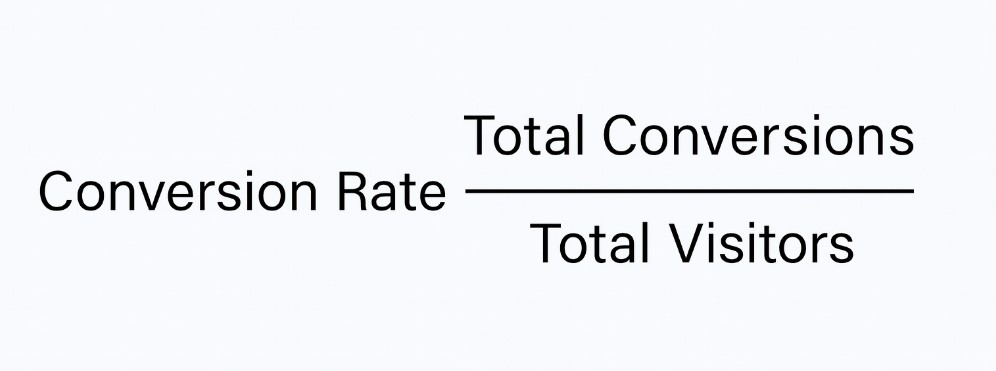
Any analyst can calculate conversion rate with two fields—conversions and visits.
How The Calculator Works
You see two inputs: Conversions and Visits. That’s all the calculator needs. Keep both numbers from the same period and the same source, or the conversion rate will lie. Visits can mean sessions (website) or clicks (ads). Some people call it a website conversation rate calculator, but the math is the same here. The calculator stays neutral about currency; currency appears only in revenue reports in GA4, Shopify, or Plerdy. Plerdy offers a free conversion rate calculator you can run daily without sign-up.
- Enter conversions
- Enter visits (sessions or clicks)
- Get CVR — your conversion rate, ready to compare
If you need a fast check, the calculator conversion rate output shows the truth without fluff.
Website Flow (Sessions, Conversions, Period Match)
For website reporting, pull sessions and conversions from one source—Google Analytics 4 or Plerdy—and one window (7, 30, or 90 days). Enter conversions, then sessions. The calculator returns a stable conversion rate for that exact period, no guesswork. Micro-check: 98 on 1,960 visits ends near 5%. Keep property, attribution, and time zone aligned so the conversion story stays clean. Currency is irrelevant here; the rate is unitless but strong for product pages and UX tests. For pages and funnels, a site conversion rate calculator keeps tests comparable across dates.
Ads/Email Flow (Clicks, Conversions, UTM Consistency)
For campaigns, treat Visits as clicks from the same platform and week—Google Ads, Meta Ads Manager, or Mailchimp. When you compare campaigns, a conversion rate marketing calculator helps you keep clicks and sessions tidy. Enter conversions and clicks collected with consistent UTM tags. The calculator outputs a fair conversion rate you can defend in budget talks. For media budgets, a marketing conversion rate calculator aligns with GA4, Shopify, and Ads data. Example: 120 conversions and 4,000 clicks this week → 3%. Keep “same period & same source” strict to avoid double counting. Currency appears only when you compare spend or ROAS; conversion and rate remain crisp and portable.
Copy-Ready Examples (One Website, One Ad)
Worked Website Example
On your shop, 3,500 sessions and 210 conversions go into the calculator. Math: 210 ÷ 3,500 = 0.06 → 6%. That is the conversion rate for this period. Keep one source, GA4 or Plerdy, so the rate stays honest. Currency is not used here; set currency in GA4 reports, USD for revenue. The calculator shows which landing beats which across only the same dates, calm. Use the conversion rate increase calculator scenario to model uplift after a UX or offer change. For planning and reporting, this conversion rate calculator marketing teams use keeps numbers consistent across channels.
Worked Ad Example
In an ad set, 8,400 clicks and 168 conversions go into the calculator. Math: 168 ÷ 8,400 = 0.02 → 2%. That is the conversion rate for the week. Keep source platform, Google Ads or Meta, and UTMs steady. Currency is separate; set currency as USD when you track ROAS. The calculator helps you see which creative beats which. The rate stays fair for reporting.
Which Rate To Use And Why
In GA4 you get two stories: session conversion rate and user conversion rate. For pages and funnels, session conversion fits better because each visit is a fresh try. User conversion can look softer on heavy repeat traffic, so your rate jumps or drops for reasons that are not product. Keep one method per report, one period, one source. Use the calculator only to compare the same window, then move decisions. Currency does not touch the rate; currency appears later in revenue views in GA4, Plerdy, or Shopify. Older Google Analytics focused on session conversion, so staying consistent keeps history readable.
- Do use session CVR for pages; simple and stable.
- Don’t mix users in one test and sessions in another.
Growth teams often treat this as a marketing conversion calculator for quick go/no-go calls.
What Is A “Good” Conversion Rate? Benchmarks & Context
Ecommerce & Lead Gen Ranges
You want a number you can trust, not fairy tales. For ecommerce, a normal conversion rate sits in a small band; for lead gen, the band is wider. Use a calculator to check the same period and source, then compare apples to apples in Plerdy, Google Analytics, or Shopify. Currency in reports is fine, but currency never changes the rate itself. Treat this as a dashboard speedometer, not final truth. Bookmark this conversion rate calculator website for weekly performance reviews.
- Ecom: ~2–3% typical; strong stores hit 3–5%
- Lead Gen: ~5–8% typical; gated content can push 10–20%
- Caution: your mileage varies by traffic, intent, and device
Niche/Offer Caveats
Context beats averages. A niche with high intent (urgent repair, B2B demo) can show a conversion rate above 10%, while broad discovery traffic crawls under 2%. Bad ad targeting or messy forms kill the rate; fast pages and clear offer lift it. Keep the calculator honest: one window, one source, and stable attribution. Use currency only when you connect cost or revenue. Compare the same channels week to week and spot which message wins; the conversion story then becomes clean, simple, and usable for the next sprint.
Conversion Rate Vs. Other Metrics (CTR, ARPV, CAC/CPA)
CVR vs. CTR (Different Denominators)
CTR shows click appetite; conversion rate shows action. Different denominators, different story. CTR depends on impressions and creative hooks; conversion rate uses visits or clicks. Use the calculator to sanity-check both and report each from the same currency window.
CVR vs. ARPV/Revenue Metrics
Conversion rate shows how often people act; ARPV and revenue metrics show money per visit. Pair rate with ARPV when planning margin. Calculator keeps rate clean, while currency matters in ARPV. Use them to spot price, bundle, or discount issues.
CVR vs. CAC/CPA
Conversion rate tells attraction and friction; CAC/CPA tells cost per win. Use rate to compare creative or landing. Use CAC/CPA to plan budget and scale. The calculator reports rate fast; currency enters when calculating cost, so keep spend period aligned.
- Use CTR for early attention checks in Google Ads or Meta; conversion rate for intent.
- Use ARPV with currency in GA4, Shopify, or Plerdy to judge revenue quality.
- Use CAC/CPA for budget moves; pair with conversion rate to decide scale vs. pause.
From Rate To Action: A Simple CRO Loop
Diagnose: Hypotheses From Data & Behavior
You start from truth, not guesswork. Pull conversion and rate from the same source and period; the calculator keeps numbers clean. Currency stays for money views in GA4 or Shopify—conversion and rate are unitless for compare. Watch behavior, not ego. Write two or three test ideas that match the data so your next move is obvious.
- GA4 paths and events, tight window
- Plerdy session replays and heatmaps, real behavior
- Funnel drop-offs by device and traffic source
Test: A/B Priorities & Sample Discipline
Pick the biggest pain and move. One primary goal: conversion rate. Use the calculator to track both variants in the same window; no cross-mixing. Hold until sample is decent; tiny samples lie. Currency appears only when you discuss revenue after a win. Tools: Plerdy experiments, Google Ads drafts, Meta A/B, Shopify reports. When the rate improves and the conversion story holds steady across days, you ship. If the rate falls, the calculator tells you to roll back—calm.
Ship: UX, Message, Offer Improvements
You act, not argue. The calculator confirms the new conversion rate next week and the week after; currency helps when finance asks margin questions. Keep a small backlog, deliver in order, and keep the conversion conversation simple.
- Clarify CTA text and placement on key pages
- Reduce form friction: fewer fields, faster steps
- Align offer to intent in Google Ads, Mailchimp, or Shopify
Turn CVR Into Forecasts (And Staffing Reality)
You don’t need magic, you need a clean plan. Take your conversion story from GA4, Shopify, or Plerdy, drop it in the calculator, and turn the rate into real work and budget. One tiny check so everyone agrees on the base: 5% of 1,000 = 50 leads (percent on total visits). Currency matters later for payroll and ads, not for the rate math. Keep the same source and period so the conversion forecast is honest and your team stays calm.
- Pick baseline conversion rate in the calculator
- Multiply by planned clicks/visits to project volume
- Sanity-check ops: inventory, sales seats, SLAs, currency impact
Conclusion
You want fast moves, not theory. Use the calculator to turn conversion into a clear rate across channels. Same source, same window; currency stays for money talk, rate stays honest. Compare, prioritize, forecast in minutes with Plerdy, GA4, or Shopify. Do one small action now: compute today’s conversion rate in the calculator, pick scale, pause, or fix. Set currency to USD if you report to finance; the calculator keeps the conversion story tidy. Then ship one tiny CRO test this week—no drama, just progress.
FAQ — Conversion Rate Calculator
What Does The Conversion Rate Calculator Do?
The calculator turns your raw counts into a clean conversion rate you can compare across periods and channels. You enter Conversions and Visits, and it outputs a percent so you judge performance quickly and decide next: scale, pause, or fix.
What Inputs Do I Need To Enter?
Two inputs only: Conversions (completed actions) and Visits (sessions for website or clicks for ads). Use whole numbers from one source (for example GA4, Plerdy, Shopify, Google Ads) and the same date range for both values to avoid mismatched math.
How Is The Result Shown And Rounded?
The result shows as a percent (%). By default it is based on the entered counts and may display to one or two decimal places depending on your setup. The base is Visits, so the percent represents Conversions out of total Visits during the chosen window.
Which Period And Source Should I Use For A Fair Rate?
Keep both numbers from the same period and the same source. If you pull 30-day data from GA4 for Visits, pull Conversions from GA4 for the same 30 days. Mixing platforms or windows can distort the conversion story and make reports impossible to compare.
Does Currency Affect The Conversion Rate Output?
No. Currency is for revenue and cost reports (for example USD in Shopify or GA4). The conversion rate itself is unitless and depends only on Conversions and Visits. Add currency later when you evaluate ROAS, CAC/CPA, or revenue per visit.