


You’re busy. You want fast signal, not fluff. This ROAS calculator shows what every $1 of spend returns, so you scale, pause, or fix without drama. Drop cost and revenue from Google Ads, Meta Ads, or Shopify; the calculator turns chaos into a clean ROAS. If spend climbs but ROAS falls, we cut cost. If ROAS jumps, we push spend. Simple, honest, repeatable—with Plerdy tracking the clicks. If you need a quick check, this Return on Ad Spend calculator gives you a clean read before you touch the budget.
What is ROAS?
ROAS shows revenue per $1 of ad spend — ratio (for example 4.0) or percent (400%). You use this to decide where the next dollar goes: scale, pause, or fix. A simple calculator turns your messy ad spend into a clean ROAS so you read the signal fast and avoid hidden cost traps.
The Exact Formula & Notation
ROAS = Ad Revenue ÷ Ad Spend.
Use a Return on Ad Spend formula calculator when you want the ratio and percent in one shot without spreadsheet hassle.
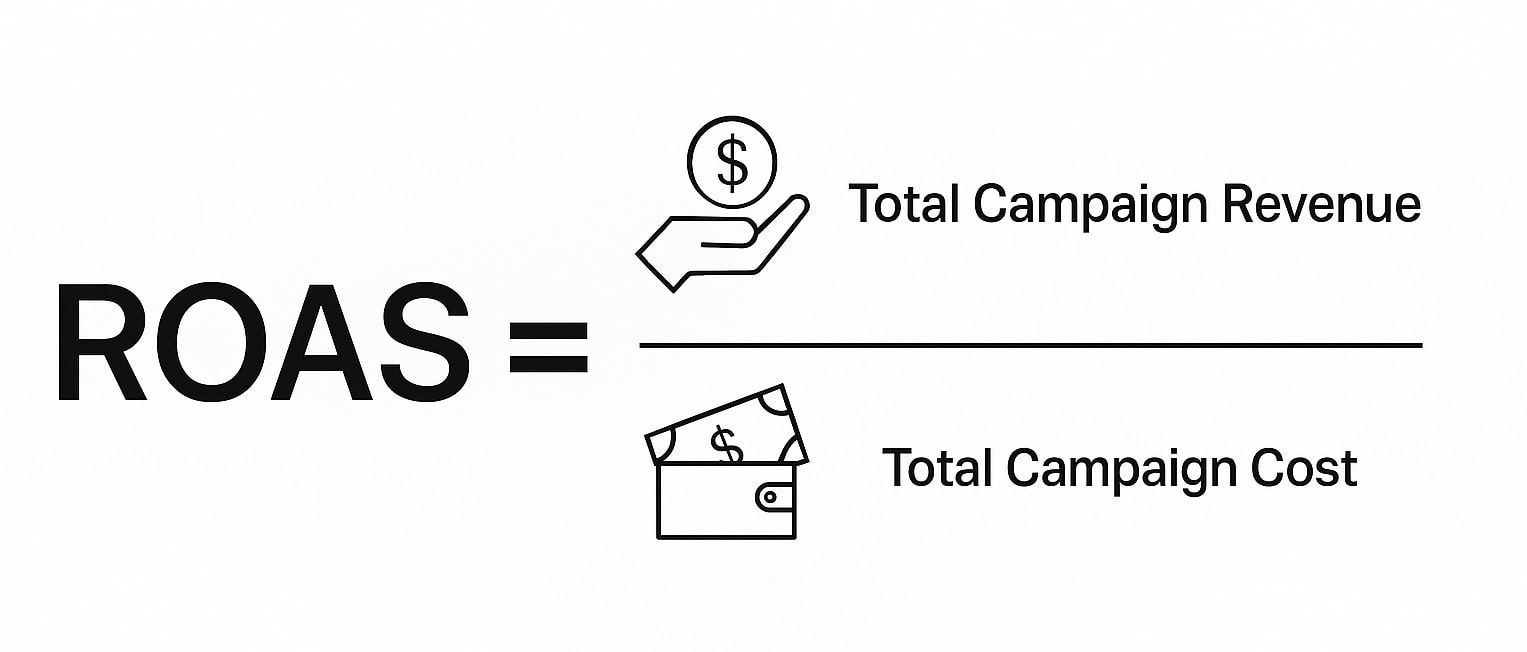
Ratio vs percent: 4.0 means 400%. Same truth, two views. Use ratio in dashboards; percent in reports for managers. A calculator helps you keep units tight so cost and spend stay in the same currency (USD here). If revenue includes tax or shipping, note that cost side must match the rule. Keep spend windows consistent with your platform report (Google Ads, Meta Ads, Shopify, GA4, Plerdy).
- Gather ad revenue (USD, rounded to nearest dollar)
- Gather ad spend (same window, same currency)
- ROAS = revenue ÷ spend (ratio), then ×100 for percent
- Log cost notes in the calculator so tomorrow-you remembers
A 30-Second Worked Example
You enter revenue = $5,000 and spend = $1,250 in the calculator.
This ROAS calculation makes the relationship between revenue and spend obvious for fast decisions.
- Step-by-step: ROAS (ratio) = 5,000 ÷ 1,250 = 4.0.
As percent, ROAS = 4.0 × 100 = 400%. If your attribution window is 7-day click / 1-day view, keep the same window for both revenue and spend; otherwise the calculator lies with a straight face. Add a short note: “cost includes platform fee, coupon cost excluded.” If ROAS stays ≥ 400% while cost stays flat and spend grows 10–20%, you’re in a good zone to test a small budget bump without drama.
Break-Even ROAS & Targets You Can Trust
The BEROAS Formula & Margin Setup
You need a clean floor before you scale. Break-even ROAS (BEROAS) tells you the minimum ROAS where you don’t lose money. Formula is simple: BEROAS = 1 ÷ Profit Margin. Margin here means gross contribution: revenue minus product cost, shipping, payment fees, and platform fees, divided by revenue. Keep the same window for spend and revenue in your calculator (7–28 days is common). If margin = 25%, BEROAS = 1 ÷ 0.25 = 4.0 (400%). Your calculator must track every cost, or ROAS looks pretty but lies. I use Google Ads, Meta Ads, and Shopify reports, then verify in Plerdy before moving budget.
- Payment processing cost (2%–3% typical, plus $0.30 per order).
- Pick/pack and shipping cost — small, but it stacks.
- Returns and refunds cost — adjust revenue in the calculator.
- Tooling and agency cost — SaaS, creative, media fee.
- Discounts cost — coupons reduce true margin.
Interpreting BEROAS In Real Campaigns
Now decisions. If ROAS < BEROAS, you’re losing money. Cut spend, fix creative, or improve margin. If ROAS ≥ BEROAS by 10%–20%, test more spend but pace it (for example +10% every 3 days). Keep the calculator tight: same currency, same cost rules, same attribution window. For cold Meta Ads, I want ROAS over BEROAS for two weeks; for retargeting, faster. Google Ads search often hits ROAS faster, but cost per order can jump when you push spend. Track weekly: if spend grows and ROAS holds, green light; if cost inflates and ROAS drops under BEROAS, pause and reset.
How To Use The ROAS Calculator
Inputs & Hygiene
You want clean numbers, not drama. Set ROAS windows first: same dates for revenue and spend (for example, 7-day click / 1-day view). Keep currency one format (USD) so the calculator doesn’t confuse cents. Track refunds and VAT: if refund rate is 5%, reduce revenue the same 5% before ROAS. Add every cost that touches a sale—media, payment fee, shipping—so the calculator mirrors real margin. Do this the same way each week across Google Ads, Meta Ads, Shopify, GA4, and Plerdy. If you change the rule, write a note. Future-you will say “thanks.”
A ROAS calculator online helps teams align on one window and one currency across platforms.
Steps & Edge Cases
- Drop ad revenue (USD, rounded to nearest $1) into the calculator.
- Drop ad spend from the same period and source.
- Get ROAS; if ROAS < your break-even, pause or fix cost first.
- Save the row; trend ROAS vs spend. If spend grows 10–20% and ROAS holds, scale.
- Mixed currencies — convert before ROAS; base is USD.
- Partial attribution — mark the model (data-driven or last-click) so spend matches it.
- Bundles/discounts — adjust cost per order; the calculator must see true spend and true cost.
What Is A “Good” ROAS? Context, Not Myths
Set Targets By Margin & Model
You judge ROAS against profit math, not dreams. Start with margin: if gross margin = 25%, your break-even is ROAS 4.0. If margin = 40%, break-even is 2.5. Higher AOV helps cover cost per order; heavy COGS needs a higher ROAS. Subscriptions with strong LTV can accept lower day-0 ROAS if payback is under 60–90 days. Use a calculator to keep the same window for revenue and spend, then write rules: “scale only when ROAS ≥ break-even + 15% and cost holds.”
Channel & Funnel Nuance
Intent changes everything. Google Ads search and branded terms often deliver higher ROAS than broad video or display. Retargeting usually beats cold social on Meta Ads. Prospecting needs more spend to learn; retention can run tighter. Keep the calculator strict: same currency, same dates, same attribution in GA4 or Plerdy. If cost per click spikes and ROAS drops under target, slow spend; if ROAS holds for two weeks, nudge +10–20%.
- 2–5 ROAS: common working range; compare to break-even first
- 4+ ROAS: often strong when margin ≥ 30%
- Prospecting 1.5–3; Retargeting 3–6; Branded search 4–10 (directional)
- Always anchor to your BEROAS and current cost structure before raising spend
Beyond ROAS: CAC, LTV, MER & Weekly Decisions
Pair ROAS With CAC/LTV/MER
You don’t scale on ROAS alone. Pair the ROAS from your calculator with three guards that keep you safe on cost and spend. One-line definitions: CAC = total acquisition cost ÷ new customers (same period); LTV = contribution margin per customer across your payback window; MER = total revenue ÷ total marketing spend. Set simple gates: ROAS ≥ BEROAS + 15%, CAC ≤ 30% of AOV, payback ≤ 60–90 days. If ROAS is high but CAC grows, your cost per order bites and you burn spend. If MER trends +5–10% over 4 weeks and ROAS holds, you can push budget. Pull numbers from Google Ads, Meta Ads, TikTok Ads, Shopify, GA4, and Plerdy, then lock rules in the calculator so next week you compare apples to apples.
The Weekly Optimization Loop
Do the same clean routine each week so ROAS stays honest and the calculator doesn’t drift. Freeze reporting windows first, then decide with zero drama. If cost jumps or spend expands too fast, tap the brakes.
With calculator ROAS, your weekly reporting stays consistent across Google Ads, Meta Ads, and Shopify.
- Ingest — export revenue, spend, and cost notes into the calculator.
- Normalize — same currency (USD), same attribution window across platforms.
- Compare — ROAS vs BEROAS, MER trend, CAC vs AOV.
- Decide — increase spend +10–20% if ROAS holds; cut or fix creative if below.
- Document — write one line on the test so future you remembers what changed.
So, What’s The Point?
Run the calculator, get ROAS fast. Compare ROAS to BEROAS. If ROAS beats BEROAS, increase spend; if not, cut spend or fix cost. Double-check CAC, LTV, MER before you move. This week, open the calculator, log cost, log spend, and ship one change in Google Ads or Meta Ads.
When you just need the signal, the ROAS calc answers in seconds.
FAQ — ROAS Calculator
What Does The ROAS Calculator Do?
It turns your ad revenue and ad spend into a clean ROAS so you decide fast: scale, pause, or fix. Enter revenue and spend from the same window (Google Ads, Meta Ads, Shopify, GA4, Plerdy), and the calculator returns ROAS as ratio and percent. You can also log notes about costs to keep rules consistent week to week.
What Is The Exact ROAS Formula (Ratio Vs Percent)?
ROAS = Ad Revenue ÷ Ad Spend. The ratio (for example 4.0) shows how many dollars of revenue you get per $1 of spend. To see percent, multiply the ratio by 100 (4.0 → 400%). Use one currency for both numbers and the same date/attribution window to avoid wrong results.
How Do I Set Break-Even ROAS (BEROAS)?
Break-even ROAS is the minimum ROAS where you don’t lose money. Use BEROAS = 1 ÷ Profit Margin, where margin is contribution after product cost, shipping, payment fees, platform fees, and typical discounts. Example: margin 25% → BEROAS 4.0 (400%). If live ROAS is below BEROAS, cut spend or improve margin before scaling.
Which Inputs And Windows Must Match For Accurate ROAS?
Keep the same:
- Currency: use one base (USD).
- Dates/attribution: 7-day click / 1-day view (or your rule) for both revenue and spend.
- Cost rules: include or exclude tax, shipping, and refunds the same way every time.
- Sources: match platforms (Google Ads, Meta Ads, Shopify, GA4, Plerdy) for the same window.
How Should I Use ROAS With CAC, LTV, And MER?
ROAS is one signal. Pair it with:
- CAC: total acquisition cost ÷ new customers; keep CAC ≤ ~30% of AOV if possible.
- LTV: contribution per customer over the payback window; lower day-0 ROAS can work when LTV is strong.
- MER: total revenue ÷ total marketing spend; if MER trends up and ROAS stays ≥ BEROAS + 15%, test budget increases.